
Outlook Emails Not Showing Up? a 2026 Troubleshooting Guide
Can't find your emails? Our guide solves the 'Outlook emails not showing up' problem with steps for filters, sync issues, cache, admin settings, and more.
You know the email exists. A colleague says they sent it. Search pulls it up instantly. But when you click back into Inbox, it's gone.
That's the version of Outlook trouble that wastes the most time because it makes you doubt the wrong thing. People assume delivery failed, the mailbox is corrupted, or Microsoft 365 is down. In practice, the message often isn't missing at all. Outlook is just hiding it, sorting it elsewhere, or failing to sync what the server already has.
If you're dealing with Outlook emails not showing up, start with the least destructive checks first. That matters because Microsoft guidance summarized in 2026 points to 11 common causes behind missing messages, including junk classification, the Other tab, offline mode, filter rules, blocked senders, outdated software, cache problems, storage issues, service outages, and profile corruption, as covered in Mailmeteor's review of Microsoft troubleshooting paths. The pattern is simple. Most inbox problems begin with visibility or sync, not total data loss.
Start Here When Outlook Emails Go Missing
The first question isn't “Did Outlook lose my email?” It's “Where is Outlook showing it instead?”
That's especially true when search finds the message but the Inbox view doesn't. This is the search-visible but inbox-invisible problem, and it trips up busy teams because it looks like a delivery issue when it's often just a display issue. Marketing managers feel this fast because missed lead replies and approval threads don't wait for a long troubleshooting session.
Check the places Outlook hides mail on purpose
Start with the obvious buckets that Outlook uses to reroute messages:
- Other tab: If Focused Inbox is on, Outlook may place legitimate mail in Other instead of Focused.
- Junk Email: A real client or internal message can land here if Outlook flags it incorrectly.
- Blocked senders behavior: If someone was blocked earlier, their messages may never show the way you expect.
- Rules and filters: An old rule can move mail out of sight.
If the email is in Junk, mark it as Not Spam. If it's in Other, move it to Focused so Outlook learns from that action. Those are small clicks, but they matter because they change future handling, not just the current message.
Practical rule: If search can see the message, don't rebuild Outlook first. Check how the Inbox is filtered before you touch profiles, cache files, or admin tools.
Use a calm order of operations
This is the order that saves the most time:
- Search for the sender or subject
- Open Junk
- Check Focused and Other
- Review current view
- Inspect rules
- Confirm Outlook isn't offline
- Only then move into sync and file repair
That sequence keeps you from jumping straight to heavy fixes. Recreating a profile can help in the right situation, but it's wasted effort when the problem is just a hidden view.
The Quick-Check List for Invisible Emails
When Outlook emails aren't showing up, the fastest wins usually come from the Inbox view itself. In this view, the search-visible but inbox-invisible problem shows up most often.
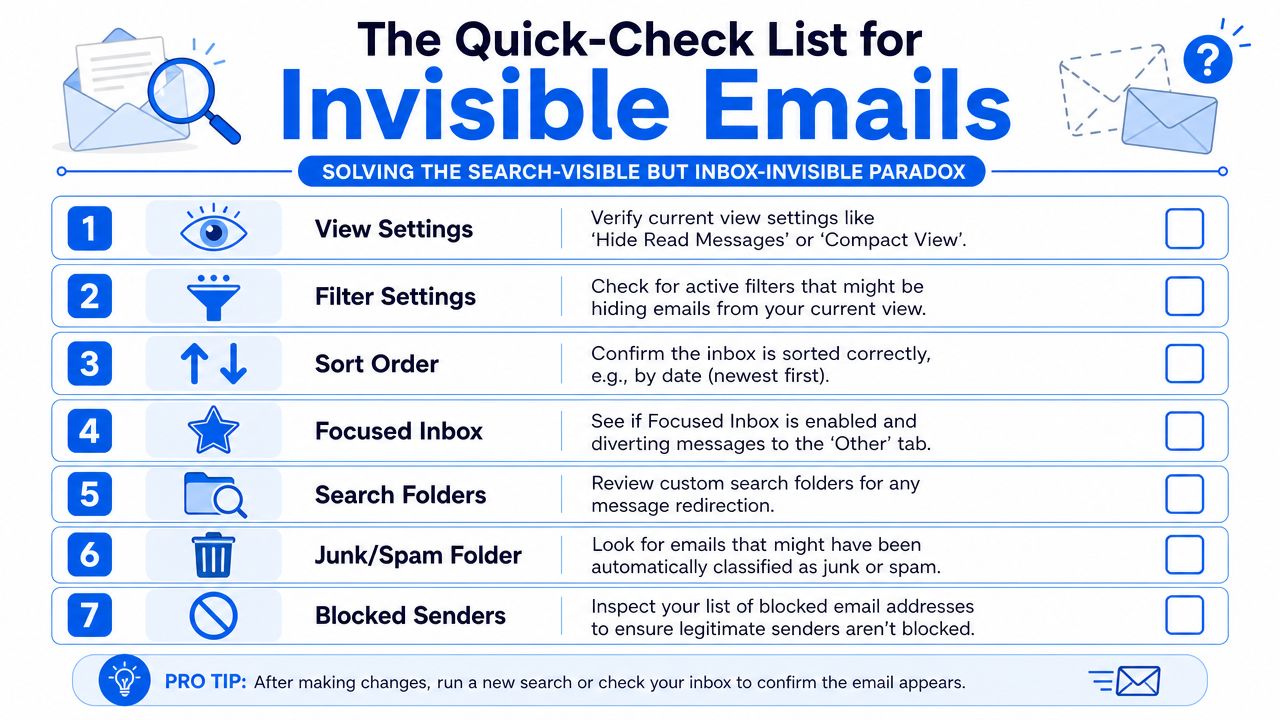
A Microsoft community discussion highlighted this exact pattern: emails appear in search results but not in the normal Inbox view, often because of View Filters or Focused Inbox routing to Other, as described in this Spiceworks thread on messages showing in search but not Inbox.
Reset the Inbox view before doing anything drastic
Go to View > View Settings > Filter and check whether a filter is active. If you see conditions that limit what's displayed, clear them. Then reset the view to the default layout.
Why this works is straightforward. Search scans mailbox content. The Inbox pane only shows what the current view allows. If someone enabled a filter for unread mail, categories, date ranges, or a custom condition months ago, the message can exist in the mailbox and still remain invisible in the Inbox list.
Also check sort order. A strange grouping or sort setting can make a message look missing when it's just buried in an unexpected section.
Look at Focused Inbox and Junk together
These two features cause a lot of false alarms because they move mail without making it feel “missing” in a technical sense.
Use this short checklist:
- Focused vs Other: Open both tabs. If the message is in Other, right-click and move it to Focused.
- Junk Email folder: Open Junk and rescue any legitimate sender by marking the message as Not Spam.
- Blocked senders list: Add a trusted sender to Safe senders if Outlook has been overcorrecting.
- Rules: Open Settings > Rules and disable anything you don't recognize or no longer need.
The biggest mistake here is checking only one of these and moving on. In live support, I've seen people inspect Junk but forget Other, or review rules but miss a hidden filter. Outlook problems often stack.
Here's a visual walkthrough if you want to compare your screen against the steps:
Check adjacent workflows that move mail automatically
Missing emails aren't always an Outlook bug. Sometimes another workflow is doing exactly what it was told to do.
For example, if your team auto-routes receipts, invoices, or approvals, it's worth reviewing any forwarding setup. This guide for forwarding Outlook emails for receipts is useful because forwarding rules can change where messages end up and who sees them first.
If you're also trying to make messages easier to track internally, this walkthrough on how to add BCC in Outlook helps teams preserve visibility without relying on fragile manual habits.
If search finds the mail, the mailbox usually has it. Your job is to figure out which Outlook layer is hiding it.
Resolving Sync Gaps Cache Issues and Offline Mode
If Outlook search can find a message but the Inbox will not show it, the mailbox often is not missing mail. The desktop app is showing you an incomplete local copy, an out-of-date folder view, or mail that has been moved out of the visible cache. That distinction matters because it saves time. You are no longer hunting for a deleted message. You are fixing how Outlook is syncing and storing what already exists.
Start with the fastest checks that solve a surprising number of cases.
Start with offline mode and a manual refresh
Open Outlook and look at the Send/Receive tab. If Work Offline is turned on, switch it off. Then click Send/Receive All Folders.
I use this step first because it takes seconds and it answers a simple question. Is Outlook talking to the server right now? If the message appears in webmail but not on the desktop, a forced send/receive often clears a stalled sync session without touching anything more invasive.
Use this table to decide what to check next:
Symptom
Likely issue
First action
New mail appears on webmail but not desktop Outlook
Local sync lag
Click Send/Receive All Folders
Inbox looks frozen
Offline mode or stalled cache
Check Work Offline
Only some date ranges appear
Limited offline cache
Review sync slider
Mail disappears from the Inbox after aging
Archive behavior
Check AutoArchive settings
Fix the partial Inbox problem
This is the setting behind many of the "search-visible but Inbox-invisible" complaints. Outlook can be set to keep only part of your mailbox offline. If the app has only cached a limited date range, search may still point to older or server-side items while the Inbox view looks incomplete.
Microsoft documents this behavior in its Cached Exchange Mode guidance, including the Mail to keep offline setting that controls how much mailbox data Outlook stores locally in the OST cache, in Microsoft's documentation for Turn on Cached Exchange Mode.
To check it:
- Open File > Account Settings > Account Settings
- Select your account and choose Change
- Find Mail to keep offline
- Move the slider to All
- Restart Outlook and let it finish syncing
This does not delete mail or change the mailbox on the server. It changes how much Outlook keeps in the local cache. The trade-off is straightforward. A larger cache gives you a fuller mailbox view and better offline access, but it can use more disk space and may take longer to rebuild on older machines.
Check whether the OST cache is simply behind
Cached Exchange Mode is useful, but it introduces a delay point. Outlook reads from the local OST file first, then updates it from Exchange or Microsoft 365. If the OST is lagging, the message can exist on the server and appear in search results while the Inbox view still has not caught up.
Microsoft's support guidance for synchronized mailboxes explains that cached mode stores mailbox content locally and can show stale data until synchronization completes, especially after connectivity interruptions, profile changes, or large mailbox activity, as described in Microsoft's article on Outlook data files and cached mailbox storage.
Two practical signs point to cache lag:
- Folder counts do not match what you see in Outlook on the web
- Recently moved or recently delivered mail appears late or in batches
If that is what you are seeing, give Outlook a few minutes with a stable connection after the restart. On larger mailboxes, especially shared ones, patience is sometimes part of the fix.
Don't ignore archive behavior
AutoArchive and archive files still confuse users because the message has not disappeared. It has moved. In support tickets, this often shows up as "my Inbox only shows recent mail" when Outlook has shifted older items into an archive .pst.
If that fits your case:
- Open File > Options > Advanced
- Review AutoArchive Settings
- Turn off scheduled archiving if it is moving mail unexpectedly
- Reopen Outlook
- Check archive.pst or any archive folders and move messages back if needed
For teams managing this across multiple users, especially where local Outlook behavior overlaps with tenant settings, retention, or support boundaries, it helps to get expert advice on Microsoft 365 for businesses.
Repairing Corrupted Data Files and Search Indexing
If Outlook search can find an email but the Inbox will not show it where you expect, stop treating that as a simple sync problem. That pattern often points to a damaged local data file or a broken search index. The message may still exist on the mailbox, but Outlook is reading or cataloging it badly on that device.
Know what you're repairing
Two Outlook file types matter here:
- OST files hold the local cached copy of a synced mailbox
- PST files hold stored Outlook data, often archives or exported mail
When either file has problems, Outlook can look half-functional. You can open the app, run a search, and even see traces of the missing message, but the folder view stays wrong, counts look off, or messages refuse to appear in the Inbox list. That is the search-visible but Inbox-invisible problem many users describe, and generic Outlook guides often skip past it.
A simple rule helps: if Outlook is inconsistent rather than fully down, check the local file and index before rebuilding the whole account.
Repair the data file first
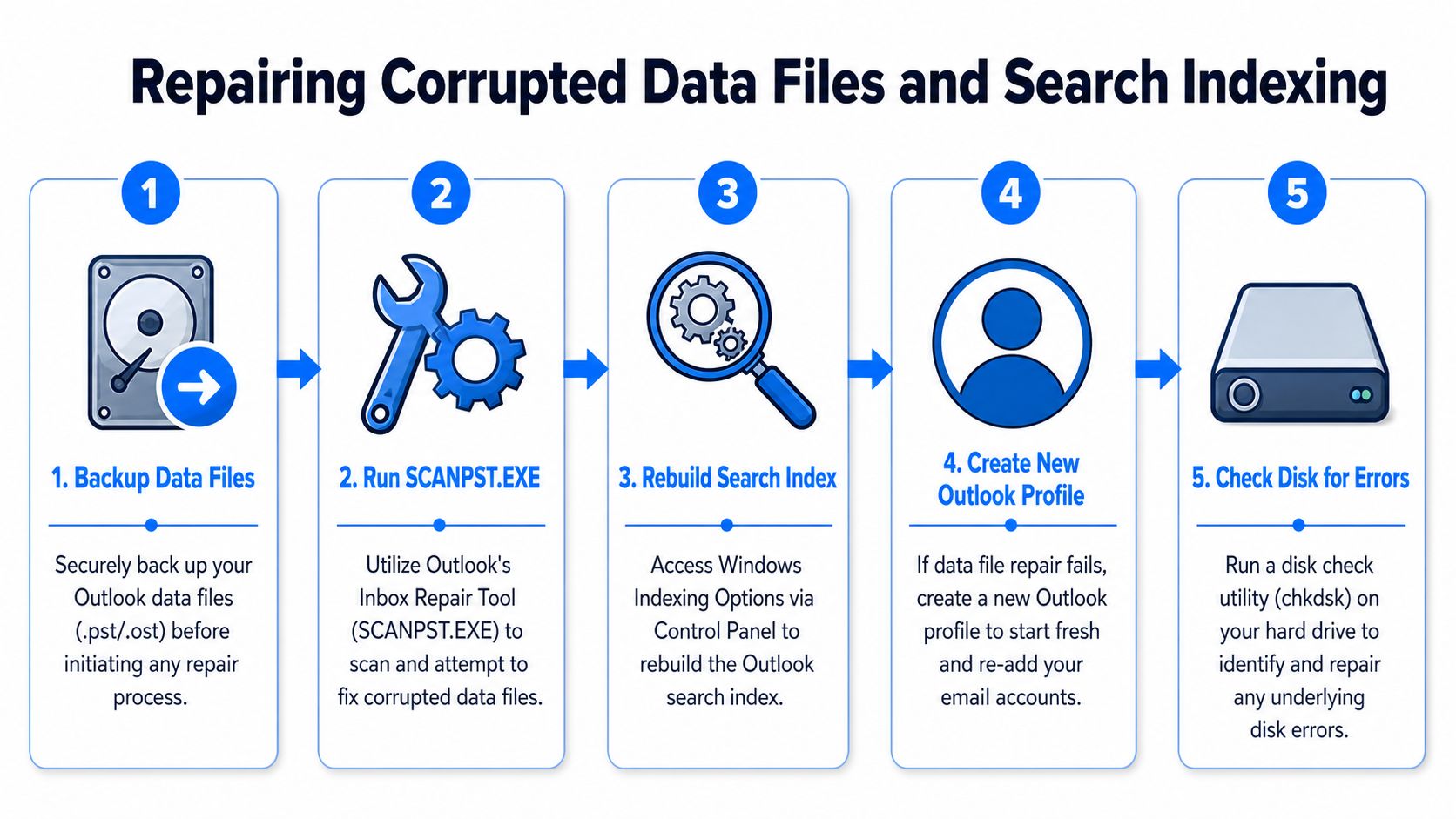
For .pst issues, use Microsoft's Inbox Repair Tool, SCANPST.EXE. Microsoft documents the process in its guide to repair Outlook data files with the Inbox Repair tool. Back up the file first if you can. Repair is usually slower than people want, but it is still less disruptive than wiping a profile and making the user sign back into everything.
That trade-off matters in busy teams. If a marketing manager is trying to find approval emails before a send, I would rather spend time on a targeted file repair than trigger a full profile reset that breaks signatures, cached shared mailboxes, and add-in settings.
Rebuild the search index if messages exist but Outlook cannot place them correctly
Sometimes the mailbox content is intact and only the index is wrong. In that case, Outlook search may miss recent mail, return incomplete results, or surface a message that still does not show in the folder view. Microsoft also provides steps to rebuild the Windows search index, which is the right next test when visibility and search do not match.
Use this sequence:
- Check Search Tools or Outlook search status to see whether indexing is still in progress
- Open Indexing Options in Windows
- Select Advanced
- Click Rebuild
- Let indexing finish before you judge the result
This can take a while on large mailboxes. Start it when the user has a real gap in their schedule, not ten minutes before a campaign launch or client review.
Watch for repeat corruption
If file repair works once and the same symptom returns, look below Outlook. Repeated OST or PST damage can point to storage problems, abrupt shutdowns, or endpoint instability. In that situation, Outlook is only where the failure shows up first.
That is why broader business data loss prevention planning matters. If the drive or local Windows profile is unstable, Outlook repairs may buy you a day or two, then the missing email problem comes back.
Investigating External Conflicts and Add-Ins
If Outlook still isn't showing emails properly after view, sync, and file repair checks, look outside Outlook itself. Some of the worst inbox problems come from software that's technically “helping.”
Security tools can interrupt email traffic or interfere with cached mailbox behavior. Outlook add-ins can do even more damage because they sit directly inside the app and hook into core functions. When one goes bad, Inbox visibility can get weird fast.
Test Outlook in Safe Mode
Safe Mode is the cleanest way to answer one question: Is Outlook broken, or is an add-in breaking Outlook?
Launch Outlook in Safe Mode. This disables add-ins and opens the app with a stripped-down configuration. If the missing email problem disappears there, you've learned something important. The mailbox is likely fine. An extension is probably causing the issue.
That's a much better outcome than random guesswork.
Try this triage flow:
- If Safe Mode fixes it: Disable add-ins one by one and reopen Outlook after each change.
- If Safe Mode doesn't fix it: Keep looking at account, profile, or server-side causes.
- If the problem appears only for one mailbox: Focus on mailbox-specific settings instead of the whole Outlook installation.
Be suspicious of “helpful” add-ins
The usual suspects include CRM sidebars, meeting tools, PDF plugins, antivirus integrations, and older productivity extensions that haven't kept up with Outlook updates.
What works in practice is boring but effective. Turn them off in batches, then narrow down to the offender. Don't uninstall everything at once unless you have to. You want to identify the problem component, not just get lucky temporarily.
A short checklist helps here:
External factor
What it can do
Best test
Antivirus email scanning
Delay or interfere with mail handling
Temporarily disable scanning feature
Firewall or endpoint control
Disrupt service communication
Test on a trusted network with standard policy
CRM add-in
Change message handling or display
Disable add-in and restart Outlook
Legacy utility plugin
Corrupt normal UI behavior
Open in Safe Mode
If Outlook works in Safe Mode, stop blaming Exchange first. Something local is getting in the way.
Know when to stop local troubleshooting
If multiple users report the same sender, same domain, or same mailbox pattern at the same time, local add-ins probably aren't the root issue. That's when an admin needs to check mail flow, quarantine, transport rules, or service health.
For single-user cases, though, Safe Mode is one of the highest-value tests you can run because it cuts through a lot of noise quickly.
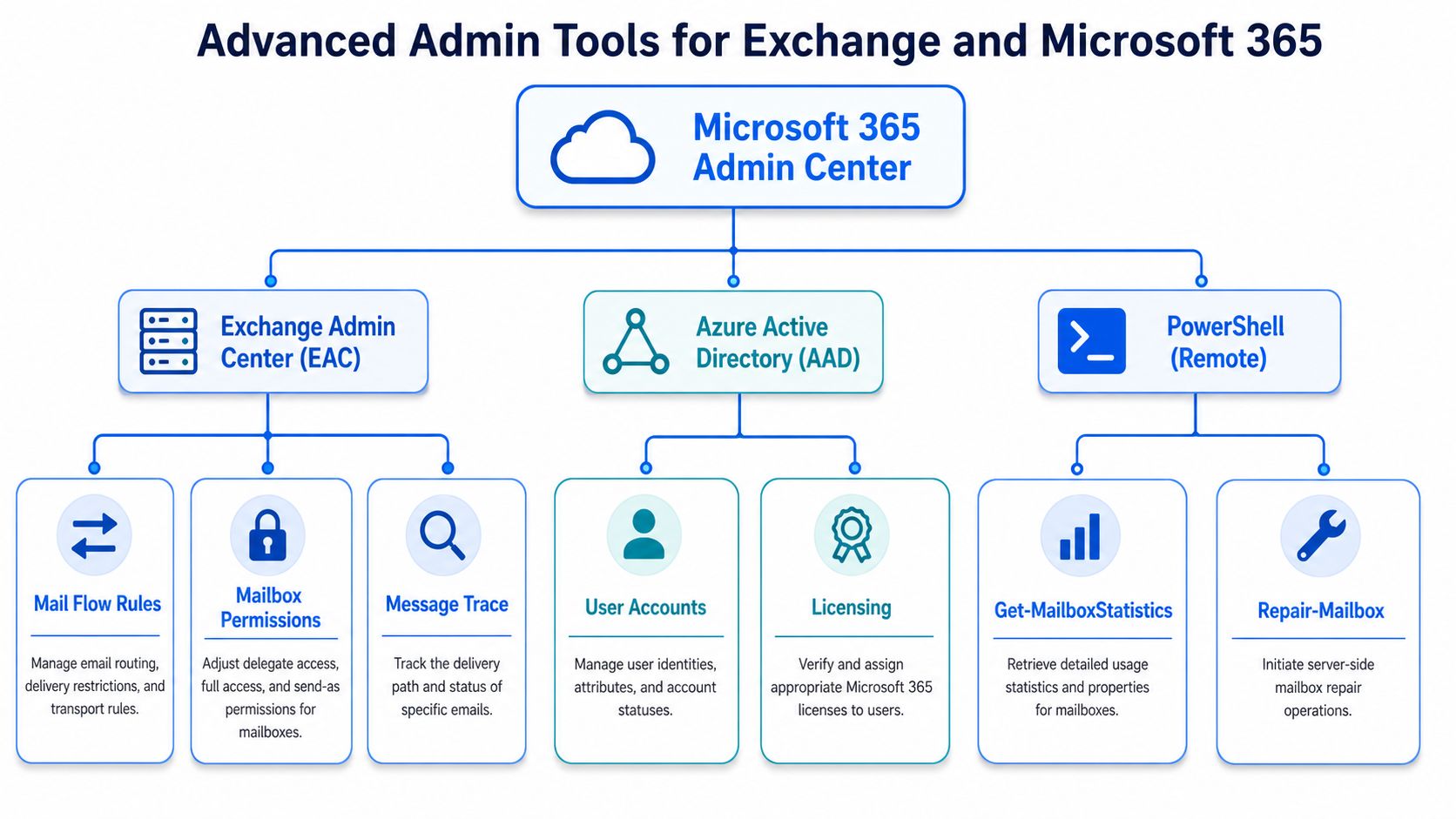
Advanced Admin Tools for Exchange and Microsoft 365
When desktop troubleshooting doesn't answer the question, the server usually does. It allows admins to stop guessing and start tracing what happened to the message.
Check service health before digging into one mailbox
If several users complain at once, open the Microsoft 365 admin center and review Service health. This tells you whether Microsoft is already reporting an issue that could affect delivery, sync, or mailbox access.
That step prevents a common waste of effort. Teams sometimes spend an hour repairing one profile when the tenant is already dealing with a service incident.
Use Message Trace to follow the email
For admins, Message Trace is the best evidence tool in Exchange Online. It can show whether the message:
- Arrived successfully
- Went to Inbox
- Went to Junk
- Was quarantined
- Was blocked by a mail flow rule
- Never reached the tenant
That gives you a fact-based answer for the user and for your internal team. If the message reached Junk or quarantine, the Outlook client isn't the root problem. If it never entered the tenant, you're looking at sender-side or transport-side issues.
This is also where you can inspect:
Admin area
What to review
Why it matters
Exchange Admin Center
Mail flow rules
A transport rule may reroute or block mail
Quarantine policies
Held messages
User won't see the mail in Outlook at all
Block and allow lists
Sender treatment
Trusted senders can be blocked unintentionally
Mailbox permissions
Access behavior
Delegates or shared mailboxes can confuse visibility
For readers dealing with similar delivery confusion from the user side, this article on why emails might not be coming through complements the admin view well.
Use PowerShell and mailbox-level checks carefully
PowerShell and mailbox repair tools are useful, but they're not first-line fixes for ordinary visibility issues. They make sense when trace results, mailbox statistics, or corruption indicators point to something deeper.
The pattern worth remembering is this: client-side visibility issues feel personal, but server-side tools tell you whether the platform handled the message correctly. Once you know that, your next step becomes much more obvious.
Conclusion How to Prevent Emails from Disappearing
The best fix for Outlook emails not showing up is a disciplined order of operations. Check the view first. Then Focused and Other. Then Junk, rules, sync, archive behavior, indexing, add-ins, and only after that the admin layer.
That order matters because it matches how these problems usually show up in real work. The message often exists. Outlook just isn't displaying it where you expect. When you know that, you stop wasting time on destructive resets too early.
For prevention, keep Outlook clean:
- Review rules regularly: Old automations cause new confusion.
- Audit blocked senders and safe senders: A mistaken block can break communication.
- Be selective with add-ins: Every plugin adds another possible failure point.
- Keep Outlook updated: Stability fixes matter.
- Check archive settings on purpose: Don't let background archiving surprise you later.
For marketing and sales teams, there's also a sender-side lesson here. If your own campaigns regularly land in junk, quarantine, or secondary tabs, recipients may assume you never emailed them at all. Good inbox placement starts with sender trust, which is why understanding domain reputation for email matters just as much as troubleshooting Outlook once the message arrives.
If your team depends on email for pipeline, newsletter growth, and customer communication, Breaker is built to make that channel more reliable. It combines newsletter sending with list growth, analytics, hygiene, and deliverability tools so marketers can spend less time wondering where messages went and more time driving replies, reads, and revenue.
Keep reading
All articlesHow to Write a Newsletter with AI: Step-by-Step Guide 2026
Learn how to write a newsletter with AI the right way: a 7-step process to train, calibrate, and edit AI drafts that still sound like you.
How to Boost Conversions With Your Email Newsletter
Turn your newsletter into a conversion engine. See 2026 benchmarks, CTR vs CVR explained, and the fixes most email guides skip.
Drip Campaign Template: Ready-to-Use Email Sequences
Get 6 ready-to-paste drip campaign templates with subject lines, body copy, and send timing—plus a step-by-step guide to building your own.