
How to Add BCC to Outlook: A Complete 2026 Guide
Learn how to add BCC to Outlook on any device. Our guide covers Windows, Mac, web, and mobile, plus advanced tips for automation, privacy, and troubleshooting.
You’re about to send a client update, a partner announcement, or a newsletter test from Outlook. The copy is polished. The list is ready. Then you pause on the recipient fields, because one wrong choice turns a routine send into a privacy problem.
That’s why knowing how to add bcc to Outlook matters. For B2B marketers, consultants, sales teams, and operations people, BCC isn’t a minor email feature. It’s one of the simplest controls you have for protecting recipient privacy, keeping distribution lists discreet, and making sure internal reviewers stay looped in without cluttering the thread.
Used well, BCC helps you look organized and careful. Used poorly, it creates awkward reply chains, exposes addresses, and makes compliance harder than it needs to be.
Why Mastering BCC in Outlook is Non-Negotiable
BCC stands for blind carbon copy. Anyone in the BCC field receives the email, but other recipients can’t see that they were included. That’s the mechanical definition. The practical definition is more important: BCC lets you send one message to multiple people without turning your recipient list into public information.

For business email, the difference between To, CC, and BCC is really a difference in intent:
- To means this person is the direct recipient.
- CC means others can see this person is included for visibility.
- BCC means they should receive the message without public disclosure.
That distinction matters any time you’re sending to a mixed group of prospects, clients, partners, or external stakeholders. If you put a distribution list in CC when it belongs in BCC, you’re exposing identities and email addresses that were never meant to be shared.
Where BCC becomes a business decision
Marketers often think about BCC only when sending a bulk note. That’s too narrow. BCC is also useful when you need to:
- Protect privacy for clients, leads, and event invitees
- Keep a compliance mailbox informed without making the thread messy
- Archive outbound sends for review or documentation
- Preserve a professional appearance when one email goes to many unrelated contacts
Practical rule: If recipients don’t know each other and don’t need to know each other, they usually belong in BCC.
There’s also a consent angle. If your team is working through outreach or newsletter operations, privacy decisions around recipients should match your broader email practices, including how you think about implied consent in email marketing.
BCC won’t fix a weak process by itself. But it does reduce avoidable risk. In daily operations, that makes it essential.
Showing the BCC Field in Outlook for Desktop and Web
If you only use BCC occasionally, Outlook makes it easy to miss. That’s the problem. When the field is hidden, people rely on memory, and memory fails when a send is urgent.
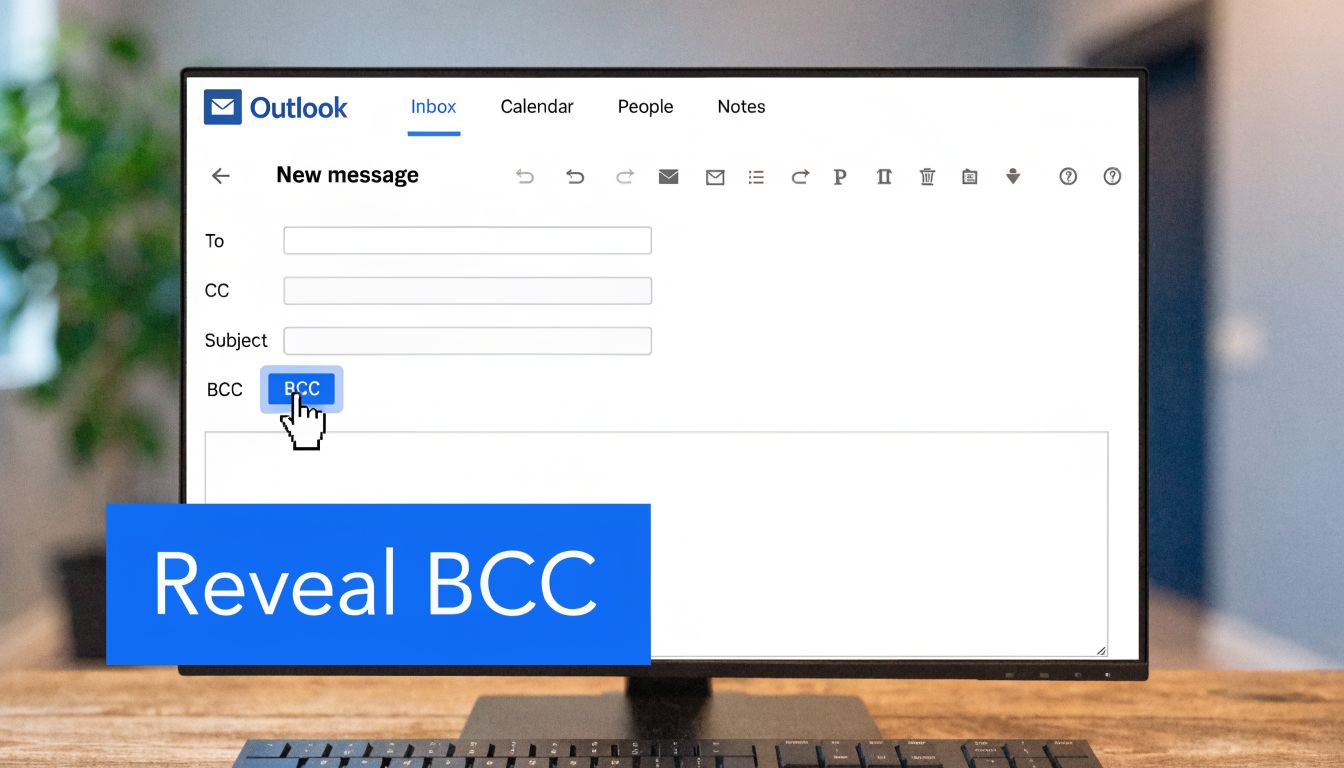
For New Outlook, keeping BCC visible by default is more than a convenience setting. Manual activation errors account for 68% of privacy breaches in mass email sends according to Microsoft telemetry, and the setting lives under Settings > Mail > Compose and reply > Always show BCC as noted in Microsoft’s Outlook guidance.
New Outlook for Windows
In the current New Outlook experience, there are two useful ways to reveal BCC.
For a one-time message
- Open a new email.
- Look for the recipient area near the To line.
- Select BCC to reveal the field.
- Add your hidden recipients.
To show BCC by default
- Click the gear icon in the top right.
- Open Mail in the left sidebar.
- Select Compose and reply.
- Turn on Always show BCC.
- Save your changes.
This is the setup I recommend for anyone sending recurring updates, campaign tests, or compliance copies. If BCC is part of your workflow, hidden by default is the wrong default.
Classic Outlook for Windows
Classic Outlook handles BCC differently, but the process is still simple.
For a single email
- Click New Email.
- In the compose window, open the Options tab.
- Select BCC.
- Outlook adds the BCC field to that message.
For recurring use
Classic Outlook tends to remember the field during active use better than some other clients, but you should still verify it before sends that matter. Don’t assume yesterday’s compose window behavior will carry over to every scenario.
A quick walkthrough can help if you want to see the interface before changing it:
Outlook for Mac
Outlook for Mac can vary a bit by version, but the workflow is usually close to this:
- Open a new message
- Find the compose toolbar or menu options
- Turn on BCC
- Enter hidden recipients before sending
If you use Outlook on both Mac and Windows, the key habit is consistency. Check the field every time you switch devices until the motion becomes automatic.
Outlook on the web
Outlook on the web is often the cleanest interface for quick access.
- Start a new message
- In the recipient area, choose the option to show BCC
- Add your hidden recipients
- Send as normal
For people who work in browsers all day, this is often the easiest environment for controlled sends. It’s also useful when you need to double-check a send from a machine that isn’t your primary desktop.
What works and what doesn’t
A short comparison helps:
Outlook version
Best approach
What to watch for
New Outlook for Windows
Turn on Always show BCC
Hidden field creates avoidable mistakes
Classic Outlook for Windows
Use Options > BCC
Don’t assume it will stay visible in every workflow
Outlook for Mac
Enable BCC in compose view
Interface placement can differ by version
Outlook on the web
Show BCC in the new message window
Browser sessions can feel different from desktop habits
Keep BCC visible if your role involves sending to groups. Invisible controls get forgotten first.
How to Use BCC on Outlook Mobile Apps
Mobile Outlook is where good habits break down. You’re replying between meetings, forwarding a draft from the airport, or sending a quick update from your phone. The app supports BCC, but it doesn’t make persistent visibility easy.
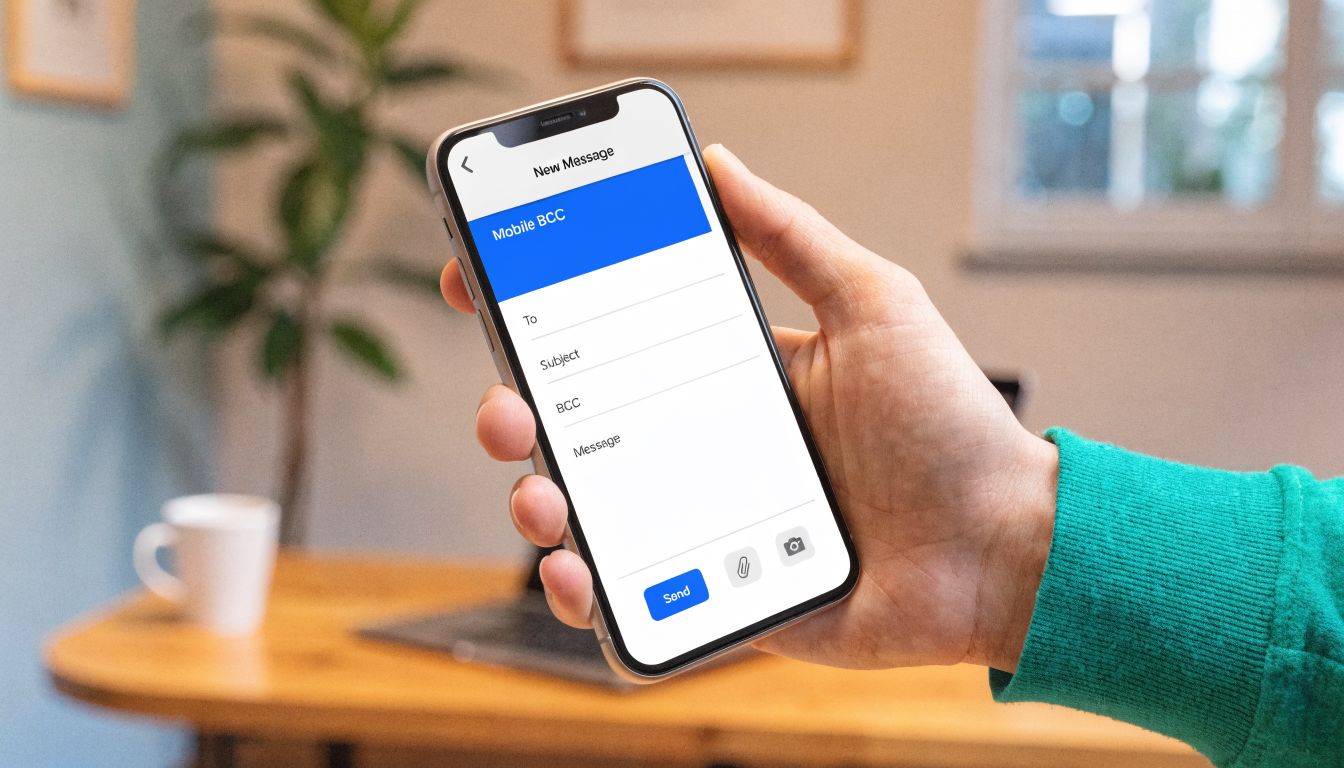
That limitation matters. Outlook mobile apps don’t offer a permanent “show BCC” setting, so you have to enable the field for each new message, which creates cross-device friction and compliance risk according to this Outlook mobile BCC overview.
Outlook for iPhone
On iOS, the general pattern is:
- Tap to compose a new email.
- Open the recipient options near the To field.
- Reveal CC/BCC fields.
- Enter addresses in BCC.
- Review before sending.
The important part isn’t the tap path. It’s the review step. Since the app won’t keep BCC visible by default, you need a pre-send check whenever privacy matters.
Outlook for Android
Android is similar:
- Start a new message
- Expand recipient options
- Turn on or reveal BCC
- Add hidden recipients
- Confirm the field before tapping send
A better mobile habit
If you regularly send sensitive group emails from your phone, use a simple rule set:
- Draft high-risk sends on desktop first
- Use mobile for quick one-to-one replies
- Double-check every recipient field before send
- Avoid last-minute list pastes on a small screen
Mobile Outlook is good for convenience, not for precision-heavy list handling.
That’s the trade-off. You can still add bcc to Outlook on mobile, but the workflow is manual every time. If your send includes external contacts, legal reviewers, or archived copies, desktop or web is the safer place to build the message.
Automating BCC for Workflow and Compliance
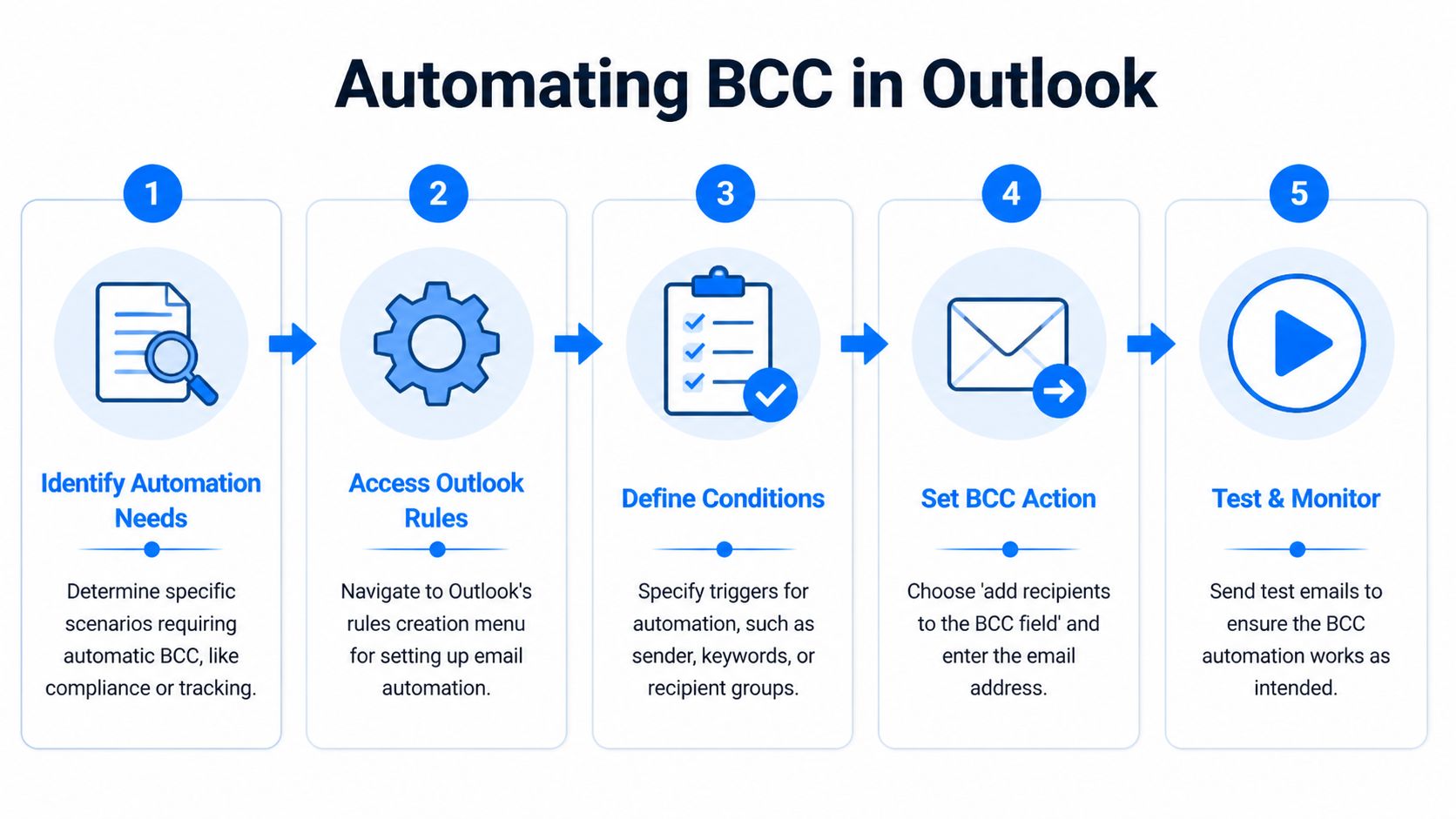
Manual BCC works for occasional sends. It doesn’t scale well when you repeat the same patterns every week. If your team regularly copies a compliance inbox, an archive mailbox, or a standard newsletter review list, automation saves time and removes guesswork.
BCC automation is also one of the least documented parts of Outlook workflow design. That’s a problem for teams that need consistent audit trails, approval visibility, or hidden internal oversight.
Use templates for recurring sends
Templates are the cleanest option when the same message type goes to the same hidden recipients over and over.
For scaling B2B newsletters, automating BCC with Outlook Templates can reduce manual entry errors by 82%, and a pre-populated .oft template is 98% effective on Outlook 2016-2021 for consistent list inclusion, according to Nucleus Technologies’ Outlook BCC template guidance.
A practical template workflow looks like this:
- Create a new email.
- Turn on BCC.
- Add your recurring hidden recipients.
- Save the message as an Outlook Template (.oft).
- Reuse that file for future sends.
This is useful for:
- Compliance review copies
- Newsletter seed lists
- Client announcement lists
- Partner update sends
The trade-off is maintenance. If the hidden list changes often, a stale template becomes its own risk. Templates work best when ownership is clear and someone updates them intentionally.
Use rules for oversight and audit trails
Rules are better when the trigger is behavioral, not content-based. For example, your team may want a hidden archive copy whenever someone sends to external domains or a certain campaign alias.
A rule-based approach helps when you need:
- Consistent archive copies
- Legal or compliance visibility
- Department-level governance
- Shared mailbox oversight
Some Outlook environments support BCC-style automation through add-ins or rule logic more cleanly than others. In practice, teams often need a bit of IT support in these circumstances. The technical setup matters less than the policy behind it. Decide which messages need hidden oversight, then build the lightest automation that reliably enforces it.
For teams building repeatable outreach and nurture systems, a broader marketing automation workflow should include these email governance decisions, not treat them as afterthoughts.
Quick ways to reduce friction
If full automation is overkill, use lighter methods:
- Saved templates: Best for repeated campaign types.
- Pinned internal addresses: Good for archive or legal inboxes you use constantly.
- Standard send checklists: Useful when more than one person touches the draft.
- Shared operating notes: Important for agencies and distributed teams.
The best BCC automation is the one people will actually keep using. Fancy setup that breaks in a month is worse than a simple template that everyone trusts.
What works better in real operations
Here’s the practical comparison:
Method
Best for
Limitation
Templates
Repeated newsletters and announcements
Needs upkeep when recipient lists change
Rules or add-ins
Compliance, archive, and hidden oversight
Can require admin help or version-specific setup
Manual BCC
One-off sends
Easy to forget under pressure
The core principle is simple. If a hidden recipient belongs on every send of a certain type, don’t rely on memory. Build the behavior into the workflow.
BCC Best Practices and Common Mistakes to Avoid
Most BCC mistakes aren’t technical. They come from poor judgment, rushed sends, or the wrong default habit. That’s why governance matters. BCC automation and compliance workflows are critical but poorly documented for B2B marketers who need to systematically include compliance teams or archive addresses for audit trails under GDPR and CAN-SPAM requirements, as discussed in Ablebits’ analysis of Outlook BCC workflow gaps.
Use BCC when privacy matters
If recipients are unrelated to each other, BCC is usually the right choice. That includes prospect roundups, event reminders, client-wide updates, and many external announcements.
CC is appropriate when visibility is intentional. BCC is appropriate when visibility would be unnecessary or intrusive.
Don’t reply all from a BCC position
This is one of the oldest etiquette failures in email, and it still happens. If someone was blind copied, replying all can expose their involvement or create confusion in the thread.
A safer rule is simple. If you received a message through BCC and need to respond, start a separate reply unless the sender clearly wants you brought into the visible conversation.
Watch recipient limits and pasted lists
Outlook can handle significant volume, but practical constraints still matter. If you’re pushing large hidden recipient groups, test first, send carefully, and avoid sloppy pastes from spreadsheets.
A few common failure points show up repeatedly:
- Wrong field choice: A sender pastes a list into CC out of habit.
- Messy formatting: Spreadsheet exports often carry separators or extra characters that Outlook doesn’t like.
- No seed check: The sender never tests the exact message that will go out.
- Version mismatch: A workflow that behaves one way on desktop behaves differently on another client.
Build a pre-send discipline
For serious email operations, use a short checkpoint list:
- Recipient review: Confirm the list is in BCC, not CC.
- Internal visibility: Make sure archive or legal copies are included when required.
- Device check: If you drafted on mobile, re-open on desktop for final review.
- Deliverability awareness: Match your BCC habits with broader email deliverability best practices.
Good BCC use is quiet. Nobody notices when you do it right, and that’s exactly the point.
The best practitioners treat BCC as part of message design, not a last-second toggle.
Conclusion: Making Smart BCC Use a Habit
BCC is easy to treat as a small Outlook feature. In practice, it’s a control point for privacy, professionalism, and process quality.
When you add bcc to Outlook the right way, you reduce the chance of exposing recipient lists, keep internal stakeholders informed without cluttering the message, and make repeat sends easier to manage. The click itself is simple. The primary value comes from deciding when BCC should be visible by default, when it should be automated, and when mobile is the wrong environment for a sensitive send.
That’s the bigger shift. Strong email operators don’t leave recipient privacy to memory. They build habits, templates, and review steps that make the safe option the normal option.
For B2B marketers, that matters beyond Outlook. Better BCC discipline supports cleaner workflows, more consistent compliance behavior, and fewer unforced mistakes in client-facing communication. It’s one of those small operational skills that protects brand trust every time you hit send.
If you’re building a newsletter engine that needs strong targeting, list growth, and cleaner sending operations, Breaker gives B2B teams a practical way to scale. You can design campaigns, expand your audience with exact-match subscriber growth, and track performance without piecing together a patchwork stack.
Keep reading
All articles8 Best Email Tracking Software Tools in 2026
Compare 8 top email tracking tools for 2026, how tracking pixels work, and why Apple's privacy rules make open rates unreliable. See our top pick.
6 Best Email Trackers for Newsletter Senders in 2026
Open rates lie. Learn how email trackers really work, why Apple and Gmail skew the data, and which tools newsletter senders should actually use in 2026.
Post Webinar Survey: Questions, Examples, and a Checklist
What to ask in a post webinar survey, when to send it, three example formats, and a checklist for turning the answers into segmented follow-up and pipeline.