
Master Mass Mailing Gmail: Limits, Add-ons, & ESPs in 2026
Learn to handle mass mailing gmail effectively. Discover Gmail's sending limits, essential add-ons, and when to upgrade to a dedicated ESP for bulk emails.
You have a list of prospects, partners, customers, or event invitees. The copy is ready. The fastest path looks obvious: open Gmail, paste the contacts, and start mass mailing.
That instinct isn't wrong. Gmail is familiar, everyone on the team already knows how to use it, and for small batches of personalized outreach it can work well. The problem starts when convenience gets mistaken for infrastructure. What feels like a simple shortcut at the beginning can turn into a deliverability issue, a process bottleneck, or a brand risk once volume rises.
Mass mailing Gmail is less about whether Gmail can send to many people and more about whether Gmail is the right system for the job you're asking it to do.
Is Mass Mailing from Gmail a Good Idea
For a narrow, high-intent list, Gmail can be a practical tool. If you're emailing a small group of warm prospects, following up after a webinar, or sending personalized notes to a few dozen contacts, Gmail keeps the process lightweight. Google's own product supports Mail Merge for sending unique copies with tags like @firstname and @lastname, which makes one-to-one style outreach easier without writing every message manually.

The catch is scale. Independent guidance notes that Gmail mass emailing is generally best for lists of about 100 contacts, and also points to the platform's 500-email-per-24-hour cap and 500-recipient limit per mass email as core constraints for larger sends, as outlined in Brevo's Gmail mass email guide.
Where Gmail works well
Gmail is usually sufficient when your send has these traits:
- The list is small: You're reaching a contained audience, not running an ongoing campaign.
- The message needs context: Each email benefits from light personalization, custom intros, or account-specific details.
- The workflow is manual on purpose: You want to review names, replies, and follow-ups closely.
Where Gmail starts to break
Problems show up when teams try to stretch Gmail into a marketing or outbound engine:
- Volume climbs faster than process: More contacts means more list handling, more QA, and more room for merge mistakes.
- You need campaign controls: Scheduling, reporting, segmentation, and unsubscribe handling become real requirements.
- Inbox placement matters commercially: If email is tied to pipeline, renewals, or lead generation, “good enough” sending stops being good enough.
Practical rule: Gmail is a communication tool first. If your email program depends on consistent throughput, tracking, and compliance, treat tool choice as a business decision, not a convenience decision.
For many teams, Gmail is a solid starting point. It just shouldn't be your permanent answer once outreach becomes repeatable, measurable, and tied to revenue.
Preparing Your List and Template for Mail Merge
The quality of a Gmail mail merge is usually decided before you send anything. Most problems people blame on Gmail stem from a messy spreadsheet, weak personalization fields, or a draft that reads like it was generated for a crowd instead of written for a person.
Build a clean sheet first
Use Google Sheets and keep the structure simple. For a B2B outreach campaign, I'd start with columns like first name, company, email, role, and one short custom note field. That gives you enough to personalize without overengineering the sheet.
A clean contact source matters here. If you're building outreach around property professionals, a resource like verified real estate contact lists can help you start with structured records rather than spending hours fixing inconsistent exports.
Keep the sheet disciplined:
- One contact per row: Don't stack multiple emails in one cell.
- Use plain, readable headers:
firstname,company, andemailare easier to map than vague labels. - Check for blanks in key fields: Missing names create awkward outputs like “Hi,”.
Match your draft to your data
Google's Mail Merge supports personalization tags such as @firstname and @lastname, so your draft should mirror the fields you maintain. If your sheet doesn't have a reliable company field, don't fake it with a tag. Write the email so it still reads naturally without that variable.
A simple outreach draft often works better than a “clever” one. For example:
Hi @firstname, I noticed your team at @company is hiring across growth and ops. Reaching out because this is usually the point where email workflows start getting patched together instead of designed intentionally.
That kind of line feels specific without pretending deep familiarity.
If you want a stronger starting point for structure and tone, this newsletter template for Gmail is useful for seeing how to shape a message so it stays clear once merge fields are inserted.
Write for small-batch personalization
A Gmail mail merge performs best when the email still sounds hand-written. That means:
- Keep the subject line straightforward.
- Open with a sentence that can survive light personalization.
- Use one clear ask.
- Avoid overloading the email with links or competing CTAs.
The biggest mistake is trying to squeeze advanced campaign logic into a basic Gmail draft. If your message needs dynamic sections, multiple audience branches, or layered lifecycle targeting, the issue isn't copywriting. It's that the send has already outgrown the tool.
Choosing Your Gmail Mail Merge Add-on
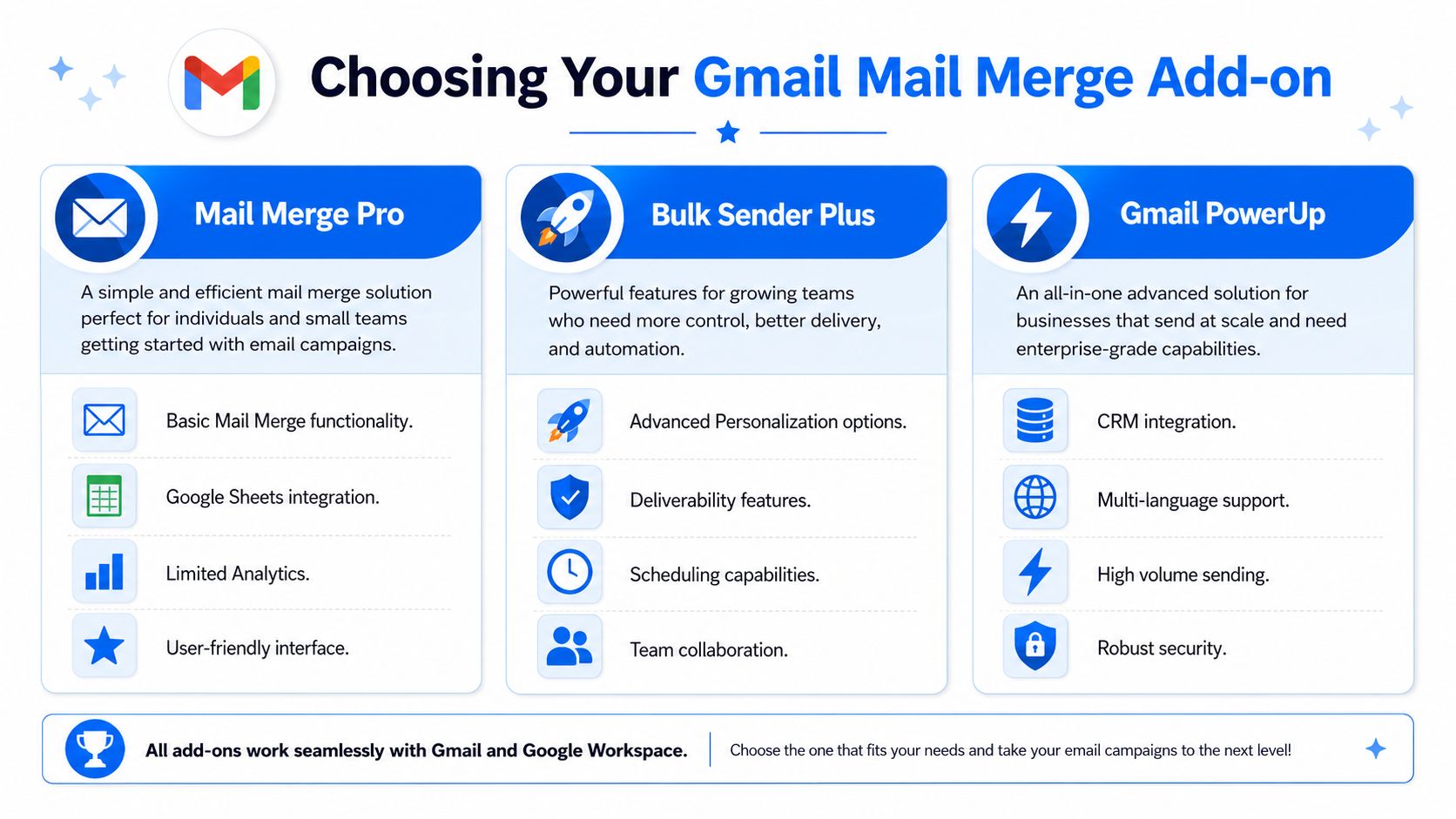
Gmail gives you the mailbox. Add-ons give you the operating layer around it. If you want to send personalized batches from a spreadsheet, tools like GMass, Yet Another Mail Merge, and Mailmeteor are the usual shortlist.
They all solve the same base problem. You connect a Google Sheet, map fields into a Gmail draft, and send individualized emails through your Gmail account. The differences show up in workflow, reporting depth, and how much control you want after the send.
What each tool tends to be good at
GMass usually appeals to users who want more outbound-style controls inside Gmail. It often feels closer to a sales sending layer than a simple merge utility.
Yet Another Mail Merge is popular because the workflow is easy to understand. If your team is new to mail merge and wants something familiar inside Google Workspace, it's often the least intimidating place to start.
Mailmeteor sits in the middle for many users. It's generally clean, modern, and approachable for straightforward campaigns without adding too much operational complexity.
Gmail Mail Merge Add-on Comparison
Feature
GMass
Yet Another Mail Merge
Mailmeteor
Core use case
Outbound-focused Gmail sending
Simple Google Sheets mail merge
Lightweight personalized email sends
Google Sheets integration
Yes
Yes
Yes
Gmail draft workflow
Yes
Yes
Yes
Personalization fields
Yes
Yes
Yes
Basic tracking
Yes
Yes
Yes
Scheduling
Commonly offered
Commonly offered
Commonly offered
Team fit
Sales-led or power users
Small teams and beginners
Solo users and small teams
Learning curve
Moderate
Low
Low to moderate
How I'd choose
If the goal is operational simplicity, Yet Another Mail Merge is often the easiest recommendation. It keeps the process close to the way non-technical teams already work.
If you care more about outbound workflow and want extra controls around follow-up behavior, GMass is usually the better fit.
If you want something between those two, Mailmeteor is a sensible pick.
Use an add-on if your need is “send a personalized batch from Gmail.” Don't use an add-on to avoid making the larger decision about infrastructure.
That distinction matters. A mail merge add-on can make Gmail more usable. It can't turn Gmail into a true email platform.
Navigating Gmail Sending Limits and Deliverability
This is the part people usually learn the hard way.
Google's official documentation says standard Gmail accounts have a daily send limit of 500 outgoing messages, while Google Workspace Individual and work or school accounts have a 2,000-message daily limit. The same documentation also explains that Gmail's built-in Mail Merge sends each recipient a unique copy with personalization tags, as shown in Google's Gmail Help documentation.
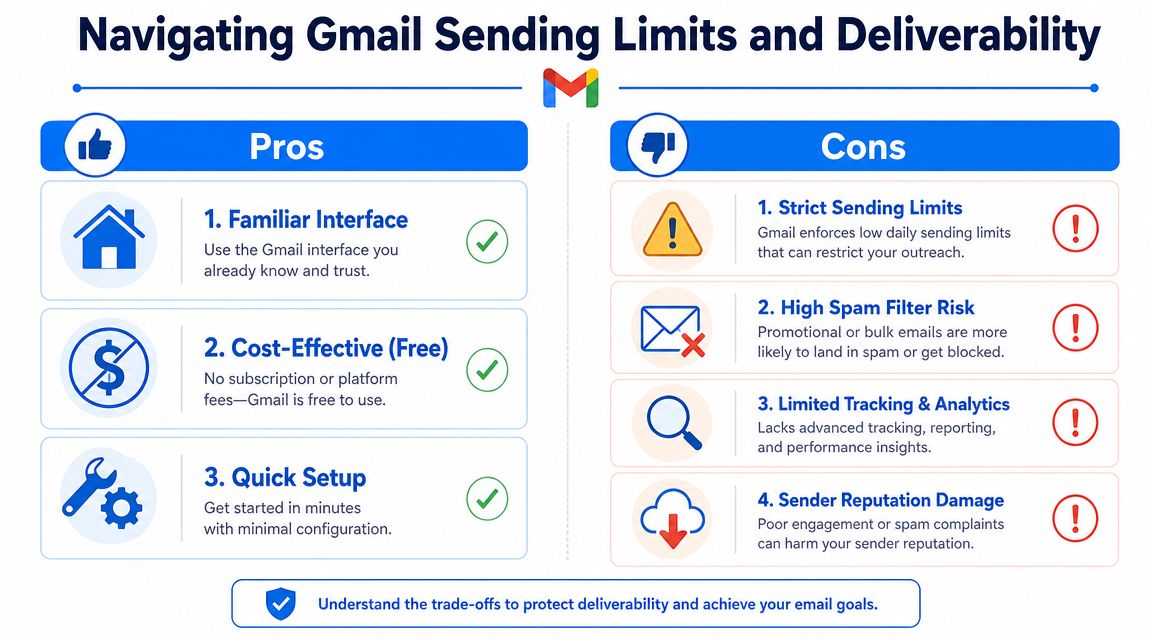
Those limits aren't random. Gmail is trying to protect its ecosystem from spam, abuse, and low-quality bulk traffic. If you push against those boundaries carelessly, the issue isn't just that a send stops. The bigger issue is that your email behavior starts to look like the behavior Gmail is designed to contain.
Deliverability is bigger than the send limit
A lot of teams focus only on caps. That's too narrow.
Independent guidance also warns that bulk messages sent from @gmail.com addresses are more likely to be flagged as spam or trigger temporary account suspension if recipients mark them as unwanted. The practical recommendation is to use Gmail for small, highly personalized sends and move larger campaigns to purpose-built infrastructure, as discussed in BeeFree's guide to Gmail mass email.
Here's what usually hurts deliverability in real-world use:
- Cold or poorly qualified lists: If the list quality is weak, recipients ignore or mark messages as unwanted.
- Template-heavy copy: Emails that feel mass produced are easier for recipients to dismiss.
- Weak unsubscribe behavior: Gmail itself emphasizes consent, clear unsubscribe behavior, and avoiding deceptive content.
If you're working on inbox placement, these strategies to get emails to primary are worth reviewing alongside broader email deliverability best practices.
A short explainer on the mechanics helps here:
What good practice looks like
You don't need a complicated framework. You need discipline.
- Send only to people who should hear from you: Relevance does more for deliverability than any cosmetic tweak.
- Make opt-out easy: If someone doesn't want future messages, don't trap them.
- Keep the message honest: No deceptive subject lines, fake reply bait, or disguised marketing copy.
The fastest way to damage email performance is to treat recipient tolerance as infinite. It isn't.
The inbox is earned every send. Gmail just makes that reality more visible.
Tracking Results and Troubleshooting Common Issues
Once the campaign goes out, the next job is interpretation. Gmail itself isn't a robust reporting environment, so most of the visibility comes from your mail merge add-on. Usually that means basic signals like opens, clicks, replies, and unsubscribes.
Read the signals correctly
Don't obsess over vanity metrics in a small Gmail campaign. In practice, the most useful questions are simpler:
- Are people replying? Replies usually tell you more than opens.
- Are the right segments engaging? A niche audience with strong relevance can outperform a bigger list with weak fit.
- Are unsubscribes or complaints showing friction? If people seem surprised to receive the message, your targeting was off.
If the campaign was outreach rather than newsletter content, review the actual inbox responses. Patterns in objections, confusion, and timing are often more valuable than dashboard stats.
Fix the most common problems
Merge tags show up as raw text
This usually means the field name in your sheet doesn't match the tag in your draft, or the add-on wasn't mapped correctly. Check the header names first, then preview the email before sending the full batch.
Emails land in spam
The fix is rarely one thing. Tighten the list, reduce promotional phrasing, simplify the message, and make sure the email reads like legitimate communication instead of a blast.
You hit a sending limit
Stop sending for the day. Don't try to brute-force it from the same account or spin up a sloppy workaround. If this happens regularly, that's not a sending error. It's a sign the workflow no longer fits the channel.
Personalization looks awkward
This happens when fields are incomplete or the copy depends too heavily on variables. Rewrite the draft so it still reads naturally if one field is missing.
Troubleshooting shortcut: If the issue repeats across campaigns, stop treating it as a bug. It's probably a process problem.
Teams get into trouble when they patch every symptom separately. A broken merge, weak replies, and recurring spam placement often come from the same source: trying to run a scaled program from a lightweight Gmail setup.
When You Have Outgrown Mass Mailing in Gmail
Outgrowing Gmail isn't a failure. It usually means email has become important enough to deserve real systems.
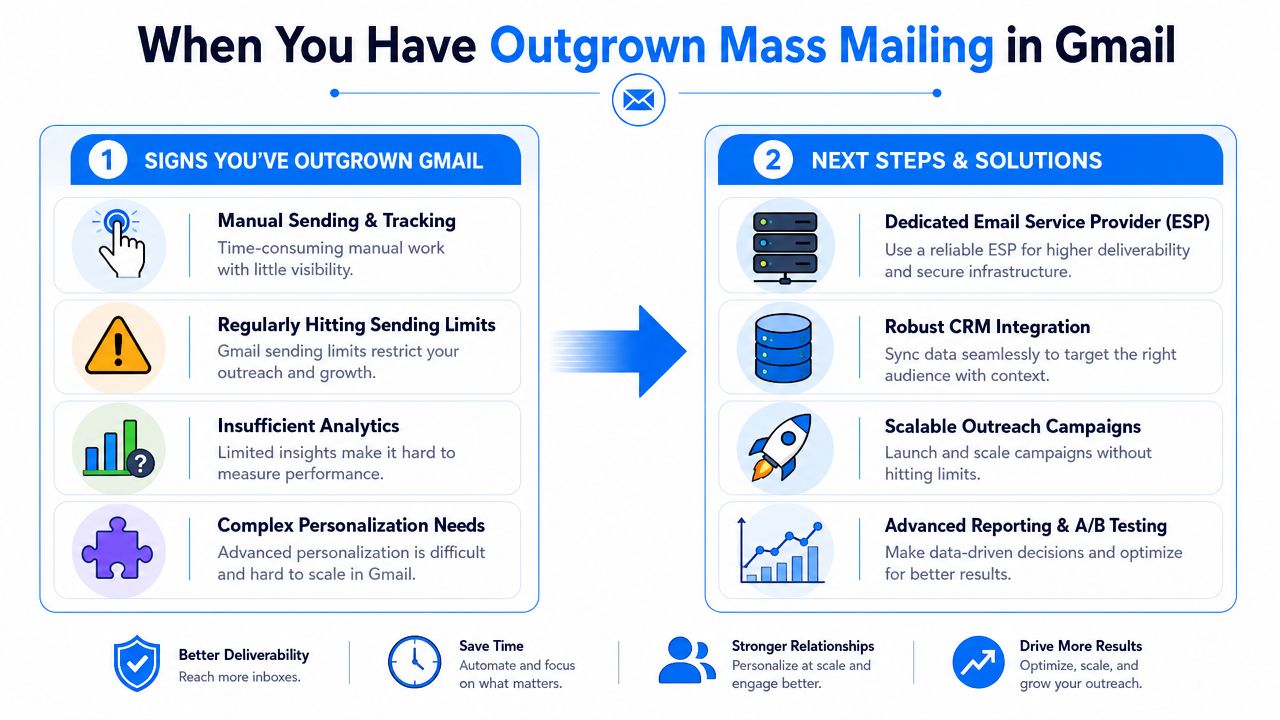
The clearest sign is operational drag. You're managing spreadsheets manually, splitting sends to stay under platform ceilings, chasing inconsistent tracking, and spending too much time checking whether the campaign even worked. That's the point where Gmail stops being efficient and starts becoming expensive in hidden labor.
The real dividing line
Google's own policy context makes the distinction clear. Gmail is built for communication, while larger-scale sending requires different infrastructure around deliverability, analytics, and compliance. That's why organizations move to specialized services when email becomes an operational growth channel, as reflected in Google's sender guidance.
For example, a firm doing outbound prospecting or generating leads for software firms doesn't just need the ability to send messages. It needs list management, segmentation, reporting, and a system that can support repeatable campaigns without constant manual intervention.
What to move to instead
If your needs are growing, look at dedicated platforms rather than more Gmail workarounds. That could mean a transactional or outbound service like SendGrid, a marketing platform, or a newsletter platform such as Breaker for teams that want sending, audience growth, and reporting in one system. This overview of the best email marketing software for small business is a useful place to compare categories before you switch.
The strategic question is simple. Are you sending occasional personalized emails, or are you building an email program?
If it's the second one, the upgrade isn't optional. It's how you protect deliverability, reduce manual work, and give the channel room to grow.
If Gmail is starting to feel like a workaround instead of a workflow, Breaker is worth a look. It's built for teams that need more than sending alone, with newsletter creation, audience growth, deliverability management, and analytics in one platform.
Keep reading
All articlesB2B Lead Generation via Newsletter: What Actually Works
Cold outbound is losing steam. See 7 proven newsletter tactics for B2B lead generation, from gated content to sponsorship swaps, that beat cold outreach.
How to Write a Newsletter with AI: Step-by-Step Guide 2026
Learn how to write a newsletter with AI the right way: a 7-step process to train, calibrate, and edit AI drafts that still sound like you.
How to Boost Conversions With Your Email Newsletter
Turn your newsletter into a conversion engine. See 2026 benchmarks, CTR vs CVR explained, and the fixes most email guides skip.