
How to Embed YouTube Video on Site in 2026
Learn how to embed youtube video on site without slowing it down. Our guide covers responsive, lazy-loaded, & privacy-safe methods for 2026.
You've probably done this already. You drop a YouTube video onto a landing page, hit publish, reload the page, and then notice the page feels heavier than it did before. The hero takes longer to settle. Your performance report gets worse. Legal or compliance asks whether the embed drops cookies before anyone clicks play.
That's the core task when you need to embed YouTube video on site today. Getting a video to appear is easy. Getting it to support conversion, preserve speed, respect privacy, and still look polished on every screen is where many implementations struggle.
A modern marketing site can't treat video embeds like decoration. The embed affects page speed, user trust, and how cleanly your CMS workflow scales across campaigns. If your site runs on WordPress, Squarespace, Wix, Webflow, HubSpot, or a custom stack, the principles are the same. Use the default embed as a baseline, then improve it deliberately.
Why Your Standard YouTube Embed Is Slowing You Down
A common scenario on B2B sites looks like this. The page is well designed, the copy is tight, and the video should help explain the offer. Then the default YouTube iframe goes live and the page becomes heavier before anyone presses play.

That matters because a standard embed loads a third-party player, not just a thumbnail. On a marketing page, that extra work can affect how quickly the page feels usable, especially near the top of the layout where speed and visual stability shape first impressions. If you're already using video on landing pages to support conversion, the embed itself can undercut that goal if it adds too much overhead too early.
What the default embed gets wrong
The default approach creates three recurring problems on production sites:
- Performance drag from loading YouTube player assets before the visitor has shown intent to watch.
- Privacy risk if the embed is added without considering cookies, consent, or data-sharing expectations.
- User experience friction when the browser spends time on video resources instead of prioritizing the page content and CTA.
The technical issue is simple. An iframe is easy to paste, but it is rarely the lightest option. On a homepage, product page, or campaign landing page, that trade-off is not theoretical. It can affect how fast the page renders, how stable the layout feels, and how quickly a visitor can act.
A good working rule is straightforward. If the visitor has not clicked play, the full player usually does not need to load yet.
Why this matters for SEO and conversion
Search visibility and conversion performance both depend on how well the page behaves under real conditions. Fast pages are easier to use. Stable pages are easier to trust. Pages that keep the primary CTA accessible tend to convert better than pages that make the browser work hard on secondary elements first.
For B2B teams, the video is usually there to support a larger job. It helps explain a product, answer objections, or add credibility to a form page. If the embed slows the experience, the video stops supporting the journey and starts competing with it.
That is a significant shift in mindset. Embedding YouTube video on site is not just a publishing task. It is a performance, privacy, and accessibility decision that should be configured with the same care as any other conversion element.
The Basic Method to Embed a YouTube Video
A common scenario looks like this. A marketer drops a YouTube embed onto a landing page five minutes before launch, sees the player render, and calls it done. The page is technically live, but the key questions come later. Does the video fit the layout, respect the page goal, and avoid adding friction to a form or CTA?
Start with the default embed so you can see exactly what your platform is outputting before anyone adds custom code or app-level styling.
The standard workflow
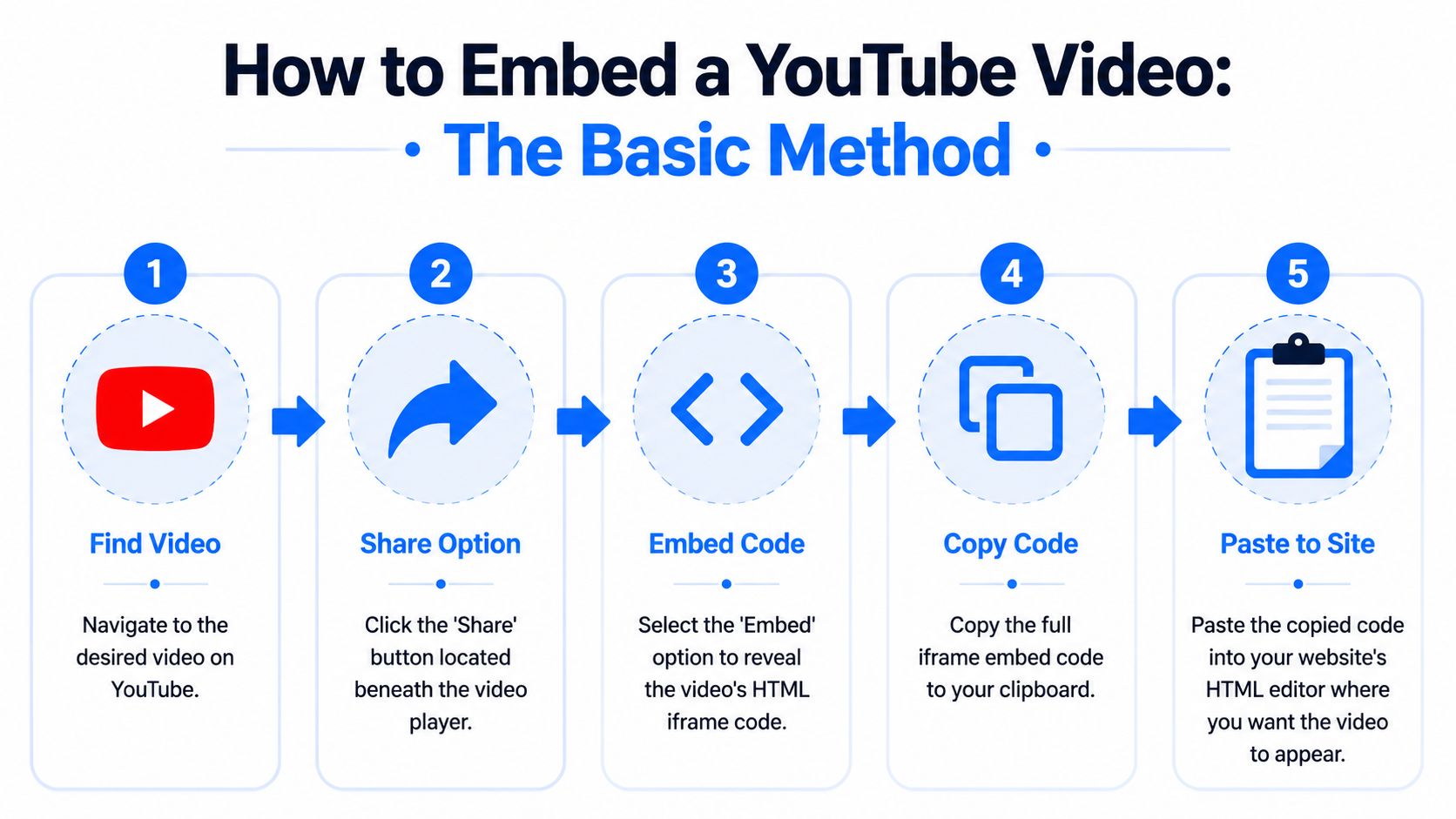
The process itself is simple. Open the video on YouTube, click Share, choose Embed, copy the generated iframe code, paste it into your site's HTML or CMS editor, then preview the page in context. This embedding walkthrough from Guru shows the default steps clearly.
Use this sequence:
- Open the video on YouTube
- Click Share
- Choose Embed
- Copy the iframe
- Paste it into your page
- Preview on desktop and mobile
- Test play behavior before publishing
A live example looks like this:
What the iframe is doing
The iframe loads YouTube's player inside your page from YouTube's own environment. That makes embedding easy, but it also means you are adding a third-party player, not just a video file.
The default code usually includes a few parts worth checking:
srcdefines the embedded player URL for that video.- Dimensions set the starting size unless your CSS overrides them.
- Allow settings define which browser features the player can use.
- Fullscreen support lets the visitor expand the video.
You can also add player parameters for things like autoplay, start times, and caption behavior. Use those settings with intent. Autoplay can distract from the primary conversion action and may be blocked by the browser. Start times are useful when a sales team wants prospects to see one proof point first. Captions improve comprehension, especially on pages where visitors watch with the sound off.
For campaign pages, that matters more than teams expect. A video should support the page's job, not compete with it. If the page is meant to drive demo requests or form fills, follow the same discipline you would use in landing page best practices for conversion-focused campaigns.
Where marketers usually get stuck
The hard part is usually not the YouTube menu. It is the publishing environment.
CMS situation
What usually happens
Raw HTML supported
You can paste the iframe directly
URL-based embed block
The platform may convert the URL for you
Restricted editor
You may need a custom block or embed element
Brand-heavy design system
You may need CSS or component-level styling
This is also where layout issues start to surface. Some builders preserve the default dimensions. Others wrap the iframe in their own responsive container. If your team is trying to keep modules flexible across devices, Wistec's responsive web insights are a useful reference for how content should adapt cleanly across screen sizes.
A working embed is only the baseline. A good embed fits the layout, supports the CTA, and gives you a clean foundation for the speed, privacy, and accessibility improvements that come next.
Making Your Embedded Videos Responsive and Accessible
A YouTube embed that looks fine in a desktop editor can still break on mobile. Fixed widths, fixed heights, and missing labels are still common on otherwise polished B2B sites.
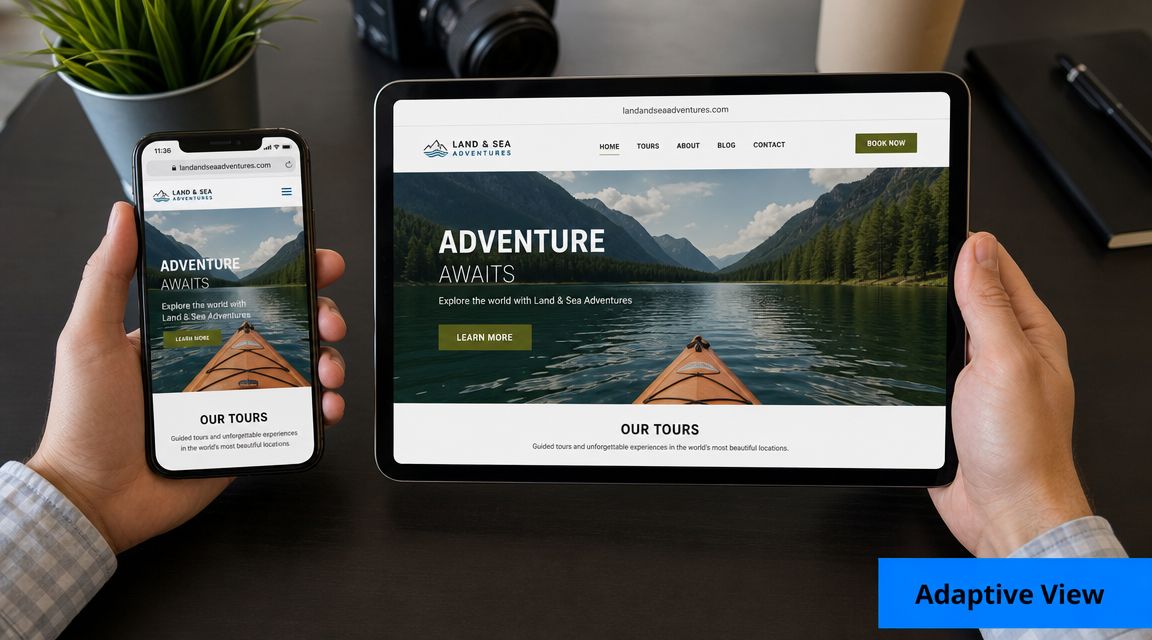
Use responsive sizing by default
If you only change one thing in your embed code, make it this. Stop relying on fixed width and height values as the final layout behavior.
The clean modern approach is to let CSS control the frame:
<div class="video-embed"><iframesrc="https://www.youtube.com/embed/VIDEO_ID"title="Product walkthrough video"loading="lazy"allow="autoplay; encrypted-media; picture-in-picture"allowfullscreen></iframe></div>.video-embed iframe {width: 100%;aspect-ratio: 16 / 9;height: auto;border: 0;display: block;}That keeps the player proportional while allowing it to scale with its container. On modern sites, this is usually enough.
If your design team is already tightening mobile layouts, Wistec's responsive web insights are a useful refresher on why content needs to adapt cleanly across devices rather than just shrink.
Use a wrapper fallback when needed
Some CMS themes and older codebases behave better with the classic wrapper method. It's less elegant than aspect-ratio, but still reliable.
<div class="video-wrap"><iframesrc="https://www.youtube.com/embed/VIDEO_ID"title="Customer onboarding tutorial"allow="autoplay; encrypted-media; picture-in-picture"allowfullscreen></iframe></div>.video-wrap {position: relative;width: 100%;padding-bottom: 56.25%;}.video-wrap iframe {position: absolute;inset: 0;width: 100%;height: 100%;border: 0;}Use this when a page builder fights your styling or when an older theme hardcodes iframe dimensions.
Accessibility isn't optional
Many groups remember responsiveness. Fewer remember accessibility.
For an embedded video, the simplest high-value improvement is adding a descriptive title attribute to the iframe. That gives screen reader users context about what the embedded content is. “YouTube video player” is weak. “Three-minute product demo for warehouse analytics dashboard” is much better.
A few practical accessibility checks matter here:
- Add a descriptive title so assistive technology can identify the content.
- Don't rely on autoplay because unexpected audio or motion creates friction.
- Enable captions when relevant if the message matters without sound.
- Leave enough space around the player so mobile users don't tap the wrong element.
If your page is built to convert, accessibility also improves clarity for everyone else. Better labels, cleaner spacing, and more predictable behavior tend to improve the experience for all visitors, not only those using assistive technology. That principle applies across the rest of your page design too, especially if you're refining landing page best practices for conversion-focused layouts.
A responsive embed protects layout. An accessible embed protects comprehension. You need both.
A quick pre-publish checklist
Before you publish a page with video, check these items:
- Container width fits the page grid on desktop and mobile.
- Iframe title clearly describes the video content.
- Captions plan matches how the audience will consume the page.
- Tap targets around the player don't crowd forms, tabs, or CTA buttons.
These are small implementation details. They make a visible difference.
Boosting Speed with Lazy Loading and Privacy-Enhanced Mode
A page loads, the hero copy appears, and then the browser starts pulling in a full YouTube player before the visitor has done anything. On a marketing site, that is often the wrong trade-off.
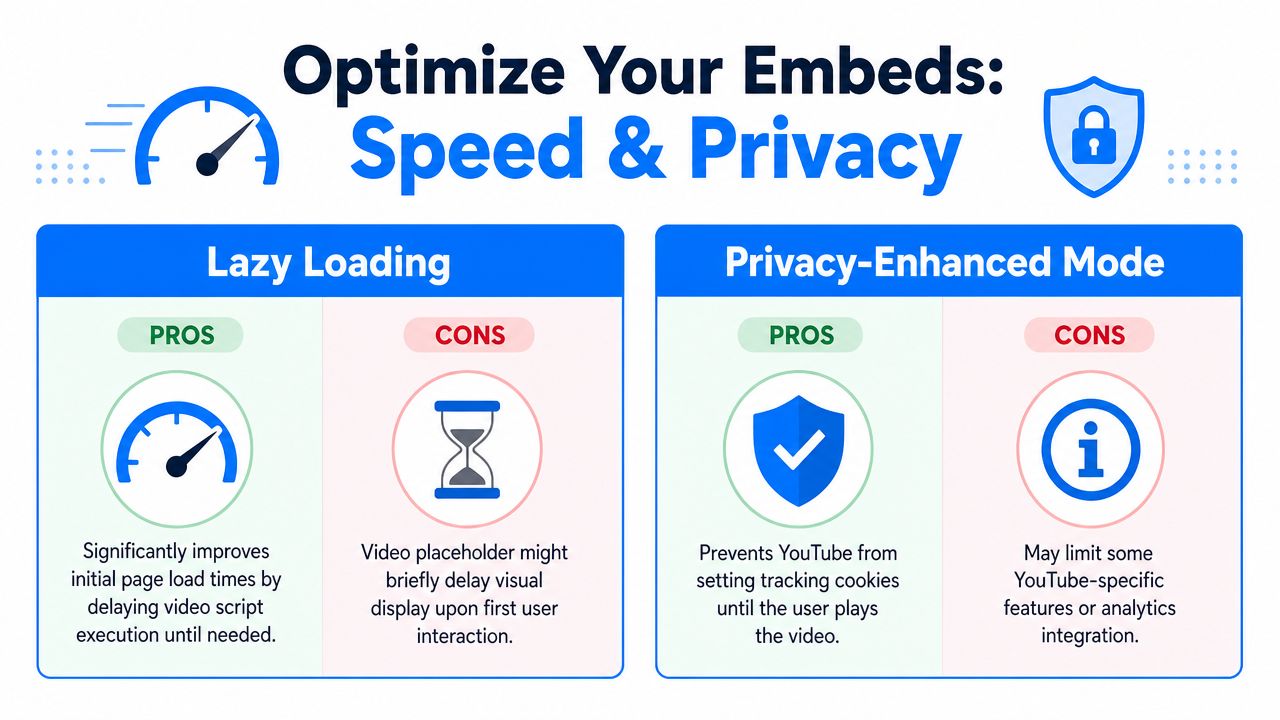
Standard YouTube embeds add weight early. That affects page speed, layout stability, and the first impression of the page. If the video supports the message rather than carrying the whole page, delay that cost until someone shows intent.
Start with native lazy loading
The fastest improvement is adding loading="lazy" to the iframe.
<iframesrc="https://www.youtube.com/embed/VIDEO_ID"title="Webinar preview"loading="lazy"allow="autoplay; encrypted-media; picture-in-picture"allowfullscreen></iframe>That tells the browser to hold off until the embed is closer to view. It is easy to implement and usually worth making your default.
Native lazy loading has limits, though. If the video sits near the top of the page, the browser may still fetch it early. You also still pay for the full player once loading begins.
Use a facade on pages where speed affects conversion
For high-value marketing pages, a clickable placeholder is often the better choice. Show a thumbnail with a play button first. Load the actual YouTube iframe only after the visitor clicks.
This pattern works well on pages where performance has a direct business impact:
- Homepage modules where the video supports the core message
- Feature or solution pages where copy and CTA need to load first
- Registration pages built like a webinar landing page that still needs to convert on mobile
- Resource hubs with multiple videos on one screen
The reason is simple. Before the click, the visitor has not asked for the player. There is no reason to load it.
I use this approach whenever the page goal is form fills, demo requests, or signups. A video can help conversion. It should not become the heaviest thing on the page by default.
Use Privacy Enhanced Mode for a cleaner privacy posture
If privacy review matters, switch the embed URL to youtube-nocookie.com.
<iframesrc="https://www.youtube-nocookie.com/embed/VIDEO_ID"title="Customer story video"loading="lazy"allow="autoplay; encrypted-media; picture-in-picture"allowfullscreen></iframe>This is a practical default for B2B teams working with consent requirements, legal review, or stricter governance around third-party content. It does not remove the need for a broader cookie and consent strategy, but it is a better starting point than the standard embed.
What each option gets you
Different page types call for different embed patterns.
Approach
Best fit
Trade-off
Standard iframe
Fast publishing in low-stakes cases
More upfront player weight and weaker privacy posture
Iframe with loading="lazy"
Good default for many content pages
The full player still loads once the browser decides it is near view
Click-to-play placeholder
Performance-sensitive landing pages and pages with multiple videos
Requires more setup
youtube-nocookie.com embed
Teams that need a cleaner privacy baseline
Still needs to fit your consent workflow
A few rules hold up in practice:
- Use lazy loading by default unless immediate playback serves a clear page goal.
- Use a facade pattern on conversion pages where every third-party request needs to justify itself.
- Use Privacy Enhanced Mode if your team cares about compliance, procurement review, or trust signals.
- Avoid stacking full embeds on archive pages, resource centers, or comparison pages.
The SEO benefit is indirect, but real
Embedding a YouTube video does not help rankings by itself. Better implementation can help the page perform better. Faster rendering, fewer layout shifts, and less friction for the visitor support the metrics that matter on modern sites.
That is the effective standard. If the page is slower because of the video, the embed is working against the page. If the video loads on demand and the page stays fast, you get the upside of video without paying the full performance cost upfront.
Embedding Videos Within Your Website Builder or CMS
A lot of embed problems start after the code leaves YouTube.
The marketer copies a video into a page builder, sees it working in preview, hits publish, and assumes the job is done. Then the live page loads a heavier player than expected, strips custom attributes, or forces a fixed-height block that looks wrong on mobile. The CMS changed the implementation, even though the video itself stayed the same.
That is why CMS choice matters here. The question is not just “can this platform show a YouTube video?” The primary question is whether it lets your team control performance, privacy, accessibility, and layout without fighting the editor every time.
WordPress and block editors
WordPress usually gives you two paths. One is fast. The other gives you control.
If an editor pastes a YouTube URL into an embed block, WordPress may render the player automatically. That works for routine blog content where speed of publishing matters more than fine-tuning the player setup.
Use a Custom HTML block when the page has stricter requirements. That includes campaign pages, product pages, and any template where you want to standardize the exact embed behavior across the site. Custom HTML is usually the better option if your team needs to:
- use the
youtube-nocookie.comembed domain - preserve iframe attributes your block editor would otherwise hide
- apply a reusable responsive wrapper
- support a click-to-load pattern instead of loading the full player right away
The practical trade-off is simple. Native blocks are easier for editors. Custom blocks are easier to govern.
Squarespace, Wix, HubSpot, and similar builders
Website builders often make video insertion easy, but they also hide the settings that affect page quality.
A native video block is fine for low-priority pages or simple editorial content. On pages tied to pipeline or lead generation, convenience can get expensive. If the builder does not let you control the iframe, placeholder image, or privacy settings, you may end up with a page that looks polished in the editor but performs poorly in production.
That matters on pages such as webinar landing pages built to drive registrations. Video can increase clarity and trust, but only if it supports the form instead of slowing the page and pulling attention away from the CTA.
Some teams solve this by creating a saved section or reusable module with the embed settings already configured. That is usually better than asking each editor to rebuild the pattern from scratch.
What to test before your team standardizes a workflow
CMS labels vary, but the review checklist stays fairly consistent.
Ask these questions on the published page, not just inside the editor preview:
- Can the platform accept raw HTML?
If yes, your team usually has more control over wrappers, attributes, and custom loading behavior.
- Does it auto-convert a pasted YouTube URL into a player?
That can speed up publishing, but it may also override the setup you want.
- Can editors modify iframe attributes or swap in a custom component?
If not, your options may stop at the default embed.
- Can you use a thumbnail-first or click-to-play pattern?
That matters on high-intent pages where every third-party request should earn its place.
- Does the live page match the preview?
Some builders render embeds differently after publish, especially when responsive containers or custom scripts are involved.
- Can the platform fit into your consent workflow?
Privacy settings only help if the published page still behaves the way legal and marketing expect.
A CMS is a delivery layer. Treat it like one. If it gets in the way of the experience you want, use a custom component, a supported embed module, or a different publishing pattern.
A practical operating model for marketing teams
Teams usually do better with rules than with editor freedom.
One workable model is to use native video blocks for standard blog posts, custom embed modules for campaign and product pages, and a reusable design-system component for everything that repeats. That gives editors a fast default while protecting the pages where performance and conversion matter more.
The reusable component approach tends to hold up best over time. Developers define the wrapper, loading behavior, focus treatment, and privacy defaults once. Editors drop in the video ID and move on. Marketing gets consistency across pages without repeated QA work.
Cases where skipping the embed is the better choice
Some pages do not need a full YouTube player at all.
If the video is supporting material rather than the main action, linking out to YouTube or opening the video on a separate page can keep the path cleaner. A simple thumbnail with a clear play action may also be enough, especially on form-driven pages where completion matters more than on-page viewing time.
Use the embed when the video improves the page outcome. If it adds weight, distraction, or compliance friction without helping the visitor make a decision, choose a lighter pattern.
YouTube Embed: What Actually Matters
Most searches for "youtube embed" come down to four practical questions: how do I get the code, how do I control the player, how do I keep the page fast and compliant, and what do I do when the embed is going somewhere it will not play. Here is the short version of each.
The embed code and the parameters worth knowing
Click Share, then Embed under any video, and YouTube gives you an iframe pointing at youtube.com/embed/VIDEO_ID. Everything else is a query parameter on that URL. The ones that come up most often:
- start and end (in seconds) open a long video at the relevant moment, for example ?start=90.
- autoplay=1&mute=1 gives background-style playback. Browsers block autoplay with sound, so autoplay without mute simply fails.
- controls=0 hides the player controls, and loop=1 only works when you also pass playlist=VIDEO_ID.
- rel=0 no longer hides related videos; it limits end-screen suggestions to your own channel.
- cc_load_policy=1 turns captions on by default, which helps accessibility and silent viewers.
Shorts, live streams, and playlists use the same iframe. Shorts embed with the normal /embed/VIDEO_ID URL inside a vertical container, and playlists use /embed/videoseries?list=PLAYLIST_ID.
Speed and layout: reserve the space
A YouTube embed pulls in roughly half a megabyte or more of scripts before anyone presses play, so the lazy-loading and click-to-play patterns above are still the biggest win. The second most common problem is layout shift: give the container an explicit aspect ratio (CSS aspect-ratio: 16 / 9) so the page does not jump when the player arrives. Together those two fixes cover most Core Web Vitals complaints traced back to video.
Consent and privacy
The youtube-nocookie.com domain reduces tracking but does not make the embed consent-free under GDPR or similar rules. If your consent banner blocks third-party scripts, load the iframe only after the visitor accepts, or show a click-to-play thumbnail that says the video will load from YouTube. That pattern satisfies most legal reviews and doubles as the performance fix.
Where a YouTube embed will not work: email
An iframe does not play inside an email client, so a "youtube embed" in a newsletter is really a linked thumbnail. Take the video's poster image, overlay a play button, and link it to the video or, better, to a landing page with the video where you can add a call to action and see who watched. That page is also where a proper embed belongs when the video supports a webinar registration or a demo request.
Troubleshooting Common YouTube Embed Issues
A video embed can look fine in staging and still fail on the live page. Usually the problem sits between the player and your site setup: the CMS strips code, CSS collapses the container, browser rules block playback, or reporting gets misread.
The video shows as a black box or blank area
Start with the page output, not the editor view.
A blank embed usually comes from one of three places: broken iframe markup, a CMS that removes iframe code after publish, or a wrapper with no rendered height. Open the published page, inspect the element, and confirm the iframe is present. Then check whether the container has dimensions and whether any CSS rule is setting display: none, height: 0, or clipping the player with overflow settings.
If your CMS sanitizes custom HTML, stop pasting iframe code into a rich text field. Use the platform's native embed block or a developer-made video component so the markup survives publish and behaves consistently across templates.
The player size looks wrong on mobile
Fixed width and height values are usually the cause.
The iframe may still carry old dimensions, or the page builder may inject inline styles that fight your responsive wrapper. Check the parent containers too. A max-width rule, rigid column setting, or unusual aspect-ratio treatment higher up the layout can distort the player even when the iframe code itself is correct.
This is why reusable components matter. One clean responsive pattern beats fixing the same mobile issue on every page.
Autoplay doesn't work
Autoplay is not dependable across browsers, especially when audio is involved.
Treat it as a preference, not a requirement. If the page depends on the visitor seeing the video, use a strong thumbnail, clear play button, and surrounding copy that explains why the video is worth starting. That approach is better for usability anyway. It avoids surprising users and reduces the risk of loading a heavy player before they show intent.
Views don't seem to match expectations
Teams often assume every embedded play should show up cleanly in YouTube reporting. That is not how it works.
Embedded playback can contribute to views, but hidden players, accidental reloads, very short plays, and low-intent interactions will not always turn into meaningful video metrics. The practical takeaway is simple. Do not judge embed performance by raw page presence. Judge it by actual engagement and page outcome. If the video supports conversion, watch clicks, on-page interaction, scroll depth, and assisted actions alongside YouTube analytics.
The video works for some visitors but not others
This usually points to a browser, consent, or network condition.
Privacy settings, cookie consent tools, script blockers, and strict corporate firewalls can all interfere with YouTube embeds. This matters on B2B sites because a large share of visitors browse from locked-down work devices. Test the page in a private window, with consent denied, and on mobile. If the player fails under those conditions, the issue is not edge-case QA. It is part of the actual visitor experience.
A good embed setup holds up under imperfect conditions. The player loads in the right space, the page stays fast, the click target is obvious, and the visitor can understand what the video is before they press play. That is the standard to aim for on a modern marketing site.
Breaker helps B2B marketers turn content and campaigns into subscriber growth, not just pageviews. If you're building landing pages, webinars, and newsletter funnels that need to convert after the click, Breaker gives you the tools to create, grow, send, and measure newsletter programs built for pipeline.
Keep reading
All articlesNewsletter Agency Services: How Agencies Scale Client Newsletters
Managing multiple client newsletters? Learn what a true newsletter agency platform needs to prevent list mixing, voice drift, and invisible ROI.
Building Owned Audiences: Move Followers to Your Newsletter in 2026
Social platforms can vanish overnight. Learn how to convert Instagram, TikTok, and YouTube followers into a newsletter list you actually own.
Newsletter Analytics: Which Metrics Actually Matter in 2026
Open rate and clicks don't predict buyers. Learn the 7-step method to track click depth, recency, and topic affinity for a revenue-predictive intent score.