
Master How to Do a Newsletter in Word Easily
Learn how to do a newsletter in Word. Our guide covers templates, layout, exporting for print/email, & platform switching tips.
You have a newsletter due this week. The team already uses Microsoft Word. Nobody wants a new tool approval cycle, and you need something that looks polished fast.
That is exactly where Word still earns its place.
It is good at turning a blank page into a respectable newsletter draft, especially when the primary goal is a print-ready PDF or a clean internal document. It is much less reliable when people try to force that same file into an HTML email newsletter. That gap trips up a lot of marketers because most tutorials stop at design and never address distribution effectively.
If you want to learn how to do a newsletter in Word, treat Word as a layout tool first. Build something structured, readable, and reusable. Then decide whether the final output should stay a document or move into an email platform.
Why Use Word for Your Newsletter in 2026
A lot of newsletter projects start the same way. A consultant needs a monthly client update. A nonprofit needs an event recap. A school administrator needs a parent bulletin. In all three cases, the team usually already has Word, already knows the basics, and needs to move quickly. If you are in the nonprofit camp, these examples of newsletters for nonprofits are worth a look before you pick a layout.
That is why Word remains a practical starting point.
Microsoft introduced newsletter templates in Word back in 1996, and Word still makes them easy to access through File > New with over 20 customizable options according to Learning Tree’s guide to newsletter templates in Microsoft Word. The same source notes that 45% of small businesses in the US and Europe still use Word for initial newsletter drafts before moving to dedicated platforms.
Where Word still works well
Word is strong in a few specific situations:
- Fast internal production: You can get a usable draft out without waiting for design support.
- Budget-sensitive teams: If the software is already licensed, the barrier to entry is low.
- Print and PDF output: Word handles static layouts better than responsive email layouts.
- Early prototyping: It is a practical place to test content order, hierarchy, and headline treatment.
That last point matters more than people think. A rough draft in Word can help a junior marketer solve key editorial questions first. What goes first. What deserves a callout. What should be shortened. What can be cut.
Where people misuse it
Word becomes frustrating when the team assumes “newsletter” means “email newsletter” by default.
A document layout is not the same thing as an email layout. In Word, you can place boxes, shapes, and images almost anywhere. Email clients do not honor that freedom cleanly. Outlook and Gmail are much stricter, and Word-generated HTML tends to break.
Use Word when the output is a document. Be cautious when the output is a marketing email.
If you keep that distinction clear from the beginning, Word is useful. If you ignore it, you usually end up rebuilding the whole thing later.
Setting Up Your Word Document for Success
The cleanest newsletters usually come from disciplined setup, not design heroics. If the page size, margins, and template choice are sloppy, the layout will fight you the whole way.
Choose a template or start blank
Open Word and go to File > New. Search for newsletter.
You have two sound options.
Built-in template: Best when speed matters and the team needs a visible structure right away. Templates help less experienced users avoid ugly spacing decisions.
Blank document: Better when you already know the brand system and want full control over spacing, headers, and article modules.
I usually recommend templates for first-time creators and blank files for teams producing recurring issues with established formatting rules.
Set the page before adding content
Do not start typing first. Set the frame.
Go to Layout > Size and choose Letter or A4. The verified guidance identifies 8.5x11-inch Letter or A4 pages with 1-inch margins as the global standard in Word newsletter workflows, cited by Email Vendor Selection’s walkthrough on creating a newsletter in Word.
Then choose orientation. Most newsletters in Word work best in Portrait. While a horizontal layout can work for internal summaries or event handouts, portrait is easier to read and easier to export.
Next, turn on the visual helpers:
- Ruler: Helps you judge width and alignment.
- Gridlines: Useful while building, especially if you plan to place text boxes and images.
- Navigation Pane: Helpful if you are using heading styles and a longer newsletter.
Set margins with restraint
Word gives you room to shrink margins aggressively. Resist that temptation.
Tighter margins make a page look crowded fast, especially in multi-column layouts. For a business newsletter, standard margins create breathing room around your content and leave enough space for headers, footers, and visual elements.
A good test is simple. If the page already feels full before you insert images, the problem is not content volume. The problem is layout density.
Decide what the newsletter is supposed to be
Before the first headline goes in, answer this:
Output type
Best setup choice
Why
PDF for download
Word template or blank document
Word handles static layout well
Printed handout
Word with careful margins and image placement
You can control visual hierarchy page by page
Internal update
Simpler template, limited styling
Speed matters more than visual complexity
Email send
Draft in Word only, final build elsewhere
Word is not a dependable email production tool
That last row saves a lot of wasted effort.
Build a reusable base
Once the shell is set, add only the recurring structural elements:
- Newsletter name
- Issue date area
- Header space for logo
- Footer for contact details
- Starter article blocks
Do not design every page from scratch if this is a recurring publication. Build the skeleton once, then reuse it.
A strong setup file removes most of the formatting mistakes before they happen.
Designing an Engaging Newsletter Layout
Most weak Word newsletters have the same problem. They are not badly written. They are badly structured. Everything sits on the page with equal visual weight, so the reader has no clue where to start.
A better layout creates order before the reader processes a single sentence.
Start with columns, not decoration
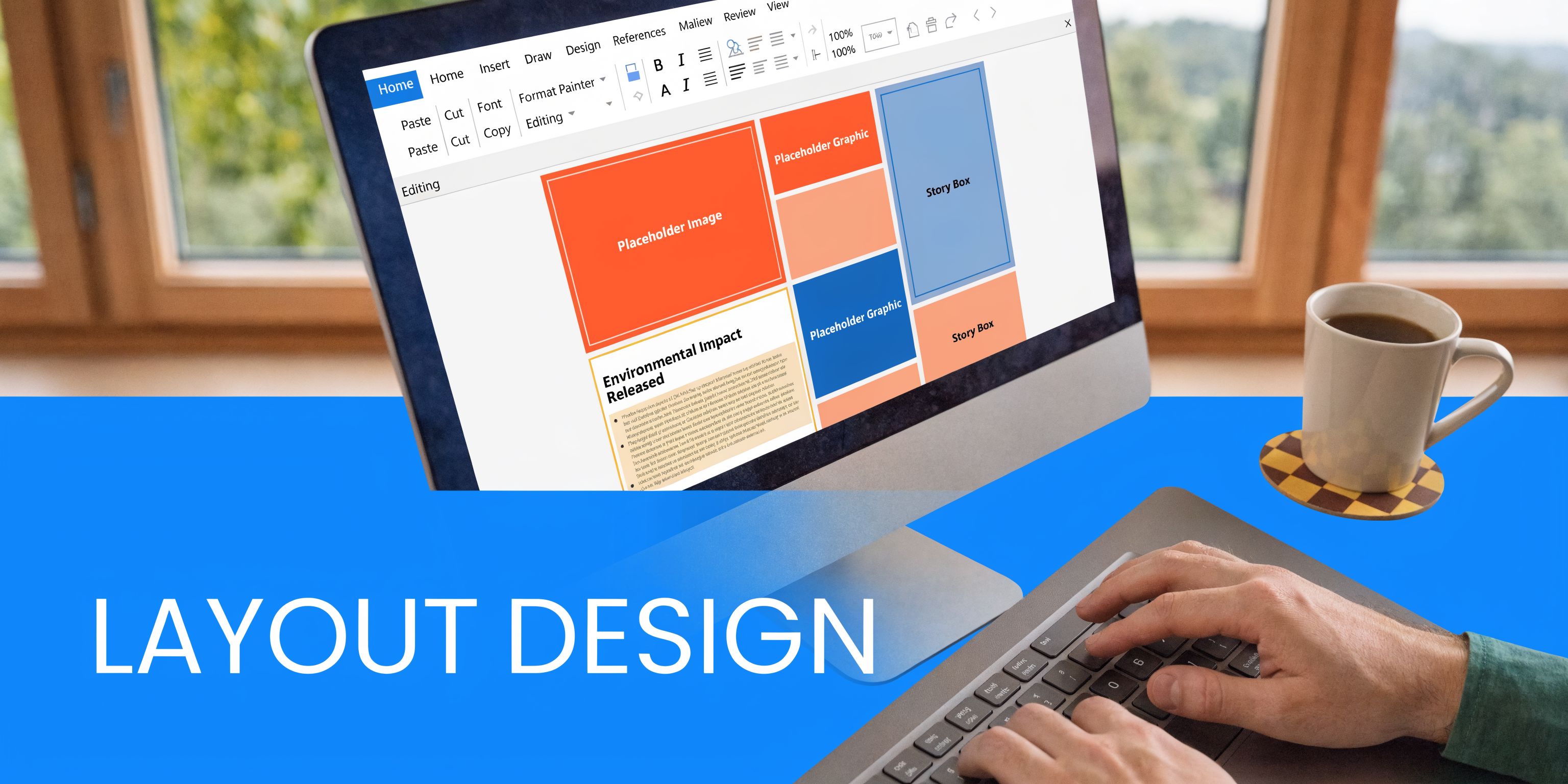
For most newsletter formats in Word, a two- or three-column layout is the right move. According to Email Vendor Selection’s guide, two- or three-column layouts can enhance reader engagement by 25% compared to single-column formats.
Go to Layout > Columns and choose Two or Three.
Use More Columns if you want finer control, and turn on Line Between if the content feels visually crowded. That dividing line can help a dense page feel more organized without adding extra design clutter.
A simple pattern works well:
- Full-width masthead at the top
- Main story below
- Two or three columns for the rest of the page
- One visual anchor per section
Use text boxes to create modular blocks
This is the part many beginners skip. They type straight into the page and then fight the layout for an hour.
Use Insert > Text Box for content modules you may need to reposition. This gives you better control over:
- Featured quotes
- Sidebar notes
- Article summaries
- Event callouts
- Sponsor or announcement blocks
In benchmark tests, a polished Word newsletter can be built in about 10 minutes using text boxes, shapes, and well-chosen type treatments, according to the same Email Vendor Selection article.
That speed only happens when the layout is modular. If every element is directly embedded in the body flow, edits become messy.
Create hierarchy with styles
A newsletter should feel scannable. Readers should understand the page in seconds.
Use Word’s built-in styles with intent:
- Heading 1: Main page title or masthead text
- Heading 2: Article titles
- Heading 3: Subheads within longer pieces
- Normal: Body copy
- Quote or custom callout style: Pull quotes or highlighted ideas
Do not manually restyle every headline one by one. That slows revisions and creates inconsistency.
If the brand allows for a more editorial look, a serif headline can work well. The benchmark example cited above references Baskerville at 36pt for headings as part of a fast professional setup in Word.
Keep each block visually distinct
A newsletter page benefits from contrast, but not chaos.
Use contrast through:
- headline size
- spacing
- background fills on callout boxes
- border lines
- image placement
- white space
Do not use five fonts, multiple text colors, and decorative shapes just because Word lets you. Professional layouts usually feel calm, not busy.
A useful visual reference helps here:
https://joinbreaker.ai/blog-posts/newsletter-design-trends-2025
A layout pattern that works
If you are training a junior marketer, give them a repeatable formula:
- Top band: newsletter title, date, logo
- Lead story: one larger block with strongest headline
- Secondary stories: shorter modules in neighboring columns
- Callout area: quote, stat, announcement, or event block
- Footer area: contact info, website, legal text
That structure gives the page a clear starting point and prevents every story from competing equally.
A visual walkthrough can help if you are learning the mechanics inside Word:
Readers do not experience your newsletter as a sequence of formatting decisions. They experience it as momentum. Good layout keeps them moving.
Adding Visuals CTAs and Dynamic Content
Once the page structure is working, the next job is to make the newsletter feel alive. Many Word documents become polished or fall apart at this stage.
The difference usually comes down to restraint and placement.
Insert visuals with text flow in mind
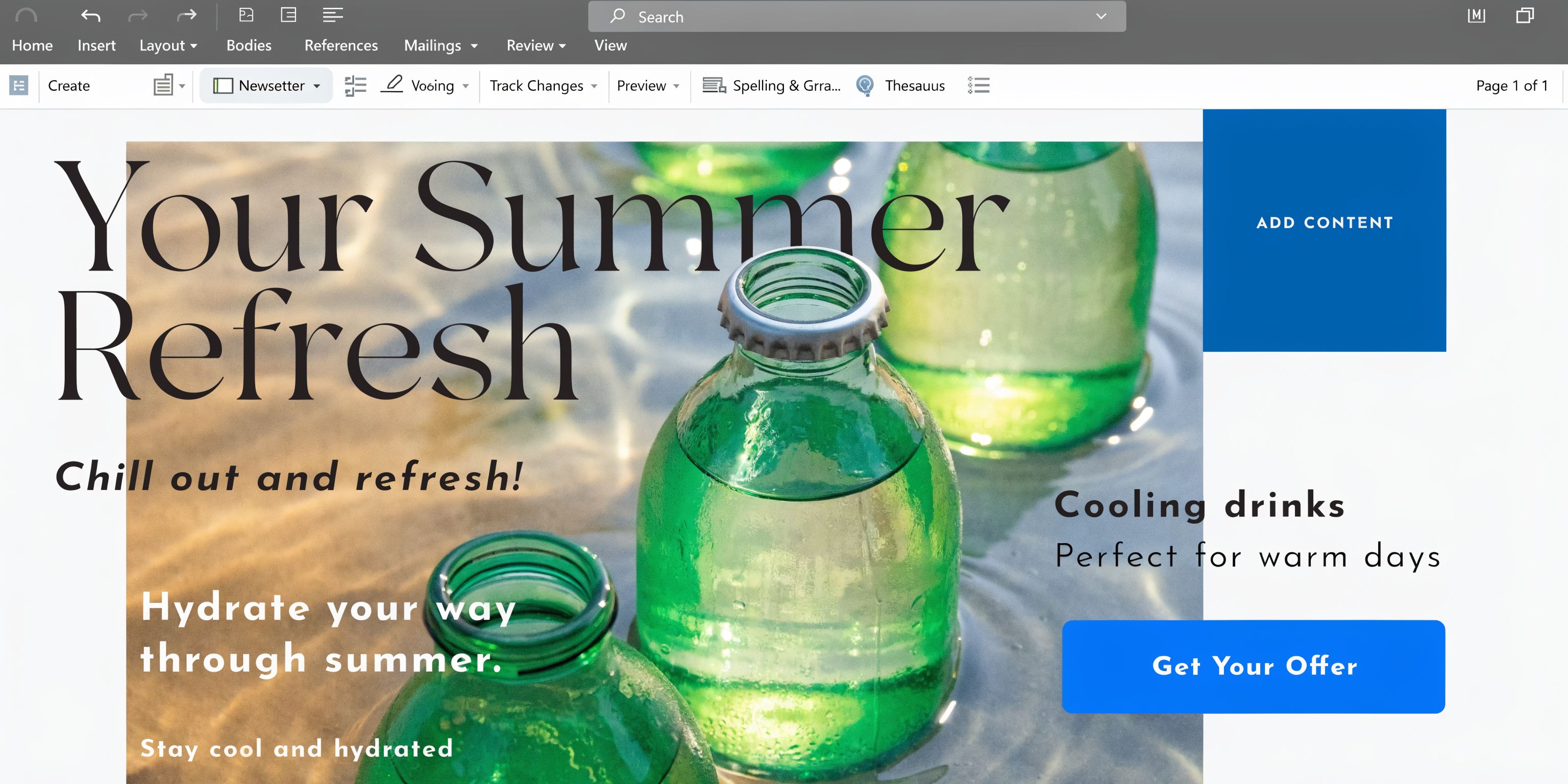
Use Insert > Pictures and place images only after the text structure is roughly settled.
Then set Wrap Text based on the role of the image:
- Top and Bottom: safest for clean document flow
- Square: useful for tighter editorial layouts
- Tight: workable in some layouts, but it can look fussy if the image edge is irregular
- In Front of Text: best reserved for logos or layered design elements
The mistake is dropping in a large image and trying to make the text accommodate it afterward. In Word, that usually creates awkward jumps and hidden spacing problems.
Choose fewer images and place them with purpose. One strong visual per page often beats several small ones that compete for attention.
Build CTAs as shapes, not plain links
If the newsletter needs a reader action, make it obvious.
A simple Word CTA button is built like this:
- Go to Insert > Shapes
- Choose a rounded rectangle
- Add fill color aligned to the brand
- Remove or soften the outline
- Type a short action phrase
- Add a hyperlink through Insert > Link
Good CTA copy in a Word newsletter tends to be short and directive:
- Download the guide
- Register for the event
- Read the full update
- Book a consultation
Avoid vague labels like “Click here.” They waste space and force the reader to do interpretation work.
Use headers and footers for consistency
Headers and footers are not glamorous, but they make the newsletter feel finished.
Use the header for stable identity elements such as:
- Logo
- Publication name
- Issue month or date
Use the footer for utility:
- Website
- Contact email
- Office address
- Page numbers
- Short disclaimer if needed
This matters even more if the newsletter is printed or saved as PDF. Repeated identity elements help the document feel intentional rather than improvised.
Dynamic content inside a static tool
Word is still a document tool, so “dynamic” has limits. But you can create practical repeatable content blocks by preparing reusable sections for recurring items.
Examples include:
- upcoming events
- featured resource
- customer spotlight
- team note
- monthly offer
If you regularly turn webinars, interviews, or talks into newsletter material, this guide on how to create email newsletters from video content is a useful editorial reference. It helps you think about source material conversion, which matters before you start laying out content in Word.
The best Word newsletters do not try to do everything. They present a few clear stories, one or two strong visuals, and a visible next action.
Mastering Advanced Word Techniques for Newsletters
Once a newsletter gets beyond a simple page, Word starts exposing its quirks. Objects overlap. Shapes hide behind images. Text boxes become hard to select. At this point, basic users get frustrated and power users save the day.
Use the Selection Pane when the layout gets crowded
If your file includes layered objects, open the Selection Pane.
That tool lets you see and select overlapping elements without clicking blindly on the page. For complex newsletters, it is one of the few features that keeps edits sane.
According to Microsoft Support guidance referenced here, for advanced newsletters with 20+ objects, using the Selection Pane and grouping objects can sidestep z-order pitfalls that cause 25% of misalignment issues on export.
Group elements that belong together
If a headline, shape, and icon form one visual unit, select them and use Ctrl+G to group them.
Grouping is especially useful for:
- CTA buttons made from shapes plus text
- image blocks with caption labels
- masthead components
- recurring sidebar modules
Without grouping, one accidental drag can shift a single piece and break alignment across the page.
Save reusable content with Quick Parts
If your newsletter repeats the same company bio, author note, office details, or disclaimer, stop pasting manually.
Use Insert > Quick Parts to save chunks of reusable content. This makes recurring issues faster to assemble and reduces version drift. It also helps junior team members use approved copy instead of rewriting utility sections each month.
Save the final file as a template
When the issue is finally clean, do not leave it as just another old document.
Save it as .dotx. Microsoft’s support guidance notes that saving the final layout as a .dotx template enables reusability and helps teams maintain brand consistency across multiple sends in Word-based newsletter production, in the same Microsoft Support reference.
That one habit prevents a lot of slow rework later.
A practical naming convention helps too:
- Monthly Newsletter Master.dotx
- Client Update Template.dotx
- Event Recap Newsletter.dotx
Clear template names keep teams from editing the wrong file.
The Critical Final Step Exporting and Distribution
At this stage, most Word newsletter tutorials become misleading.
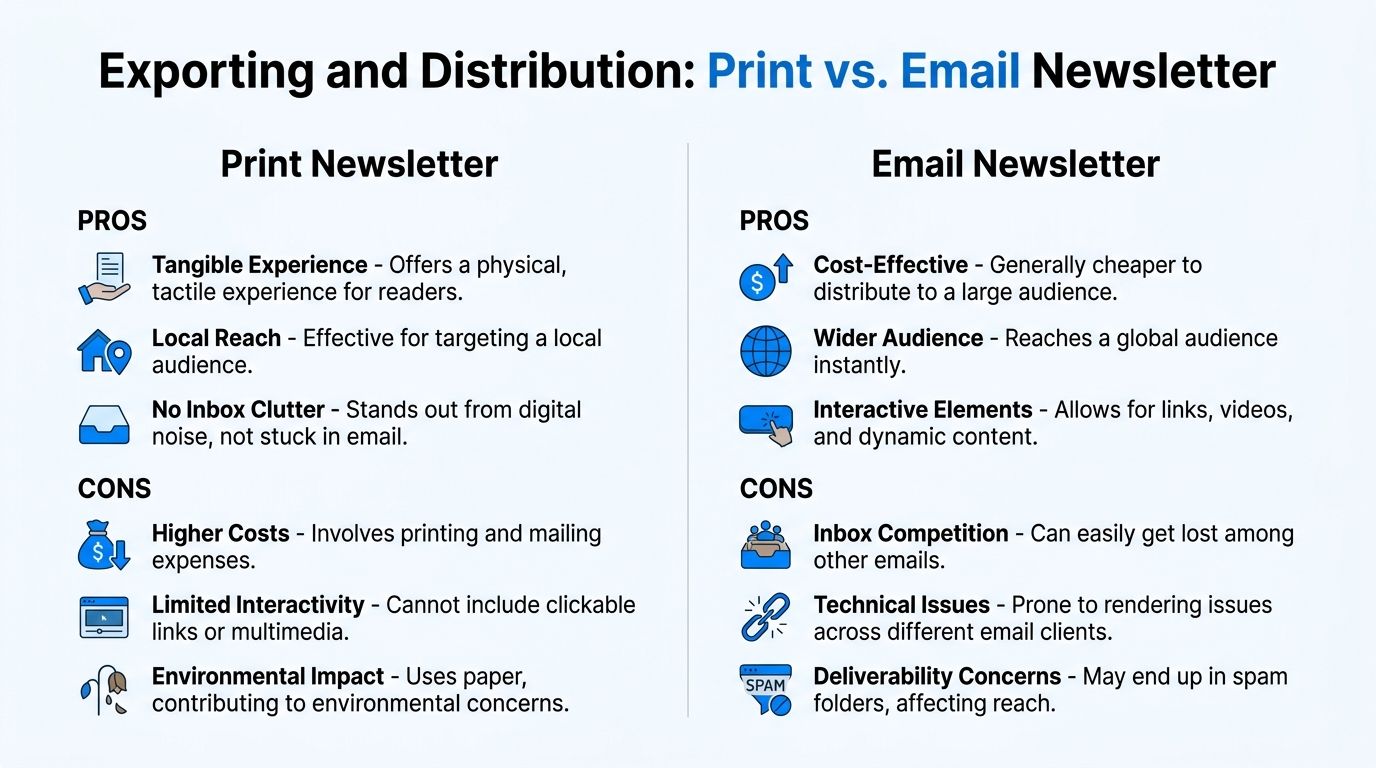
Designing the newsletter in Word is only half the job. Getting it to readers without breaking it is the part that determines whether your work survives contact with its intended audience.
PDF is the safe export
If your newsletter is meant to be shared as a download, attachment, leave-behind, or printed piece, export it as PDF.
That preserves your layout, fonts, and image placement far more reliably than a Word file passed around between devices. It also avoids the version-control mess that comes from recipients opening the document in different Office environments.
If you are weighing document format choices more broadly, this piece on whether a document should be PDF or Word is a useful companion read. The same decision logic applies to newsletters distributed as files.
Word HTML is where things go wrong
If your plan is to send a true email newsletter, Word is the dangerous middle step people underestimate.
Verified data states that over 80% of newsletters are sent via email, yet Word’s Save as Web Page output creates outdated HTML that causes compatibility problems in modern email clients, according to this YouTube tutorial reference discussing Word newsletter limitations. The same source notes that the resulting manual workarounds can waste 3 to 5 hours per issue, and that this problem remains unsolved even with Word’s Copilot updates noted for Q1 2026.
That tracks with what practitioners see in the field. A Word layout may look fine on your machine, then break in Outlook, collapse in Gmail, or render awkwardly on mobile.
Typical failure points include:
- floating text boxes not translating cleanly
- images shifting or disappearing
- inconsistent spacing
- buttons losing their intended appearance
- mobile readability breaking down
Decide based on the final channel
If your distribution plan includes actual inbox delivery, Word should usually be treated as a drafting environment, not the final build environment.
A simple decision model works:
Final goal
Word is a good final tool
Word is a poor final tool
Printable newsletter
Yes
Downloadable PDF
Yes
Internal bulletin attachment
Usually
HTML email campaign
Yes
Mobile-responsive email newsletter
Yes
If channel planning is part of your wider marketing workflow, this overview of https://joinbreaker.ai/blog-posts/distribution-channels-in-marketing helps frame the bigger decision beyond just file export.
A Word newsletter can be a strong document. It is not automatically a strong email.
When to Graduate from Word to a Newsletter Platform
Word is a solid starting point. It is not a complete newsletter system.
The moment your newsletter becomes a growth channel instead of a document, the cracks show fast.
Signs you have outgrown Word
You have likely reached the limit when your team starts asking questions Word cannot answer well:
- Who opened the newsletter?
- Which links got clicks?
- How does it look on phones?
- Which version performed better?
- Why did this send land poorly in inboxes?
- How do we manage subscribers without a spreadsheet mess?
Those are not advanced questions. They are normal operating questions for any serious newsletter program.
What changes when the newsletter matters
A recurring PDF can still be fine for some audiences. But once you care about performance, segmentation, deliverability, analytics, and list growth, a document editor is the wrong home base.
This is the natural point where teams move to purpose-built platforms. Not because Word failed, but because the job changed.
If you are evaluating that next step, this guide to https://joinbreaker.ai/blog-posts/best-email-newsletter-platforms-for-b2b-list-growth is a practical place to compare options for B2B list growth and ongoing sends.
The cleanest mindset is this:
Word helps you compose and package information.
A newsletter platform helps you send, measure, and scale it.
Use Word for what it does well. Leave when the newsletter becomes part of revenue, demand generation, or audience growth.
If your team is ready to move from static newsletter documents to measurable email growth, Breaker is built for that next stage. You can design campaigns, send at scale, grow a B2B audience, and track performance without stitching together separate tools.
Keep reading
All articlesHow to Write a Newsletter with AI: Step-by-Step Guide 2026
Learn how to write a newsletter with AI the right way: a 7-step process to train, calibrate, and edit AI drafts that still sound like you.
How to Boost Conversions With Your Email Newsletter
Turn your newsletter into a conversion engine. See 2026 benchmarks, CTR vs CVR explained, and the fixes most email guides skip.
Drip Campaign Template: Ready-to-Use Email Sequences
Get 6 ready-to-paste drip campaign templates with subject lines, body copy, and send timing—plus a step-by-step guide to building your own.