
Contact tags
Tags are free-form labels for grouping contacts. Four ways to create and apply them.
A tag is a label you put on contacts, such as VIP, Webinar attendee or Customer. A contact can have any number of tags. Use tags to build segments, to trigger automations and to find people quickly.
Create a tag
Open Audience, then the Custom Tags tab, and click New Custom Tag.
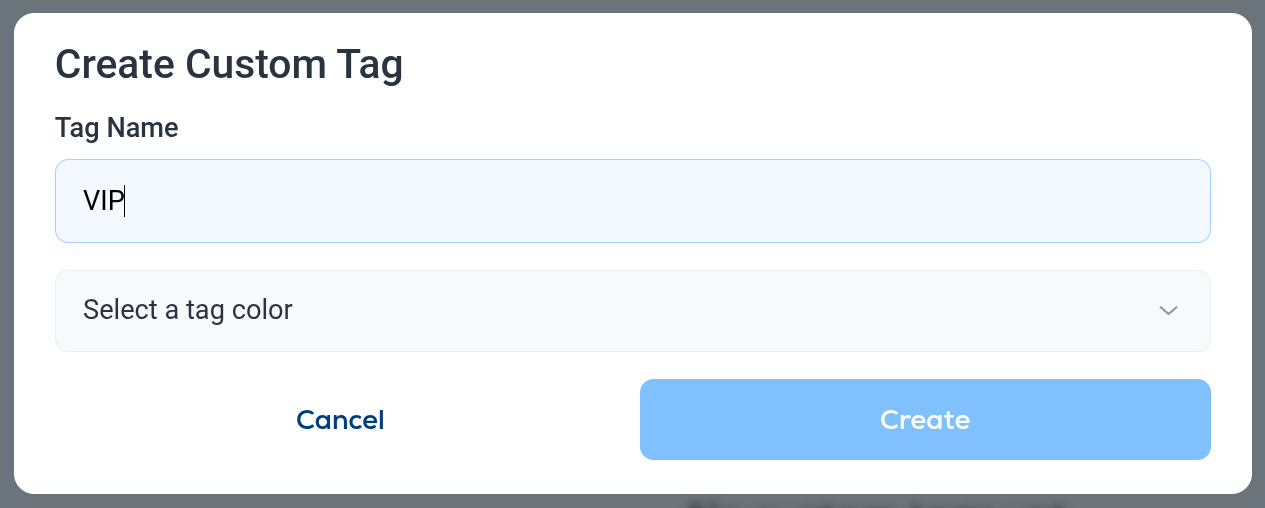
Enter a Tag Name, pick a tag color and click Create. The tag now appears in the list and can be applied to contacts.
Tag contacts when you import
When you import a file, map one of its columns to Tags on the Map fields step. Each contact gets the tags in that column, and tags that do not exist yet are created. See Import contacts from a CSV or spreadsheet.
Tag several contacts at once
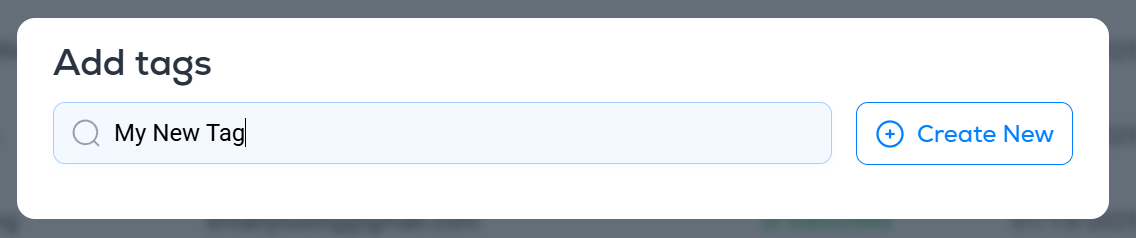
On the Contacts tab, tick the contacts you want, choose Add Tags, then pick a tag. To make a new one on the spot, type its name in the search box and click Create New.
Tag one contact
Open the contact from the Contacts tab and click Add tags in the Contact Tags section. See Managing contacts.
Use your tags
- Segments. Include or exclude contacts by tag. See Creating and using segments.
- Automations. Start an automation when a tag is added, or add and remove tags as a step. See Automation triggers and Automation steps.