
Import contacts from a CSV or spreadsheet
Upload a CSV or spreadsheet of contacts, map its columns to Breaker fields, answer a short questionnaire and review before the import runs.
Use Import to bring an existing list into Breaker, for example from another newsletter platform or a spreadsheet.
- Open Audience and stay on the Contacts tab.
- Click Import (top right).
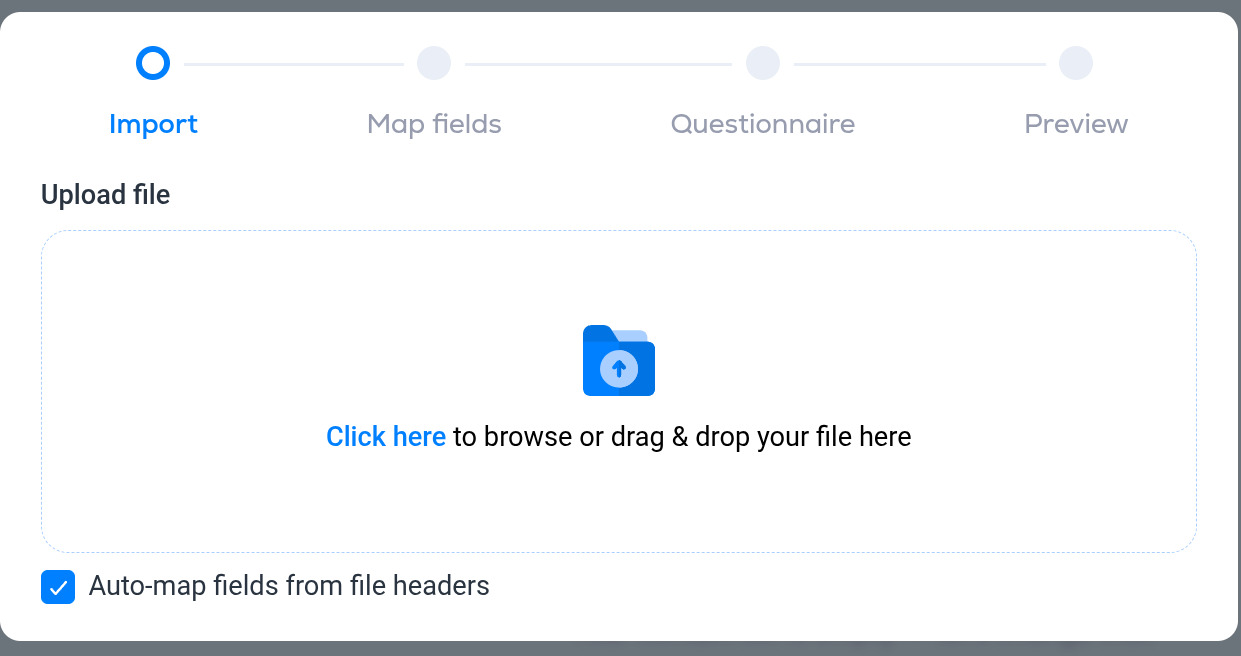
The import runs in four steps, shown across the top of the dialog: Import, Map fields, Questionnaire and Preview.
1. Import
Click Click here to pick a file, or drag and drop it onto the box. Use a CSV or spreadsheet export from your old platform with one contact per row and the email address in its own column. A header row makes the next step much faster.
Auto-map fields from file headers is on by default. With it on, Breaker reads your header row and matches columns such as "Email", "First name" and "Last name" to its own fields for you.
2. Map fields
Check which column goes into which Breaker field, and fix any that were not matched automatically. The email column is the one that matters most. If your file has columns Breaker does not have a field for, create custom fields before you import so you have somewhere to map them. See Custom fields.
3. Questionnaire
A few questions about the list: where it came from and how these people agreed to hear from you. Answer them accurately. They protect your sending reputation, and therefore your open rates.
4. Preview
A summary of what is about to be imported. Check it, then confirm to run the import.
After the import
- Imported contacts do not fire the Contact subscribes automation trigger, so a welcome automation will not send to them. Use a segment or a tag if you want to send imported contacts something. See Automation triggers.
- To check the result, use Search contact on the Contacts tab, or export the list.