
Managing contacts
Find your way around the Audience page, open a contact to see their activity, and edit, unsubscribe or delete them.
Contacts are the people who can receive your emails. They live under Audience in the left-hand menu.

The Audience page
Four tabs run across the top:
- Contacts. Everyone in your audience.
- Segments. Saved groups of contacts. See Creating and using segments.
- Custom Fields. Your own contact fields. See Custom fields.
- Custom Tags. Your tags. See Contact tags.
On the Contacts tab, the buttons at the top right add and remove people in bulk:
- Add Contact adds one person. See Add a single contact manually.
- Import uploads a file of contacts. See Import contacts from a CSV or spreadsheet.
- Export downloads your list. See Export contacts to CSV or Excel.
The table shows each contact's Name, Email, Status, Subscribed On date and Tags. Click a column heading to sort, and use Search contact to find someone.
Edit, unsubscribe or delete a contact
Click the round ... button at the right end of a contact's row.
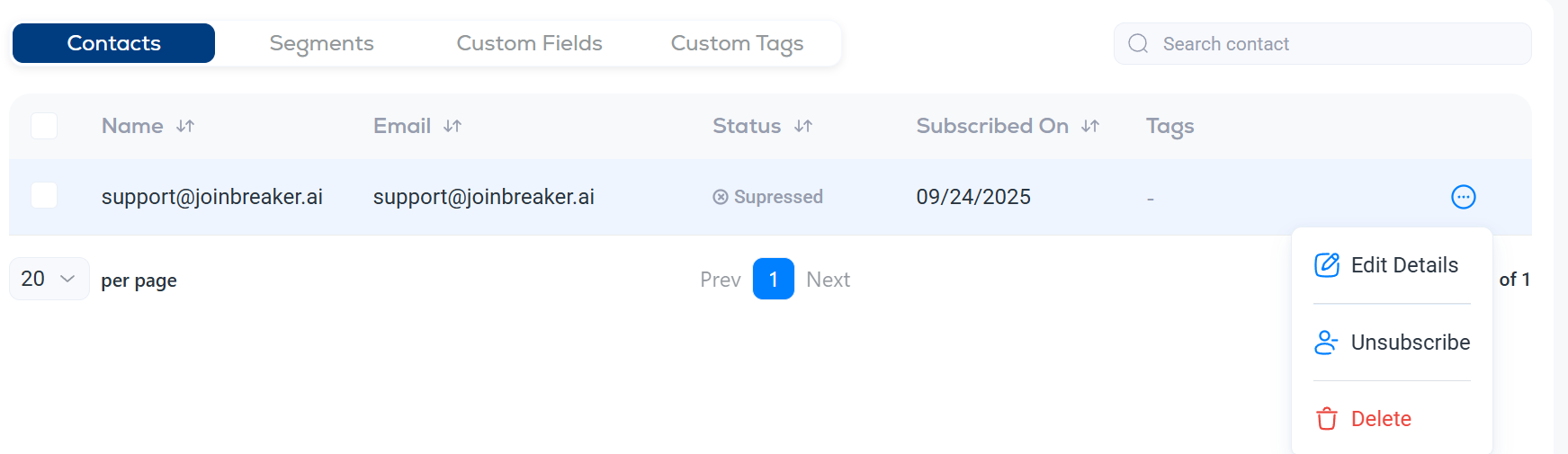
- Edit Details opens the contact.
- Unsubscribe stops all future emails to them but keeps their record and history.
- Delete removes the contact.
Tick the boxes at the left of several rows to act on them together, for example to add a tag to all of them.
The contact overview
Click a contact's row to open their overview.
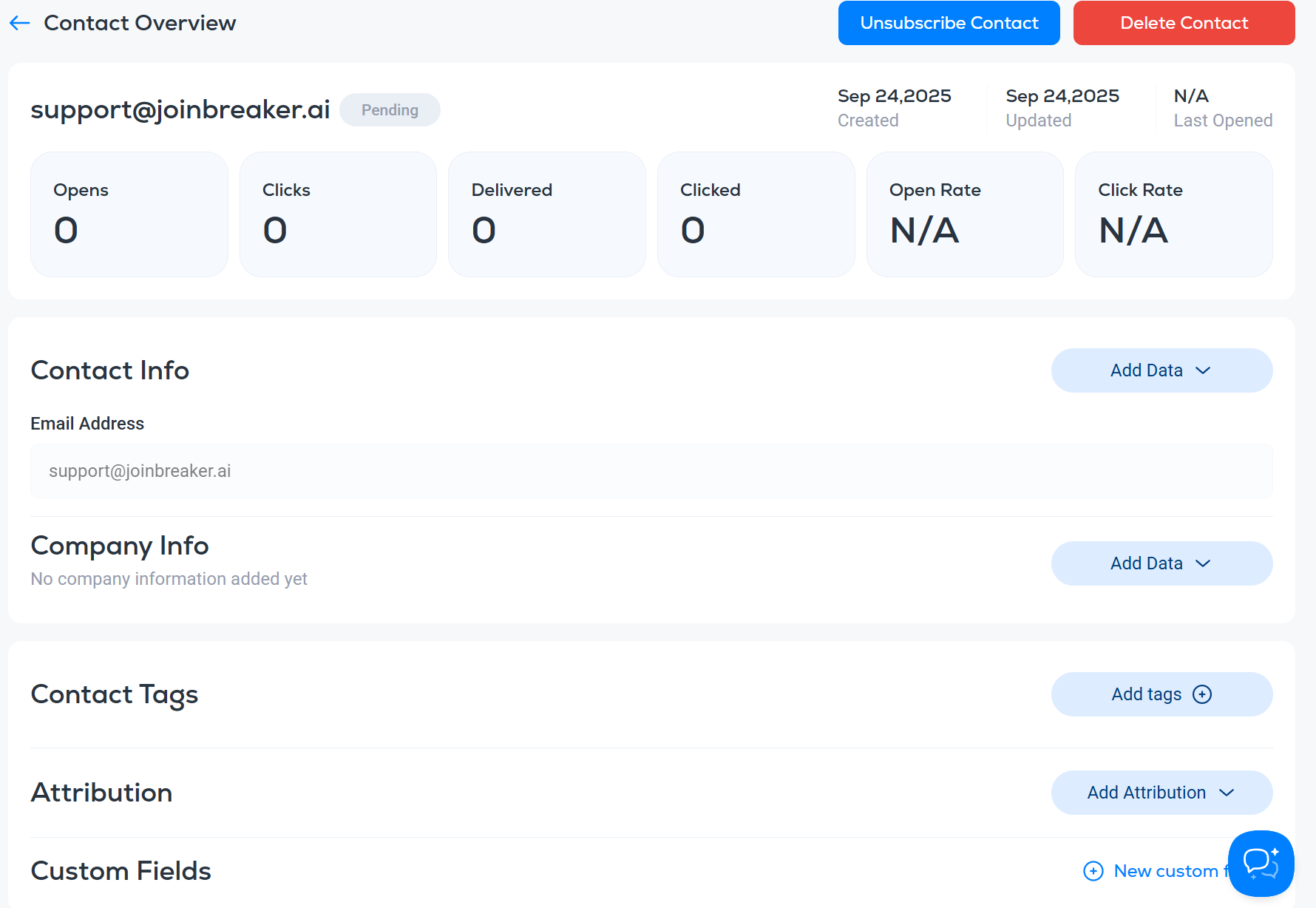
The top of the page shows their status, when they were created, updated and last opened, and their totals: opens, clicks, delivered emails, open rate and click rate. Unsubscribe Contact and Delete Contact are at the top right.
Below that:
- Contact Info. The email address, plus anything you add with Add Data: name, phone, job title, address and so on. A contact only needs an email address; the rest is optional.
- Company Info. Company name, website, industry and similar details.
- Contact Tags. The tags on this contact. Add tags adds more.
- Attribution. Where the contact came from, stored as UTM values.
- Custom Fields. Values for the fields you have created.
Attribution and UTM values
UTM parameters are short labels added to the end of a link to record where a visitor came from. In Breaker they record a subscriber's source, so you can tell a signup from your website apart from one from a social post.
- utm_source. Where the subscriber came from, for example linkedin or example.com.
- utm_medium. How they arrived, for example social or email.
- utm_campaign. The specific campaign or promotion, for example summer_sale.
- utm_term. The keyword, for paid search.
- utm_content. Which version of a link or ad, for example button_link or text_link.
You can build segments from these values. See Segment conditions reference.