
Creating and using segments
Split your audience into groups by tags, fields, engagement or source, and use those groups when you send.
A segment is a group of contacts picked out by conditions such as tags, fields or engagement. Use segments to send a campaign to part of your list, to leave part of it out, or to look at one group's numbers.
Create a segment
- Open Audience, then the Segments tab, and click New Segment.
- Give the segment a name and, if you like, a description.
- Choose the type.
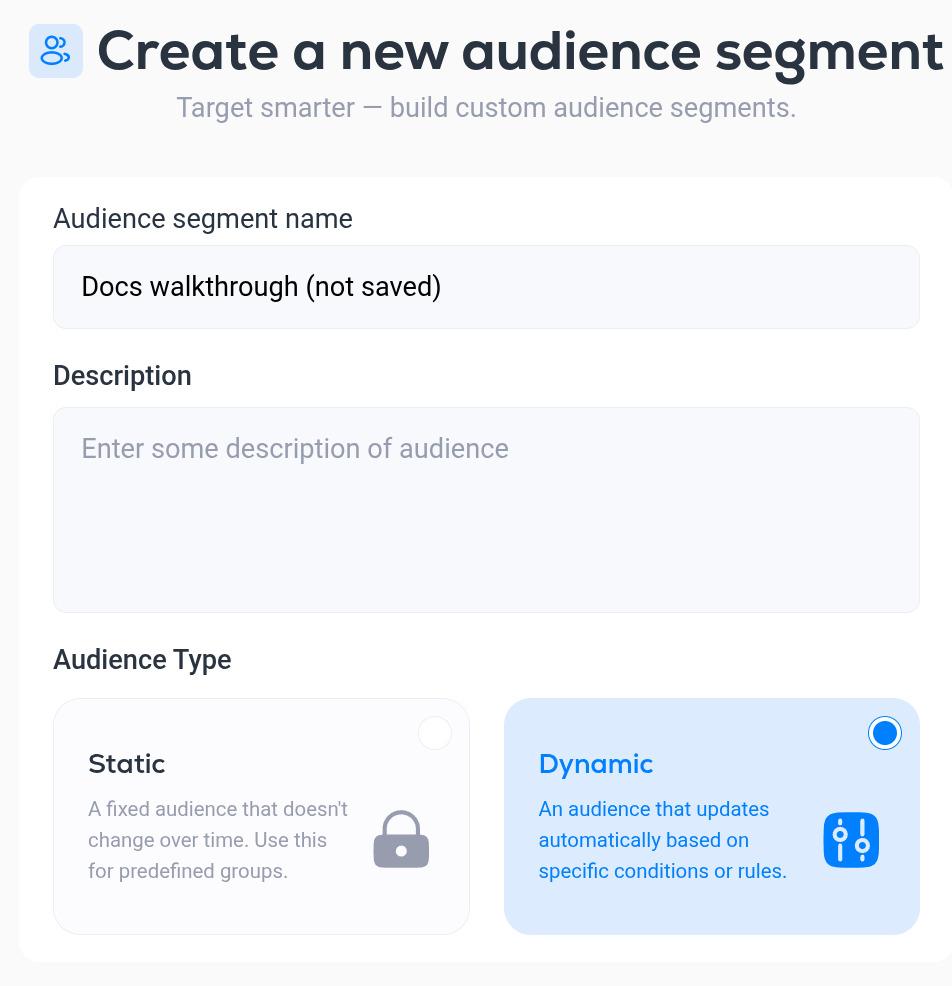
- Static segments are a fixed list. They do not change unless you change them. Use one for a group that should stay as it is, such as the people who attended one event.
- Dynamic segments follow conditions and update on their own, including right before a send, so everyone who matches is included.
Set the conditions
For a dynamic segment, the next screen is the conditions editor.
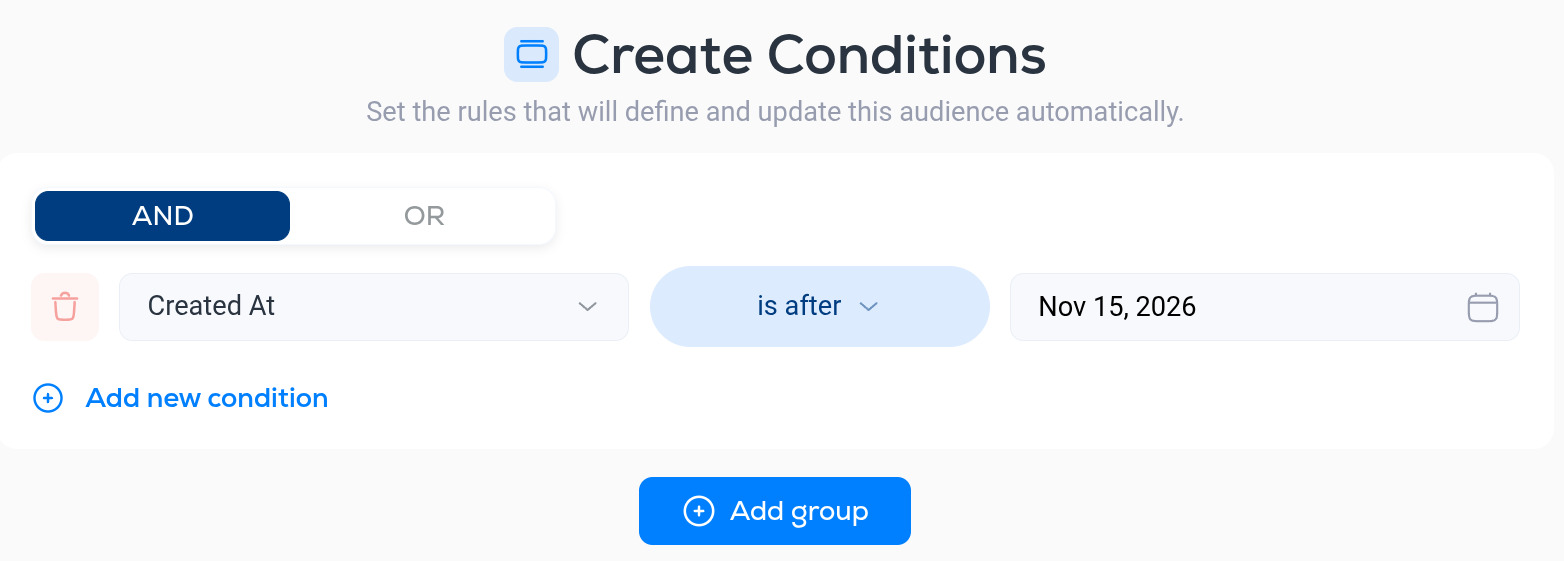
Each condition has a field, an operator and a value. You can filter on:
- Event. Dates and campaign activity: when a contact was created, last opened or last clicked, and whether they were sent, opened or clicked a specific campaign or link.
- Statistics. Totals and rates per contact: emails sent, delivered, opened and clicked, open rate and click rate.
- Attribution. The UTM source, medium, campaign, term and content recorded when the contact joined.
- Contact. Email, name, phone, job title, location and address.
- Company. Name, website, industry, size, revenue and location.
- Custom Fields. Any fields you have created.
- Contact Tags. Whether a contact has, or does not have, a tag.
The operators depend on the type of field:
- Text fields
- Is, Is not
- Contains, Does not contain
- Begins with, Ends with
- Exists, Does not exist
- Number fields. Rates are entered as whole numbers, so 30 means 30%.
- Equal, Does not equal
- Greater than, Greater or equal
- Less than, Less or equal
- Exists, Does not exist
- Date fields
- Is after, Is on or after
- Is before, Is on or before
- Exists, Does not exist
- True/False fields
- True
- False
The full list of fields and operators is in the Segment conditions reference.
Combine conditions with AND and OR
Conditions sit in groups. The switch at the top of a group decides how its conditions combine:
- AND. A contact must match every condition in the group.
- OR. A contact must match at least one.
For example, one group set to AND with Created At is after 1 January and Open Rate greater than 40 finds contacts who joined this year and open more than 40% of your emails. Switch the group to OR and it finds contacts who did either.
Add group adds a second group, and the groups combine with AND or OR in the same way. That lets you build rules such as: (joined this year AND open rate over 40) OR (click rate over 2 AND email contains gmail.com).
Click Save when the conditions are right.
Use a segment
- Send to it, or around it. On a campaign's Delivery step, choose Custom Contacts and pick segments to include or exclude. See Create and send a campaign.
- Act on it in bulk. Tag, unsubscribe or export the contacts in a segment.
- Measure it. Use a segment to see how many contacts match a rule, for example how many opened in the last 90 days.