
Export contacts to CSV or Excel
Download your contacts as a CSV or Excel file, choosing which subscriber statuses to include.
You can export your audience at any time, for a backup, for analysis, or to move to another tool.
- Open Audience and stay on the Contacts tab.
- Click Export (top right).
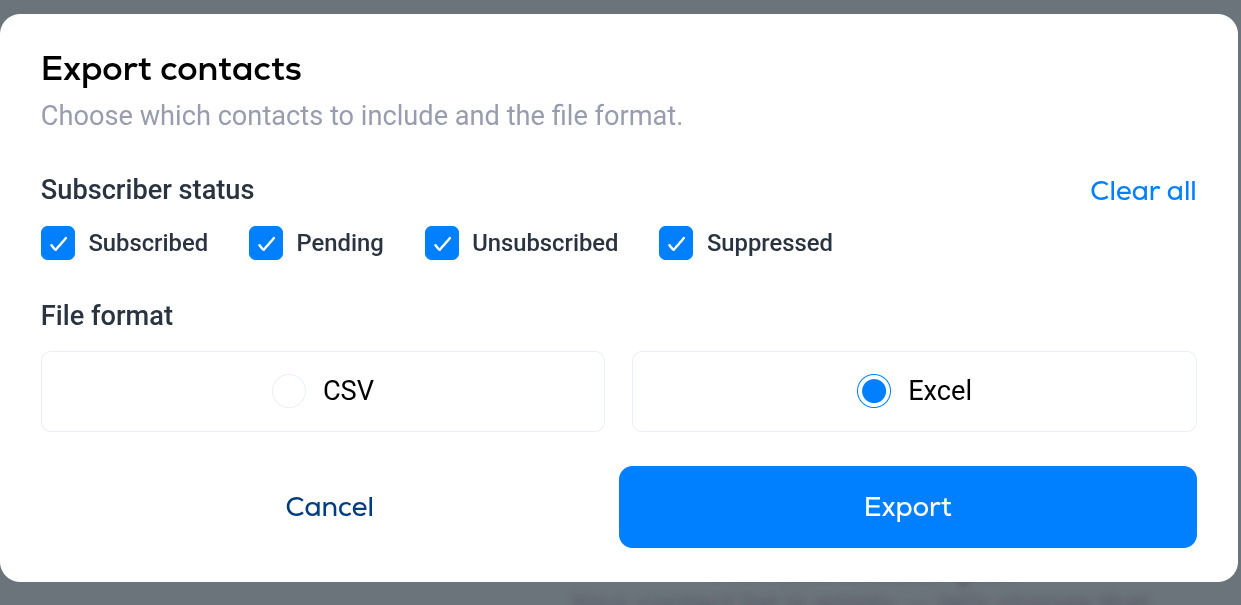
Subscriber status
Tick the statuses you want in the file. All four are selected by default; Clear all unticks them so you can pick just one or two.
- Subscribed. People who currently receive your emails.
- Pending. People who signed up but have not completed confirmation yet.
- Unsubscribed. People who opted out. Keep these in your records so you never re-import them as subscribed.
- Suppressed. Addresses Breaker will not send to, for example after a hard bounce or a spam complaint.
File format
Choose CSV or Excel, then click Export. The file downloads to your computer.
More in Contacts
All help articlesManaging contactsFind your way around the Audience page, open a contact to see their activity, and edit, unsubscribe or delete them.Add a single contact manuallyAdd one person to your audience by email address from the Contacts tab.Import contacts from a CSV or spreadsheetUpload a CSV or spreadsheet of contacts, map its columns to Breaker fields, answer a short questionnaire and review before the import runs.Contact tagsTags are free-form labels for grouping contacts. Four ways to create and apply them.
Support