
Automation steps
Every step you can add to an automation, from sending an email and waiting to branching, split testing, tagging, updating fields, unsubscribing and calling a webhook.
Click Add step at the bottom of the flow, or the + on a connector, to open the step menu.
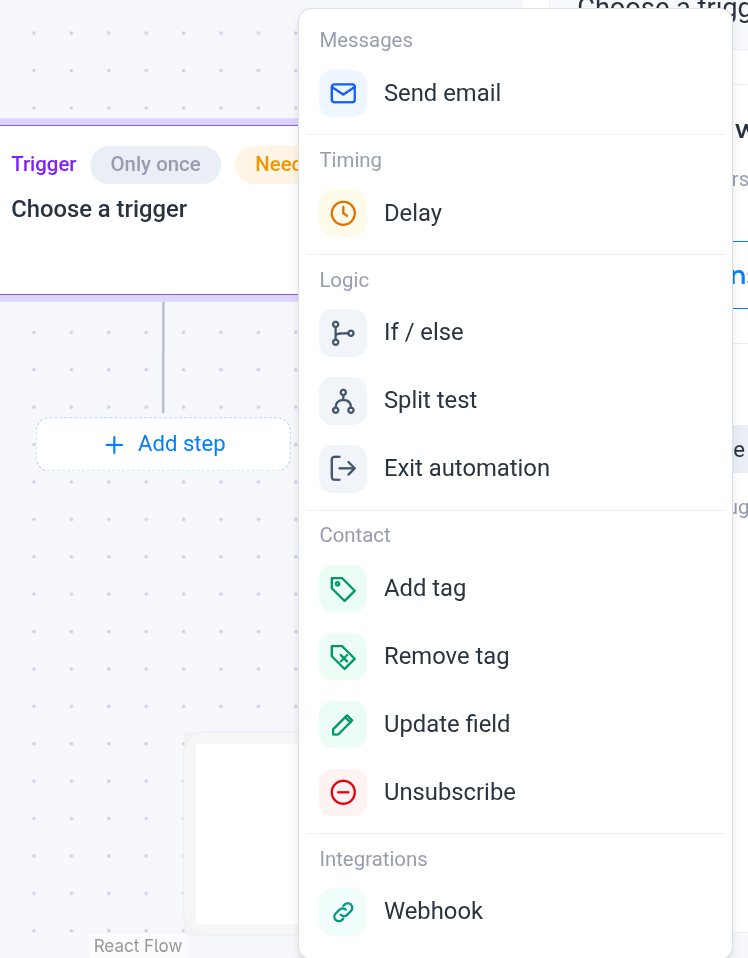
Click a step in the flow to edit it in the right-hand panel. Every step panel ends with Delete step.
Messages
Send email
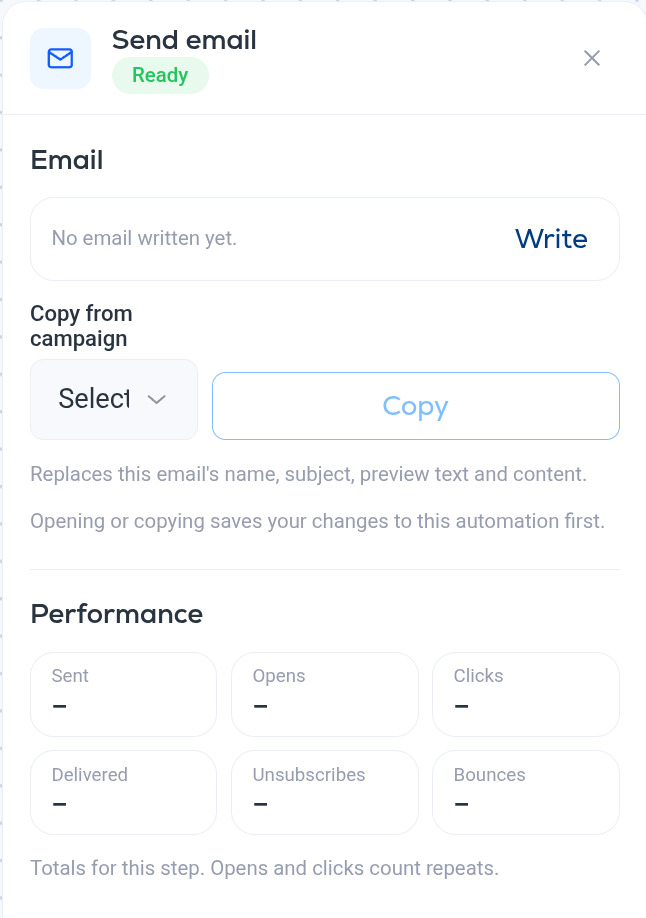
Sends one email to the contact.
- Write opens the same editor you use for campaigns, so you can write the email from scratch. See Campaign editor and builder.
- Copy from campaign fills the step from an existing campaign: pick the campaign and click Copy. This replaces the email's name, subject, preview text and content, which is the quickest way to reuse something you have already sent.
- Opening the editor or copying a campaign saves your changes to the automation first.
- Performance shows totals for this step once the automation is live: Sent, Delivered, Opens, Clicks, Unsubscribes and Bounces. Opens and clicks count repeats.
Timing
Delay
Pauses the contact before the next step.
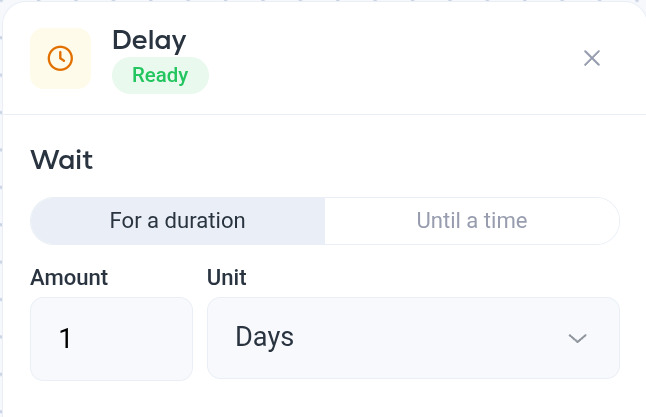
- For a duration. Wait an Amount of Units, for example 1 day or 2 hours.
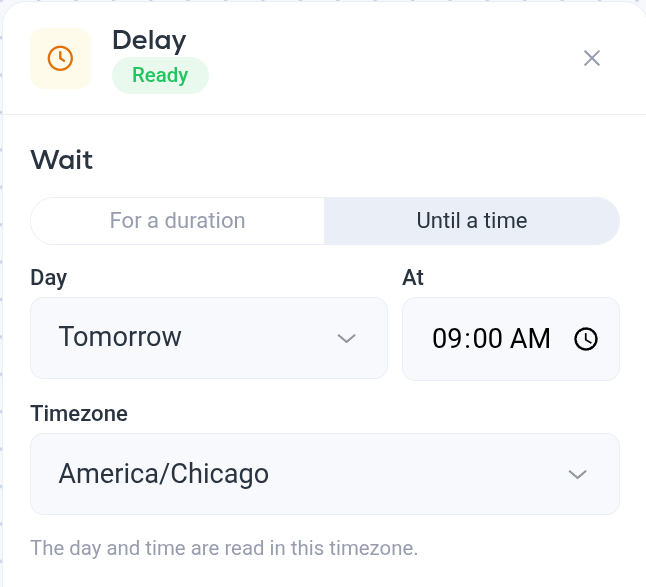
- Until a time. Wait until a given Day (for example tomorrow) at a given time, read in the Timezone you choose. Use this to land an email at 9:00 in your readers' morning rather than at the moment they signed up.
Logic
If / else
Splits the flow in two.
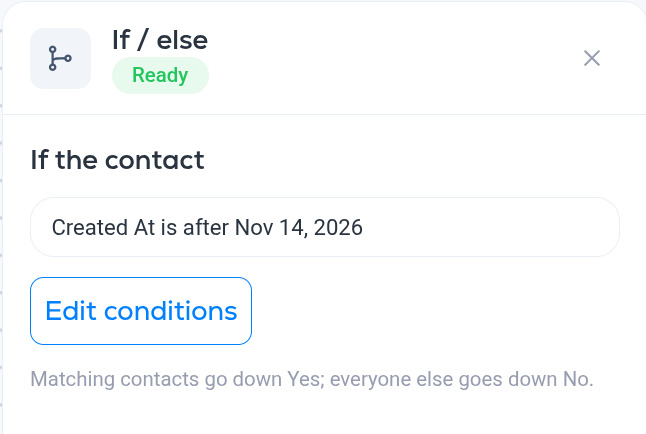
- Edit conditions opens the same conditions editor as segments: fields, operators, AND/OR and groups. See Segment conditions reference.
- Contacts who match go down the Yes branch; everyone else goes down No. Each branch has its own Add step.
- Delete step (keeps the Yes branch) removes the split and keeps whatever you built under Yes.
Split test
Sends contacts down branch A or branch B at random, 50/50, so you can compare two emails or two sequences. Breaker picks the winner by open rate, click rate or RealClick™ rate. See Automation split tests.
Exit automation
Ends the automation for the contact at that point. Put it at the end of a branch when the rest of the flow should not apply to those people.
Contact
- Add tag. Adds a tag to the contact. Tags can start other automations (see Tag is added in Automation triggers) and are available in segments.
- Remove tag. Removes a tag.
- Update field. Sets a contact field or custom field to a value.
- Unsubscribe. Unsubscribes the contact from this newsletter. Use with care: it is the same as the contact clicking unsubscribe.
Integrations
- Webhook. Sends the contact's data to a URL you choose, so another system can react. For webhooks that fire on every contact change rather than inside a flow, see Webhooks.