
Automation split tests
Add a Split test step to send contacts down two branches at random, compare the branches by open rate, click rate or RealClick™ rate, and move everyone to the winner.
A Split test step divides the contacts in an automation between two branches, A and B, at random. Put a different email in each branch, or a different sequence of emails, and Breaker measures which branch performs better.
Use it to compare two welcome emails, two subject lines, or a short sequence against a long one.
Add a split test
- Open the automation in the builder. See Automations overview.
- Click Add step, or the + on a connector, and choose Split test under Logic.
- Add at least one Send email step to each branch. The step shows Needs setup until both branches have an email.
- Build out each branch with any other steps you need.
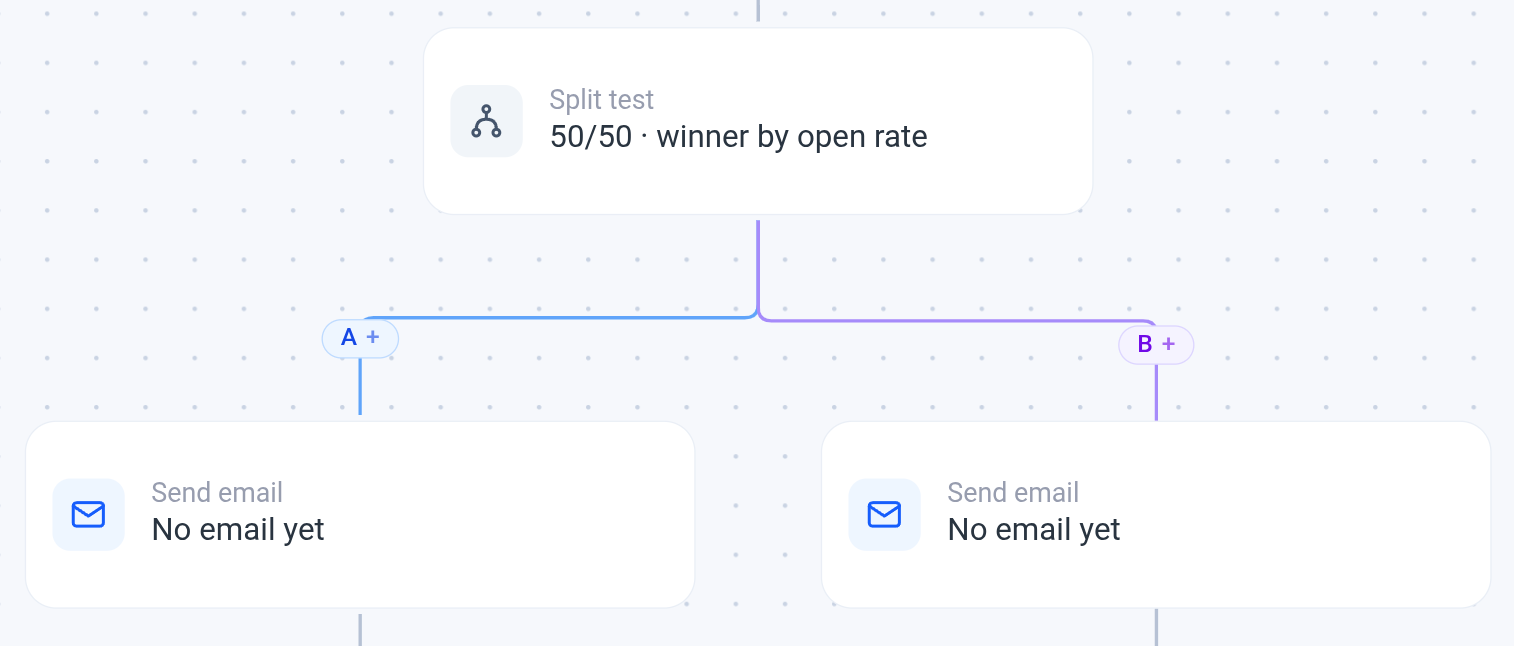
Each branch has its own Add step, and the A + and B + buttons add a step at the start of a branch. Contacts are split 50/50.
Choose how the winner is picked
Click the Split test step to open its panel.
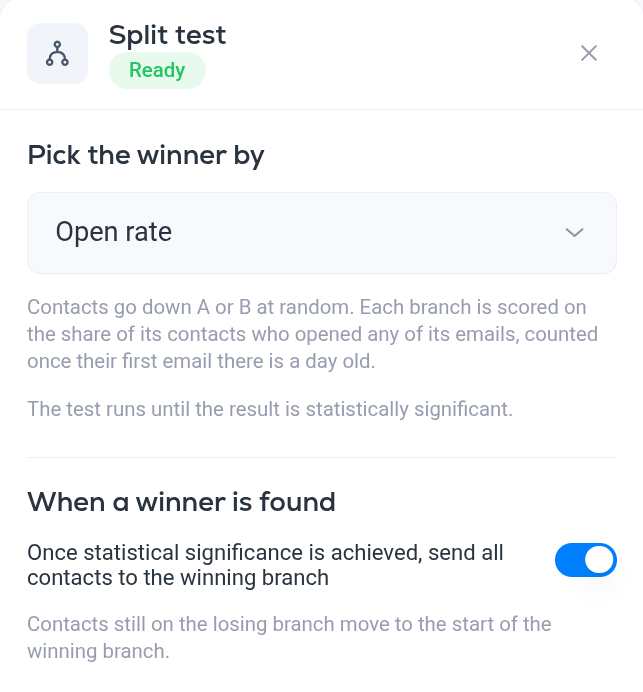
Pick the winner by sets the measure:
- Open rate. The share of a branch's contacts who opened any of its emails.
- Click rate. The share who clicked any of its emails.
- RealClick™ rate. The share who clicked, leaving out clicks made by security scanners. See What is RealClick™?.
A contact counts towards the score once their first email in the branch is a day old. The test runs until the result is statistically significant. There is no end date to set.
When a winner is found
The switch Once statistical significance is achieved, send all contacts to the winning branch decides what happens next:
- On. Contacts who enter the automation from then on all go down the winning branch. Contacts who are already on the losing branch stay there and finish it.
- Off. Contacts keep splitting 50/50, and the winner is only labelled. Use this when you want to keep both versions running and only want to know which does better.
Remove a split test
Delete step (keeps branch A) at the bottom of the panel removes the split and keeps the steps you built under branch A.
To test subject lines on a campaign instead, see Subject line split testing.