
Subject line split testing
Test two subject lines on part of your list, let Breaker pick the one with the higher open rate, and send the winner to everyone else.
A subject line split test (also called an A/B test) sends two versions of the subject to a small part of your list, waits to see which one gets more opens, and sends the better one to everyone else. Only the subject line differs. The email itself is the same.
Set up a test
- Create or open a campaign. On the Details step, find Configure Email and switch on Split test.
- Enter Subject Line A and Subject Line B.
- Set how much of the list to test on, and how long to wait before picking the winner.
- Carry on with the builder and the delivery step as usual. See Create and send a campaign.
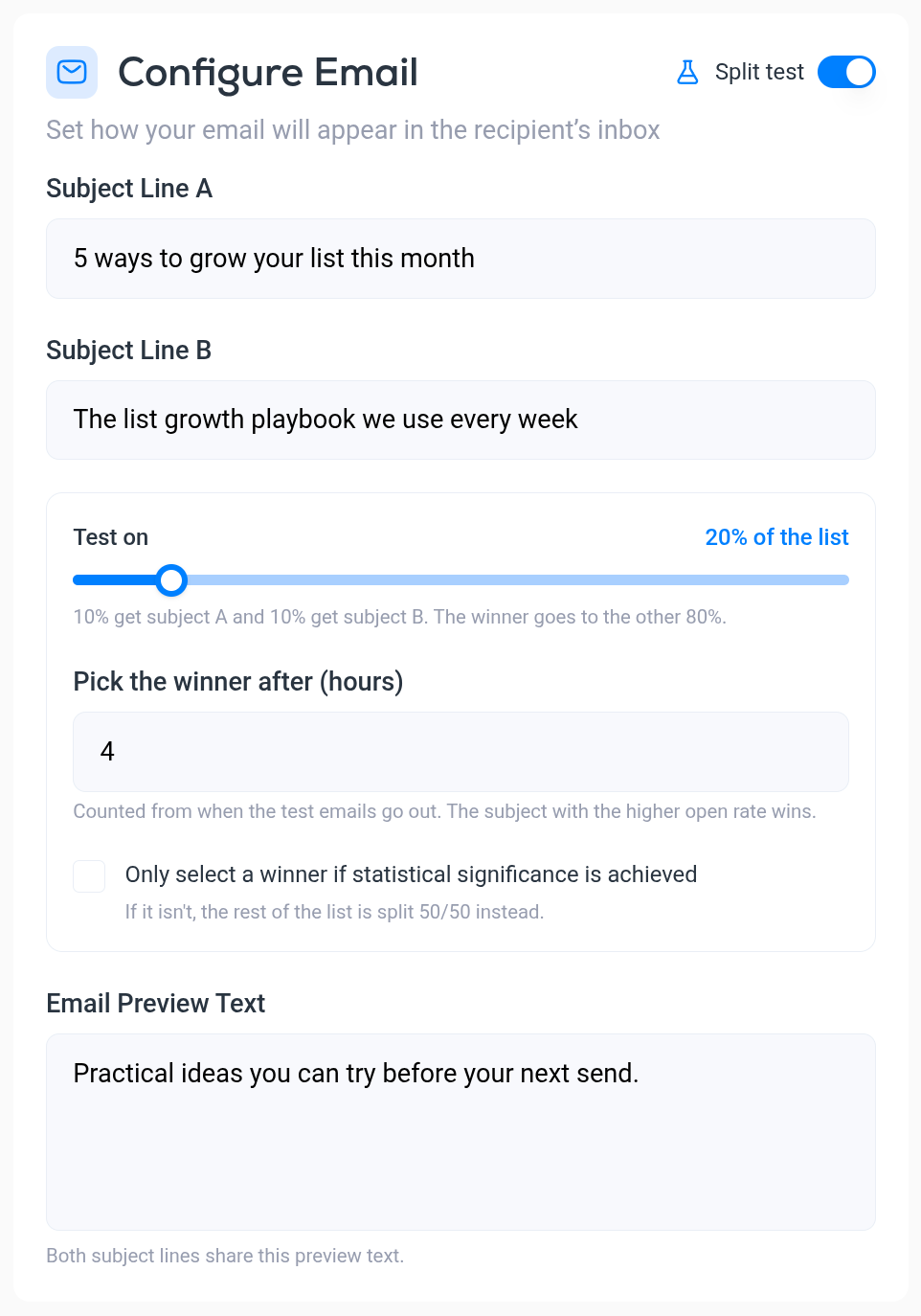
The settings:
- Test on. The share of your list that takes part in the test, from 10% to 100%. Half of that group gets subject A and half gets subject B. At 20%, for example, 10% get A, 10% get B, and the winner goes to the other 80%.
- Pick the winner after (hours). How long Breaker waits before deciding, from 1 to 72 hours, counted from when the test emails go out. The subject with the higher open rate wins.
- Only select a winner if statistical significance is achieved. Tick this to send the winner only when the difference between A and B is large enough to be trusted. If it is not, the rest of the list is split 50/50 between the two subjects.
- Email Preview Text. Both subject lines share the same preview text.
Choosing the numbers
- Test size. A small list needs a larger test share to produce a clear result. If each half of the test is only a few dozen people, a handful of opens decides the winner.
- Wait time. Most opens arrive in the first few hours. A longer wait gives a more reliable result, but the rest of your list receives the email that much later, so count the wait into your send time.
- One difference at a time. Keep the two subjects about the same email and change one thing, such as a question against a statement, so you learn what worked.
See the result
Open the campaign from the Campaigns list. The report has a Subject Line Test section with a card for each subject: its open rate, the subject line, how many recipients got it and its unique opens.
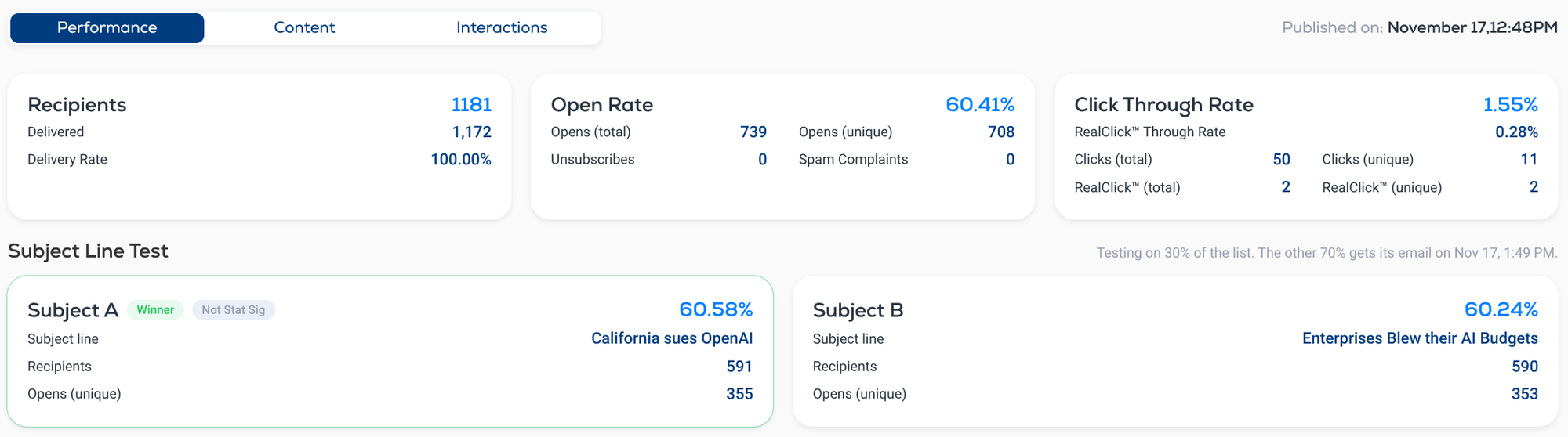
You can open the report while the test is still running:
- The note on the right shows the share of the list being tested and when the rest of the list gets its email, for example Testing on 30% of the list. The other 70% gets its email on Nov 17, 1:49 PM.
- Winner marks the subject with the higher open rate.
- Not Stat Sig appears next to it when the difference between the two subjects is too small to be statistically significant. In the example above the open rates are 60.58% and 60.24%, so the lead could be down to chance.
The cards at the top of the report count only the emails sent so far, so during the test they cover the test group.
The rest of the report covers the whole campaign. See Campaign performance reports.
To test different emails inside an automation, see Automation split tests.