
Campaign performance reports
Open a sent campaign to see who received it, who opened and clicked, which links did best, and what each subscriber did.
After a campaign is sent, open Campaigns and click it to see its report.
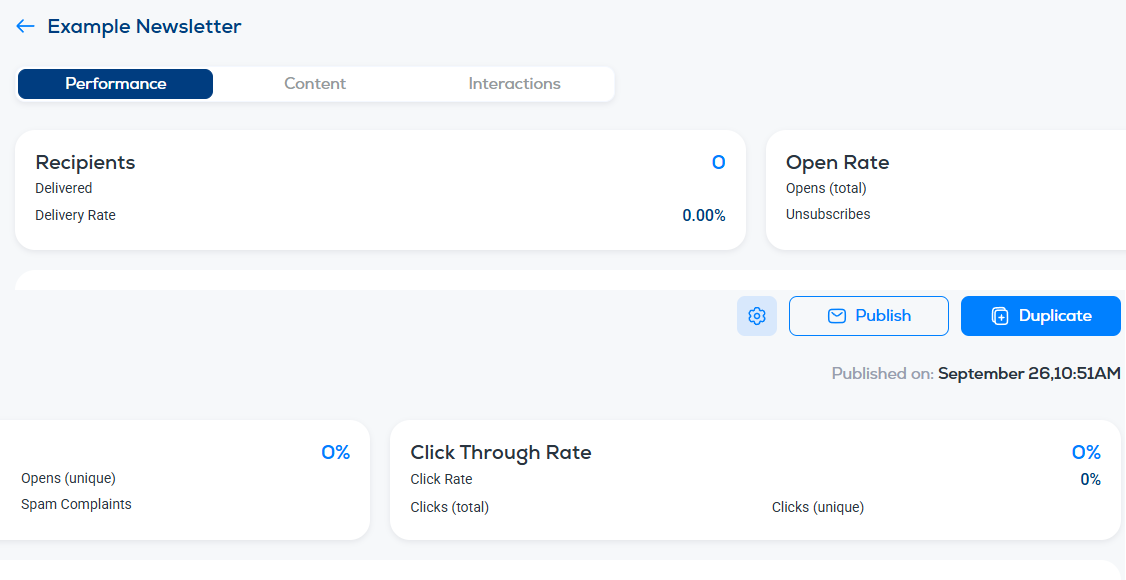
Summary cards
The cards at the top give the headline numbers for this one email:
- Recipients, with the number delivered and the delivery rate.
- Open Rate, with total and unique opens, unsubscribes and spam complaints.
- Click Through Rate, with the click rate and total and unique clicks.
Clicks are shown two ways: all clicks, and RealClick™, which leaves out clicks made by security scanners and other software. See What is RealClick™?.
For exactly how each number is calculated, see Engagement metric definitions.
Subject line test
If the campaign ran a subject line split test, a Subject Line Test section under the cards compares subject A and subject B: open rate, recipients and unique opens for each, with the leading subject marked Winner. See Subject line split testing.
Opens over time
The chart under the cards shows unique opens over time after the send. Most opens arrive in the first hours; a second bump usually means the email was forwarded or re-surfaced.
Clicks by link
The Clicks table lists every link in the email with its total and unique clicks. Click a row to see the contacts who clicked that link, and export them.
Per-subscriber activity
The Interactions tab lists what individual subscribers did with this email. The Content tab shows the email as it was sent.
Compare across campaigns
For trends over weeks and months rather than one send, use the Performance dashboard.