
AI content generation and spelling check
Draft an email with the Draft with AI block, have Breaker prepare drafts from your RSS feed or YouTube channel on a schedule, and check spelling and grammar before you send.
Breaker has three AI tools for writing:
- Draft with AI. A block in the email builder that writes a first draft from a short brief.
- AI drafts. A schedule that checks your RSS feed or YouTube channel and prepares a draft campaign when there is something new.
- Spelling and grammar. A check button in the builder that suggests corrections.
Nothing here sends an email for you. Each tool produces text or a draft that you review, edit and send yourself.
Draft with AI in the builder
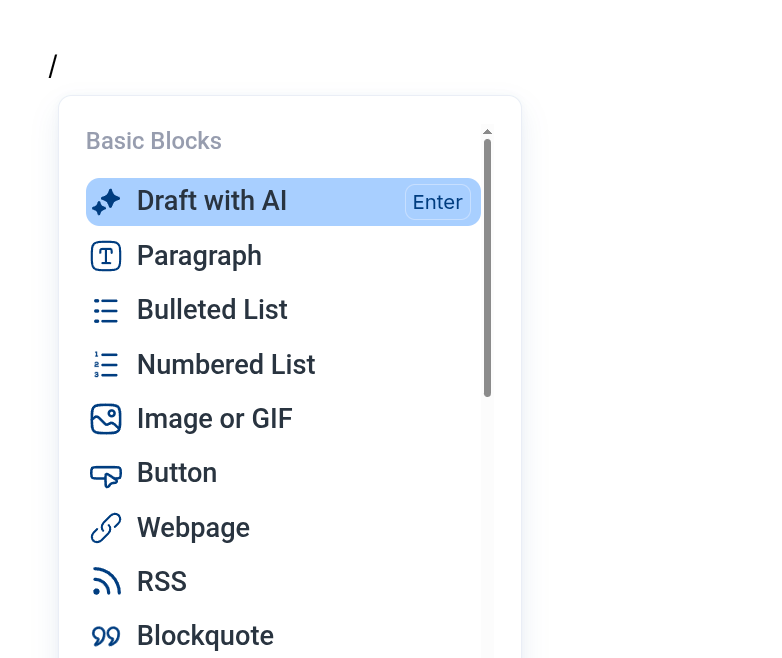
- In the campaign builder, type / on an empty line to open the block menu.
- Choose Draft with AI, the first item in the list.
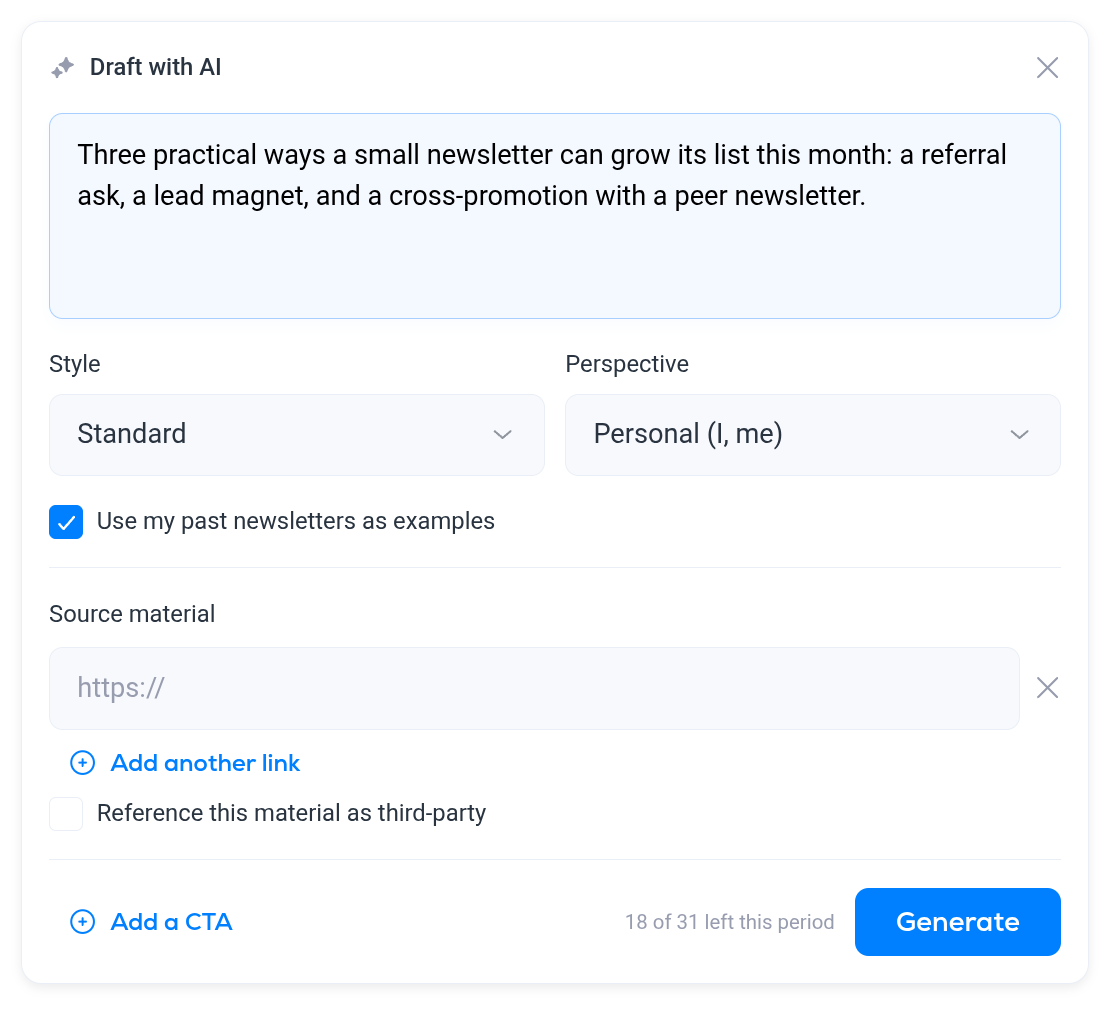
- Describe what the email should be about in the What should this newsletter be about? box. A few specific sentences work better than a single topic word.
- Adjust the options if you want to, then click Generate.
The options:
- Style. Standard, Curation / aggregation (a roundup of other people's content), Commentary / opinion or Lead generation.
- Perspective. Personal (I, me), Organization (we, us, our) or Editorial (you, your).
- Use my past newsletters as examples. Leave this ticked to have the draft follow the way your earlier campaigns are written.
- Add source material. Paste one or more links for the draft to work from. Add another link adds more. Tick Reference this material as third-party when the links are someone else's content and not your own.
- Add a CTA. A call to action for the draft to include: the wording, for example Get 50% off, and the link it points to.
Breaker writes the draft straight into the email as ordinary blocks: headings, paragraphs and lists.
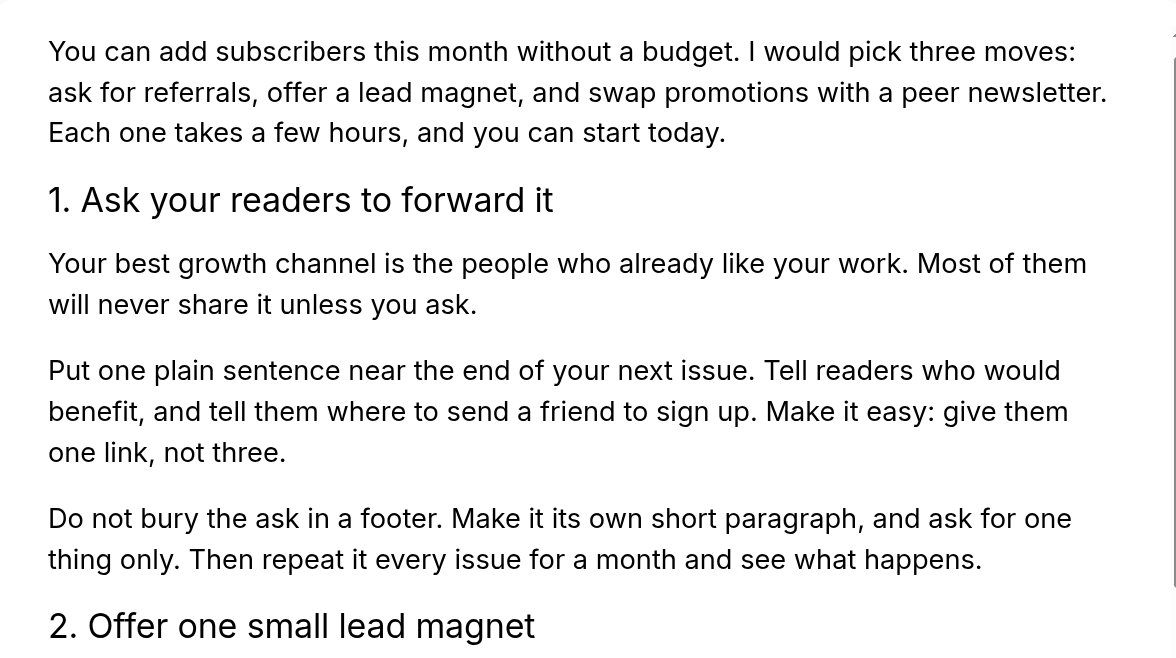
From there it is your email. Edit, move and delete the blocks like any others, and add your own images and buttons. See Campaign editor and builder.
Read an AI draft before you send it. Check facts, names, numbers and links in particular.
AI generations
Each draft uses one AI generation, whether you generate it in the builder or Breaker creates it on a schedule. The counter next to Generate, for example 18 of 31 left this period, shows how many you have left in the current period. A spelling and grammar check also uses one generation.
Your allowance is shown under AI generations on the Billing tab in Settings, where you can also add more generations per month. See Billing and plans.
AI drafts on a schedule
Breaker can watch a source for new content and prepare a draft campaign for you whenever there is something new. Open Settings, then the AI tab under Publishing, and fill in AI drafts.
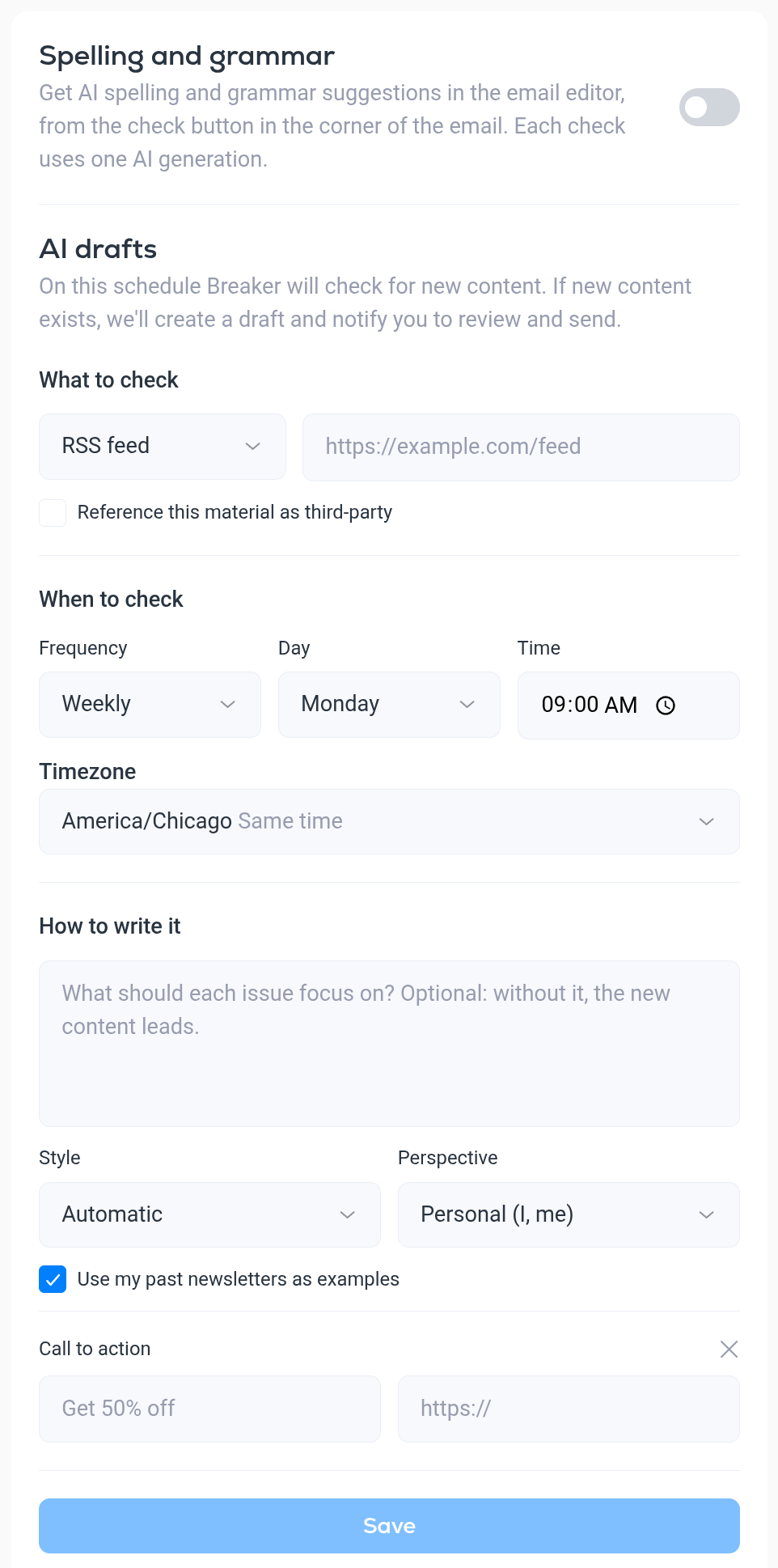
- What to check. Choose RSS feed or YouTube channel and paste its address. Tick Reference this material as third-party if the source is not your own content.
- When to check. A Frequency of Daily, Weekly or Monthly, with the Day, Time and Timezone to run on.
- How to write it. Optionally say what each issue should focus on. Without it, the new content leads. Style, Perspective, Use my past newsletters as examples and Add a CTA work as they do in the Draft with AI block. The extra Automatic style leaves the choice of style to Breaker.
Click Save. On each scheduled check, Breaker looks for new content. If it finds some, it creates a draft and notifies you to review and send it. If there is nothing new, nothing is created.
Each scheduled draft uses one AI generation. The draft is never sent on its own. You open it, edit it and send it like any other campaign.
Spelling and grammar check
- Open Settings, then the AI tab under Publishing, and switch on Spelling and grammar.
- In the email builder, click the round check button in the bottom right corner of the email.
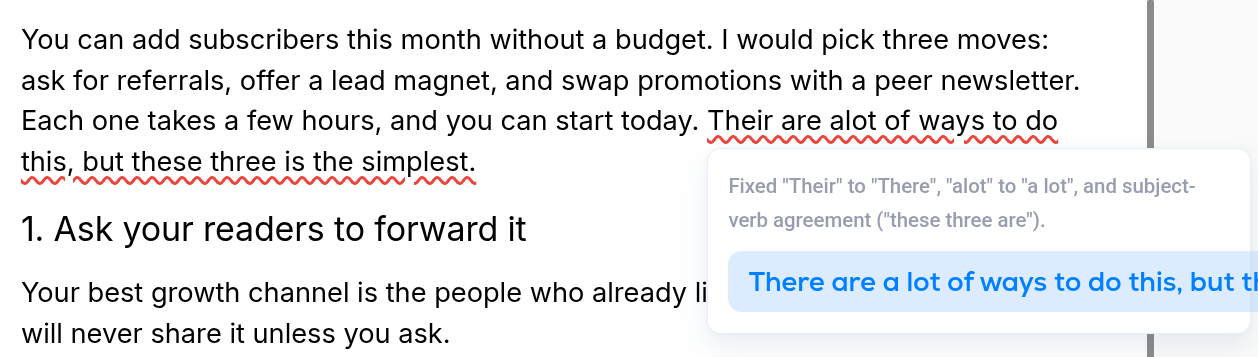
Breaker reads the email and underlines what it would change. The button shows how many suggestions it found.
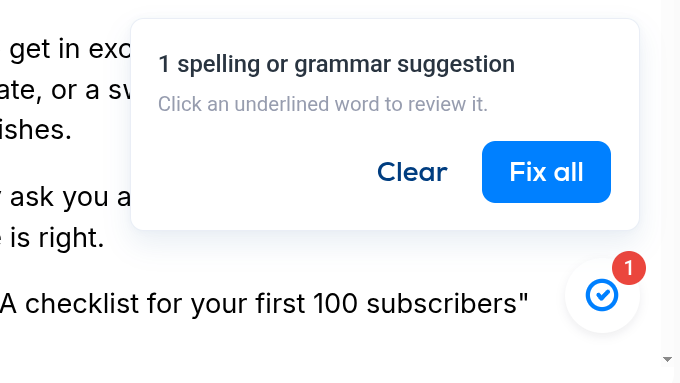
- Click an underlined passage to see what was wrong and the corrected text.
- Fix all applies every suggestion at once.
- Clear removes the suggestions and leaves your text as it is.
Each check uses one AI generation, so run it when the email is nearly finished.