
Automations overview
What an automation is, how the builder works, and the difference between a draft and an active automation.
An automation is a sequence of steps that runs on its own for each contact when something happens to them. The classic example is a welcome email that goes out a few minutes after someone subscribes, but automations can also wait, branch on conditions, add and remove tags, update fields, unsubscribe a contact or call a webhook.
The Automations list
Automations in the left-hand menu lists every automation on this newsletter.

- Name and Status (Draft or Active).
- Starts when. The trigger, in plain words.
- Sends, Open Rate and CTR for the emails inside it.
- Last edited.
Click a row to open it in the builder. The circle icon at the right end of the row opens a menu with Edit, Duplicate and Delete.
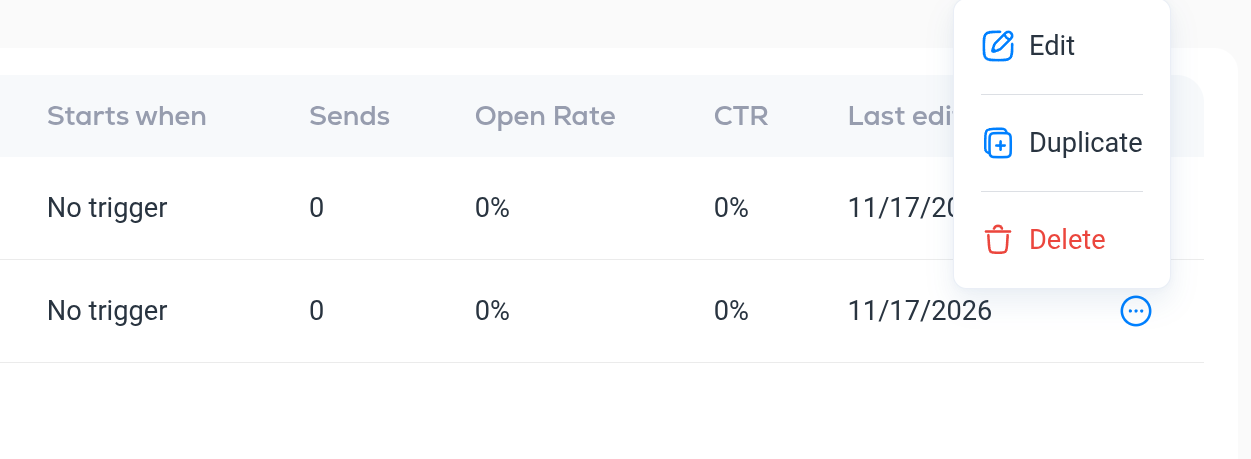
- Duplicate makes a copy of the automation and opens it in the builder. The copy is named after the original with (copy) added. Check its trigger and emails before you turn it on. Use it to reuse a flow you have already built, or to try a change without touching the original.
- Delete asks you to confirm, then permanently removes the automation and its emails.
The builder
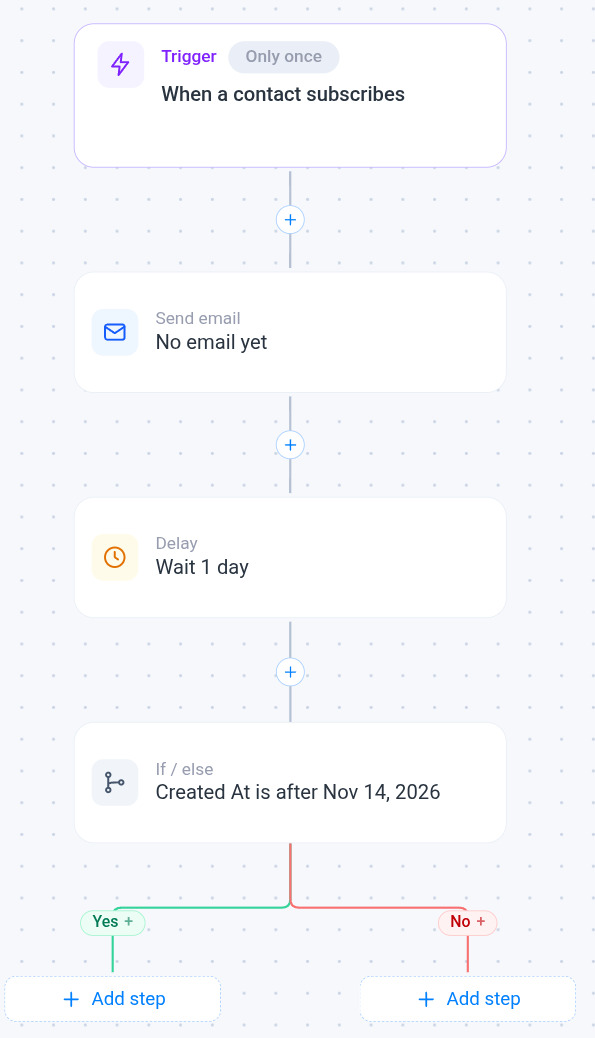
The builder is a canvas. The flow runs from the Trigger at the top, down through each step in order. Click any node to edit it in the panel on the right.
- Trigger. What starts the automation and who is allowed in. See Automation triggers and Automation entry rules and conditions.
- Add step. The button at the bottom of the flow adds a step at the end. The small + on a connector inserts a step between two existing ones.
- If / else steps split the flow into a Yes and a No branch, each with its own steps. See Automation steps.
- Zoom in, zoom out and fit view (bottom left) help with long flows. The small map in the bottom-right corner shows where you are.
Name, save and activate
The bar at the top of the builder has the automation's name (click it to rename), its status, and a note such as 1 item needs setup or 3 steps · ready.
- Save stores your changes. Until you save, the status shows Unsaved.
- Active is the switch on the far right. Off means the automation is a draft: it is saved but nothing runs. On means it is live: from that moment, contacts who meet the trigger enter it.
You cannot turn an automation on while any step still needs setup. Fix the step the note points to first.
Good habits
- Build and save as a draft, send yourself the email with Send test email inside the email step, and only then switch Active on.
- Give each automation a clear name. The name is only shown inside Breaker.
- Check the step Performance numbers after a few days to see whether people are opening and clicking. See Automation steps.