
Custom sending domain
Connect a sending domain, add the DNS records, and let the automatic warm-up move your sending from Breaker's shared domain to yours.
New newsletters send from Breaker's domain, so your address looks like yourhandle@breaker.email. Connecting your own domain makes emails, tracking links and images all carry your name. Readers trust that more, and your sending reputation becomes your own.
Open Settings, then the Domain tab under Publishing.
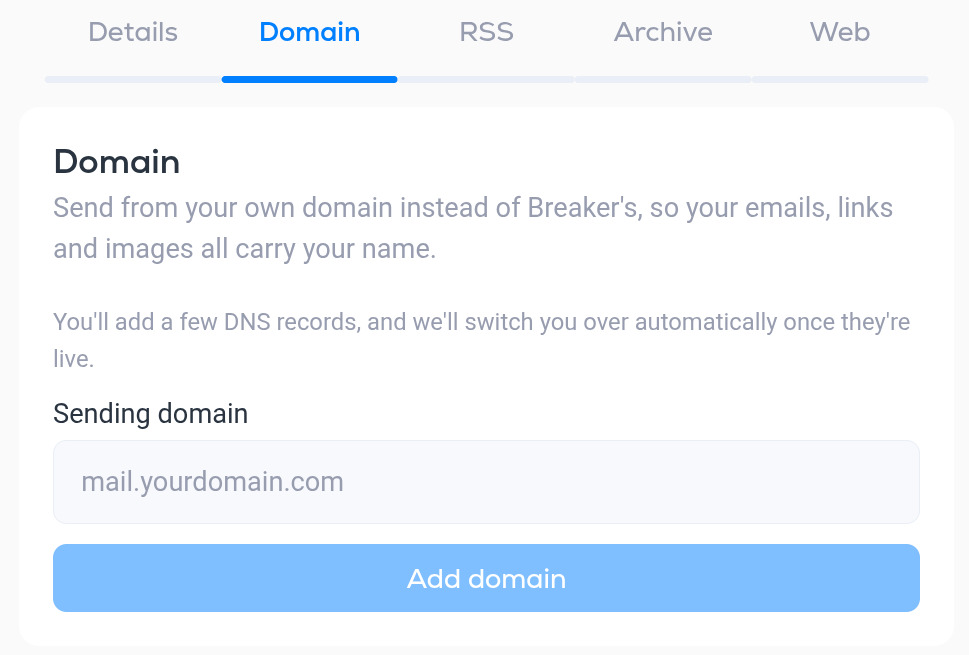
Add a domain
- Enter the Sending domain you want to use. A subdomain such as mail.yourdomain.com or news.yourdomain.com is recommended. It keeps newsletter sending separate from your everyday business email.
- Click Add domain.
- Breaker shows the DNS records to add at your domain registrar or DNS host.
- Add the records exactly as shown. Breaker checks them in the background and switches your sending to the new domain once they are found. Check now re-reads your DNS right away if you do not want to wait.
The DNS records
The records are split across two tabs. Each record shows its Type, Host and Value, with a copy button next to each, and a Found badge once Breaker can see it in your DNS.
The values in the screenshots below are examples. Always copy the values shown in your own account.
Sending domain
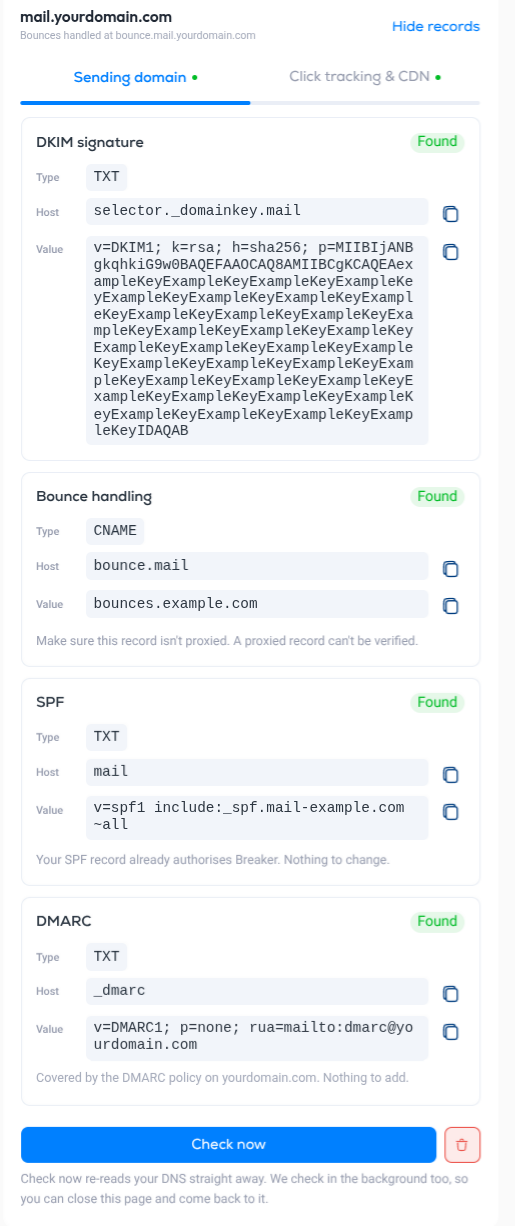
- DKIM signature (TXT). A key that lets mailbox providers verify an email really came from your domain.
- Bounce handling (CNAME). Routes bounced emails back to Breaker so bad addresses are removed from your list.
- SPF (TXT). Lists Breaker as an allowed sender for the domain. If your existing SPF record already covers Breaker, the panel says so and there is nothing to change.
- DMARC (TXT). Tells mailbox providers what to do with email that fails the checks above. If your main domain already has a DMARC policy that covers the subdomain, the panel says there is nothing to add.
Click tracking and CDN
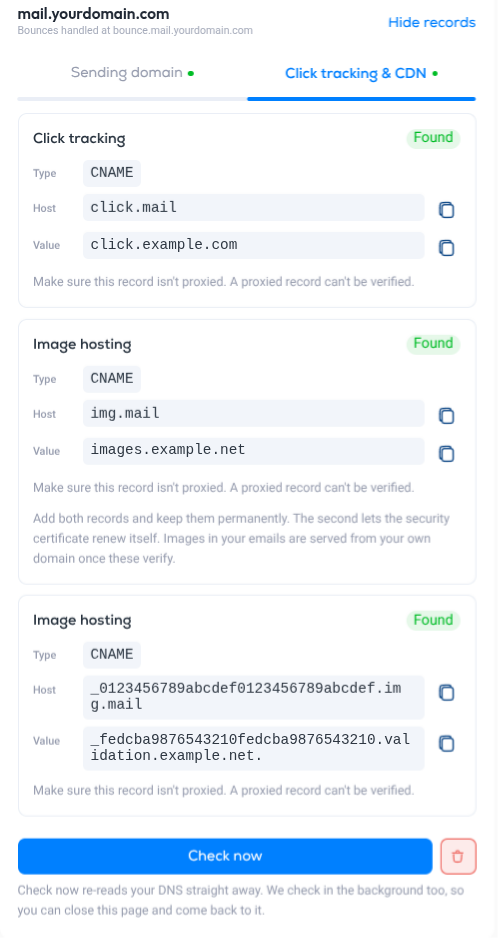
- Click tracking (CNAME). Makes the tracked links in your emails use your domain.
- Image hosting (two CNAME records). The first serves the images in your emails from your domain. The second lets the security certificate for that address renew itself. Add both and keep them permanently.
Tips for adding records
- CNAME records must not be proxied. In Cloudflare, set the record to DNS only. A proxied record cannot be verified.
- Most DNS hosts want only the part of the Host before your main domain. If your sending domain is mail.yourdomain.com and the host is shown as bounce.mail, enter bounce.mail.
- DNS changes can take from a few minutes to a day to be visible.
- Hide records collapses the list. The red bin button removes the domain from your newsletter.
When the domain is connected
Once the records are found, the Domain tab confirms the address you are sending from.
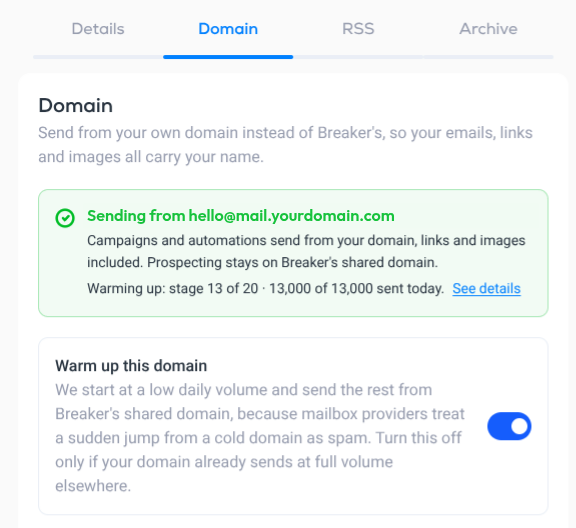
Campaigns and automations now send from your domain, with links and images included. Prospecting emails that find new subscribers for you stay on Breaker's shared domain.
Automatic warm-up
Mailbox providers are suspicious of a domain that goes from no email to thousands of emails overnight, and they treat that jump as spam. So Breaker warms a new sending domain up for you.
With Warm up this domain on, Breaker sends a limited number of emails from your domain each day and sends the rest from Breaker's shared domain. Every subscriber still gets every email. The daily limit rises in stages until all of your sending is on your own domain. You do not have to schedule or split anything yourself.
See your progress
The status line shows the current stage and how much of today's limit has been used. Click See details for the full picture.
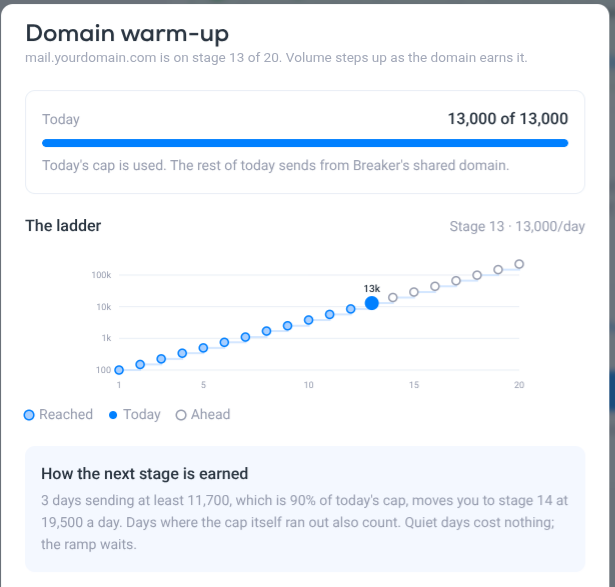
- Today. How many emails have gone out from your domain today against today's cap. When the cap is used, the rest of the day's emails send from Breaker's shared domain.
- The ladder. All 20 stages, from about 100 emails a day to more than 100,000. Filled dots are stages you have reached, the large dot is today, and hollow dots are ahead.
- How the next stage is earned. You move up after three days of sending at least 90% of the current cap. Days when the cap ran out count too. Quiet days cost nothing: the ramp waits for you and does not move backwards.
When to turn warm-up off
Turn Warm up this domain off only if the domain is already warm, for example:
- The domain already sends this kind of volume from another platform.
- You are migrating to Breaker and bringing an established sending domain with you.
With warm-up off, all sending moves to your domain at once. On a domain with no sending history that usually hurts deliverability, so leave it on if you are unsure.
Related
The public archive of your newsletter can use a custom domain too, which is set up separately. See Web publishing.