
Breaker app tour and navigation
What each item in the left-hand menu does, and what the Overview page shows you when you sign in.
When you sign in at app.breaker.email you land on the Overview page. The menu on the left is the same on every page, so this article walks through it once.
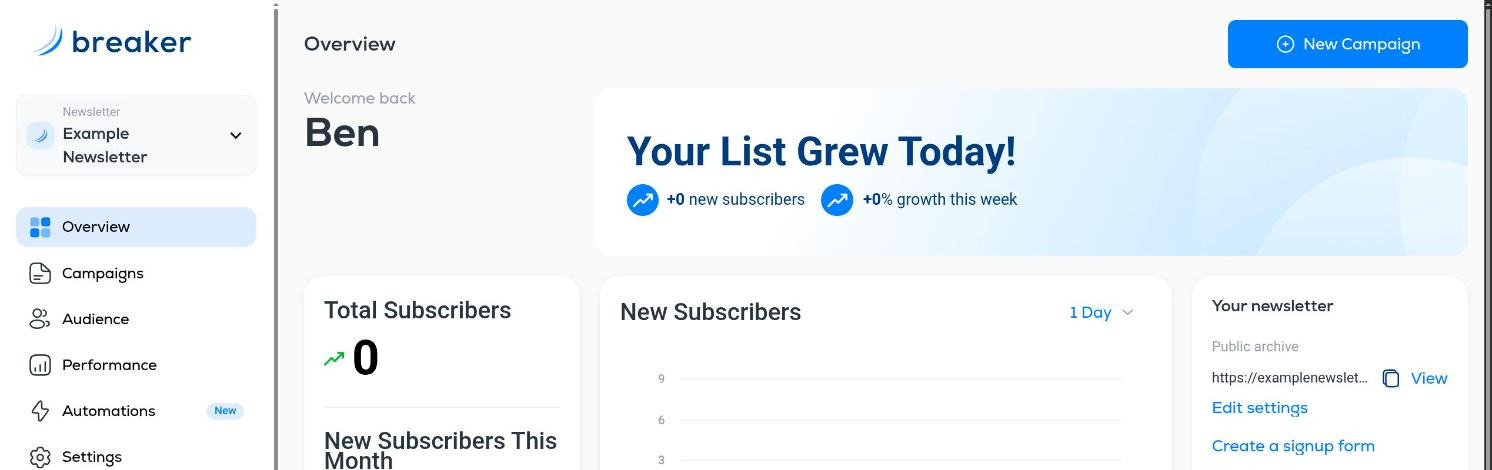
The left-hand menu
- Newsletter switcher (top left). Shows the newsletter you are working in. Click it to switch to another newsletter or create a new one. Everything else in the app, including contacts, campaigns and settings, belongs to the newsletter you have selected. See Switch between newsletters or add a new one.
- Overview. Your dashboard: subscriber totals, recent growth, campaign performance and shortcuts.
- Campaigns. Every email you have written or sent, with its status and results. See Search, filter and export campaigns.
- Audience. Your contacts, plus the Segments, Custom Fields and Custom Tags tabs that organize them.
- Performance. Charts of subscribers, sends, opens, clicks, unsubscribes and spam complaints over time. See Performance dashboard.
- Automations. Emails and actions that run on their own when something happens to a contact. See Automations overview.
- Settings. Newsletter details, sending domain, public archive, RSS, signup forms, integrations, team and billing.
- New subscribers from Breaker. A running count of subscribers Breaker's growth network has sent you.
- Upgrade. Opens Billing so you can switch plans.
- Add Team Members. Opens the Team tab in Settings. See Team members and roles.
- Refer a Friend. Shows your personal referral link. You earn a share of what people you refer spend.
- Your name (bottom left). Opens your profile: name, photo, password and test recipients. See Profile settings and test recipients.
What the Overview page shows
- Your List Grew Today! New subscribers today and growth this week.
- Total Subscribers and New Subscribers This Month. Live counts for this newsletter.
- New Subscribers chart. Daily signups. Use the range menu (1 Day and longer windows) to widen the view.
- Your newsletter. The address of your public archive with a copy button and a View link, plus shortcuts to Edit settings, Create a signup form and Connect AI.
- General Campaigns Performance. Total campaigns, average open rate, click-through rate, and total sent, opened and clicked across everything you have sent.
- Recent Campaigns. Your latest sends with their open and click rates, and a View All Campaigns link.
- New Campaign (top right). Starts a new campaign from anywhere.
The chat bubble
The blue chat bubble in the bottom-right corner opens support chat. Use it whenever you are stuck.
Support