
Switch between newsletters or add a new one
One Breaker account can run several newsletters. Here is how to switch between them and start a new one.
Each newsletter in Breaker has its own contacts, campaigns, automations, settings, team and billing. The newsletter you are working in is shown at the top of the left-hand menu.
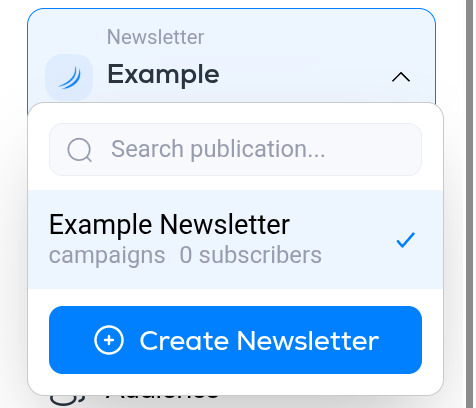
Switch newsletters
- Click the newsletter name at the top left.
- Pick a newsletter from the list. If you have many, type in Search publication to filter the list.
The tick marks the newsletter you are in. Each entry also shows its campaign and subscriber counts.
Create a newsletter
Click Create Newsletter at the bottom of the switcher and follow the steps. The new newsletter starts empty, with its own settings and its own plan, and you become its owner.
What is shared and what is not
- Shared across newsletters: your login, your profile and your confirmed test recipient addresses.
- Separate per newsletter: contacts, segments, tags, custom fields, campaigns, automations, signup forms, the public archive, the sending domain, API keys, webhooks, team members and billing.
If a colleague cannot see a newsletter you expect them to see, they need to be invited to that specific newsletter. See Team members and roles.
Support