
Connect Claude or ChatGPT (hosted MCP)
Connect claude.ai or ChatGPT to your newsletter through Breaker's hosted MCP server, and see or disconnect connected clients.
Breaker has an MCP (Model Context Protocol) server, which means AI assistants can work with your newsletter directly from a chat: draft a campaign, look up a contact, build a segment, pull last month's numbers. Your assistant only sees the newsletter you connect, and only does what you ask it to.
Two ways to connect
Browser assistants (claude.ai, ChatGPT) connect to Breaker's hosted server at https://api.breaker.email/mcp. You add it as a connector in the assistant, sign in with your Breaker account, and pick the newsletter. No key to copy.
Desktop and command-line assistants (Claude Code, Claude Desktop, Cursor, Codex, VS Code) run Breaker's MCP package on your computer with an API key from this newsletter. See API keys.
For the exact command or config for each of these, see Connect Claude Code, Codex, Cursor and other MCP clients.
Connect claude.ai
- In claude.ai open Settings, Connectors, then Add custom connector.
- Name it Breaker, paste
https://api.breaker.email/mcpas the URL, and click Add. - Click Connect and sign in with your Breaker account. The sign-in picks the one newsletter this connection can reach.
- Start a chat and ask. The Breaker tools show up in the tools menu.
Running more than one newsletter? Add the connector once per newsletter and sign in to each.
Connect ChatGPT
ChatGPT connects through Developer mode, a beta feature on Plus and Pro plans. On Business, Enterprise and Edu workspaces an admin has to enable it first.
- Open Settings, Plugins, Developer mode, and turn Developer mode on.
- Go to Settings, Plugins, Browse Plugins. Press + in the top right corner and select Create MCP App.
- Give the connection a name, paste
https://api.breaker.email/mcpunder Connection, and leave authentication as OAuth. - Sign in with your Breaker account when ChatGPT asks, then start a chat.
See what is connected
Open Settings, then Integrations, then AI Clients.
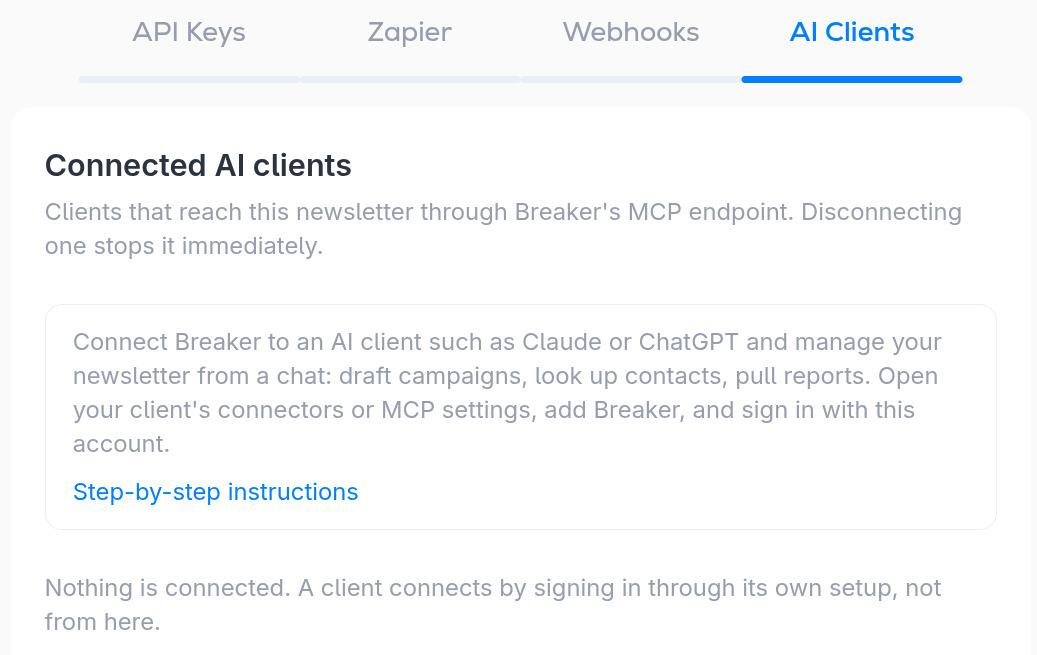
The list shows every client that has signed in to this newsletter through the hosted MCP server. A client appears here after it connects through its own setup; you cannot add one from this page. Disconnecting a client revokes its access immediately, and it will have to sign in again to reconnect.
Clients that run the MCP server locally with an API key are not listed here. To cut one off, revoke its key on the API Keys tab.
What the assistant can do
The server exposes the same things the API does: campaigns (create, edit content, preview, list), automations and their emails, contacts and tags, segments and their rules, signup forms, and reports. It cannot send a campaign or delete contacts: everything an assistant writes is a draft for you to review.